The E-invoices screen
See the invoices, credit notes and debit notes ZATCA has not accepted yet, send them again, and read ZATCA's messages.
E-invoices (ZATCA) lists the documents of your Saudi branches that ZATCA has not accepted yet: invoices, credit notes and debit notes that were not sent, were rejected, or are still waiting. Finance uses it to retry, correct and read ZATCA's messages. Branches in other countries never appear here, and neither do invoices issued while a branch's e-invoicing was off (they are not e-invoices).
Open it from the main menu: E-invoices, in the Money group after Payments. The menu item shows only when the agency has a branch in Saudi Arabia, and only to people who can set up e-invoices or issue invoices. You also reach the screen from the alert on the Dashboard (for example 2 e-invoicing items need attention (ZATCA)). The same list is also at the bottom of Settings → E-invoicing (ZATCA).
What you see
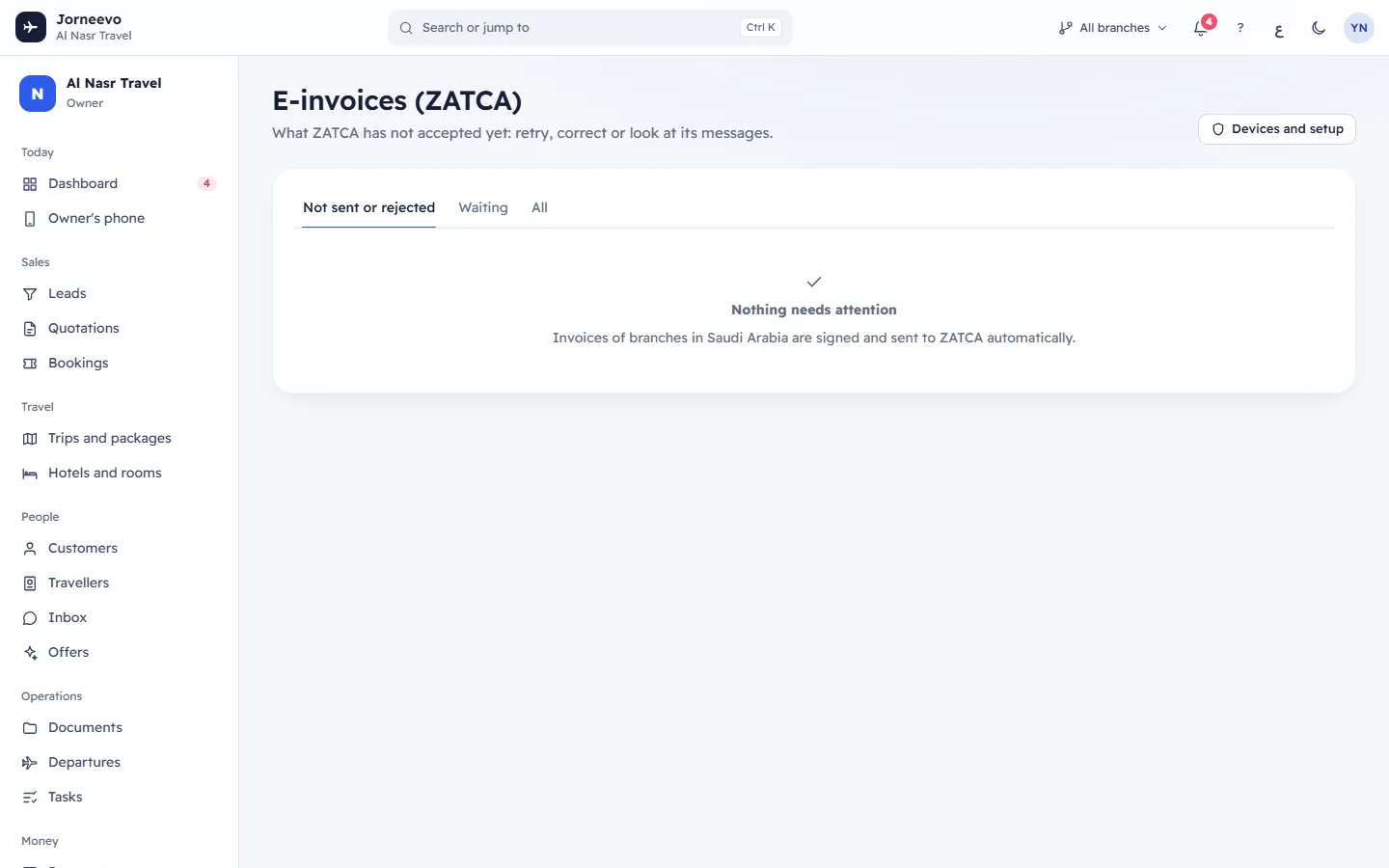
- The title E-invoices (ZATCA) and the line What ZATCA has not accepted yet: retry, correct or look at its messages.
- Devices and setup (top right, if you can change settings or set up e-invoices): opens Settings → E-invoicing (ZATCA), where the branch's devices are onboarded and renewed.
- Three tabs:
- Not sent or rejected: documents with the status ZATCA: Not sent or ZATCA: Rejected. This tab opens first.
- Waiting: documents with the status ZATCA: Pending, waiting for a device or for ZATCA's answer.
- All: every document that has an e-invoice status, newest first.
- The table, one row per document:
| Column | What it shows |
|---|---|
| Number | The document number (it opens the booking), then its kind (Invoice, Credit note or Debit note) and standard or simplified. |
| Date | The issue date. |
| Customer | The booking's customer. |
| Branch | The branch that issued the document. |
| Total | The document total in its currency. |
| E-invoice | The ZATCA status chip, the invoice counter (ICV) and how many times it was sent, for example ICV 42 · 3×. |
| Problem | ZATCA's first error message in your language, or the last error. Waiting for an onboarded device means the branch's e-invoicing is on but it has no ready device yet. |
When nothing needs you, the screen shows Nothing needs attention (or No e-invoices yet on All) with Invoices of branches in Saudi Arabia are signed and sent to ZATCA automatically.
What you can do here
- Send now (on rows that are ZATCA: Pending or ZATCA: Not sent): sends the document to ZATCA at once. A
message shows the number and the new status in words, for example
INV-1024: Cleared. See Fix and resend a failed or rejected e-invoice. - Press the status chip in E-invoice to open the E-invoice (ZATCA) panel: the QR code, the UUID, the counter, the hash, ZATCA's answer, the next automatic try and every message with its code. From there you can press Send again now, Correct and send as a new document, or download Signed XML and Cleared XML (legal copy).
- Press the number to open the booking, where the invoice and its notes are listed on the Payments tab.
You need Set up and send e-invoices (ZATCA) to send or correct. With Issue invoices and credit notes you can open the screen and read everything.
Statuses
| Chip | Meaning |
|---|---|
| ZATCA: Pending | Signed and waiting to be sent, waiting for an onboarded device, or ZATCA could not be reached yet. The system tries again by itself. |
| ZATCA: Cleared | ZATCA cleared this standard (B2B) document. You may give it to the buyer. |
| ZATCA: Reported | ZATCA received this simplified (B2C) document. |
| ZATCA: Accepted, warnings | ZATCA accepted it and returned warnings to read in the details panel. It is a valid document (its QR code prints as usual). The rows here and on the booking show this status. |
| ZATCA: Rejected | ZATCA refused it. Fix the data and send it as a new document. |
| ZATCA: Not sent | It failed the system's own check, the device was refused, or the tries ran out. |
The full list, with what moves a document from one status to another, is in Invoice and e-invoice statuses.
Related articles
- Fix and resend a failed or rejected e-invoiceSend a pending or not-sent e-invoice again, or fix the data of a rejected one and send it to ZATCA as a new document.
- ZATCA e-invoicing explainedHow invoices of Saudi branches are signed and sent to ZATCA: clearance and reporting, devices and certificates, the QR code and retries.
- E-invoice rejected, not sent or stuck: fixesWhat to do when ZATCA rejects an invoice, an e-invoice stays pending or not sent, a device or OTP fails, or a Rounding line appears.
- Invoice and e-invoice statusesEvery invoice kind, invoice type, invoice state, ZATCA e-invoice status and e-invoicing device status, with what each means.
- ZATCA validation and rejection codesEvery rule code the system or ZATCA can show on an e-invoice, what it means in plain words, and how to fix it.