Add a currency and its exchange rates
Add a currency, enter a new rate from today or a future day, import many rates from a file, or copy today's rates from your source.
Add a currency before you price a trip, record a supplier cost or take a payment in it. Enter a new rate whenever your rate changes: the old rate stays in the history for the days it applied.
Before you start
- You need permission to change settings.
- Rates are always "1 unit of the currency = so much of your base currency". You can type either direction; the other is worked out for you.
Steps
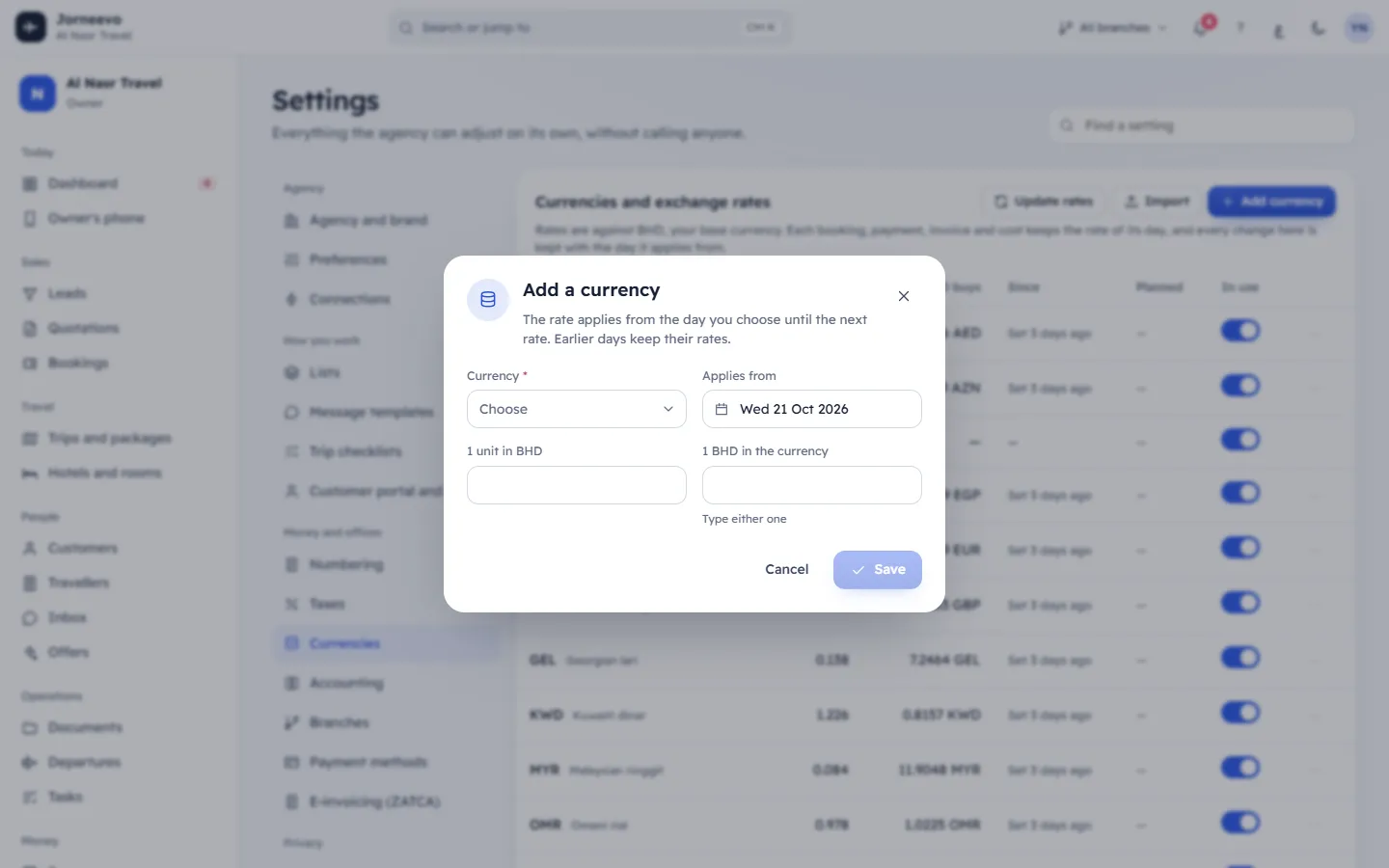
Add a currency
- Open Settings → Currencies and press Add currency. The Add a currency window opens.
- Choose the Currency (your base currency is not in the list).
- Keep Applies from on today, or choose another day.
- Type the rate in 1 … in … (what 1 unit is worth in your base currency), or type the other direction in 1 … in … below it (Type either one). The line under the fields shows both directions to check.
- Press Save. The message Rate saved appears and the currency is added with In use on.
Enter a new rate for a currency
- In the currency's row menu, press New rate. The New rate for … window opens: The rate applies from the day you choose until the next rate. Earlier days keep their rates.
- Choose Applies from: today, a future day (the rate waits until then), or a past day (to correct the history from that day on).
- Type the rate in either direction.
- Press Save. You see Rate saved, or The rate applies from … for a future day. A future rate shows in the Planned column until its day.
Import many rates from a file
- Press Import. The Import exchange rates window opens: A CSV or Excel file. Nothing is saved if a line is wrong.
- Prepare a CSV or Excel file with the columns
code,rate(1 unit in your base currency) orper_base(units for 1 of your base currency), anddate(YYYY-MM-DD; empty means today). The window shows an example. Up to 5000 lines. - Press Choose a file and pick the file.
- Press Import. The message says how many rates were imported and for which currencies. Currencies not yet on your list are added.
Copy today's rates from your source
- Check the address in Where rates come from (empty uses the free source shown).
- Press Update rates. Each currency in use gets today's rate from the source, marked Rates source. The message lists the codes the source did not have.
Note
Rates never change on their own. Nothing updates them until someone presses Update rates, types a rate or imports a file.
After you save
- New bookings, payments, invoices and costs in that currency use the rate in force on their day.
- Amounts already recorded keep the rate they were saved with.
- Rate history in the row menu lists every rate with its day, its source and who entered it.
- A planned rate can be removed with × until its day comes.
If something goes wrong
- Save stays grey: no currency is chosen or the rate is empty or zero.
- Enter a rate above zero: type a positive rate.
- Enter the rate for the new currency: a new currency needs a rate.
- … is the base currency: its rate is always 1: you do not need a rate for your base currency.
- Use a date like 2026-10-18: correct the date (in a file, use
YYYY-MM-DD). - Use a three-letter currency code: use codes like
USDorSAR. - … line(s) could not be read. Nothing was imported.: the window lists the first wrong lines as Line …: …. Correct them and import the whole file again.
- The file needs a "code" column and a "rate" (or "per_base") column: name the columns as shown.
- Use a CSV or Excel file, The file is empty or Import up to 5000 rates at a time: fix the file and try again.
Related articles
- Currencies and exchange ratesThe currencies your agency works in, their exchange rates with full history, where rates come from and the currency reports open in.
- Why can't I change the main currency?The main currency is locked once money or exchange rate history is recorded. When it can change, what happens, and what to do instead.