Currencies and exchange rates
The currencies your agency works in, their exchange rates with full history, where rates come from and the currency reports open in.
This screen lists the currencies you sell, buy and get paid in, with their exchange rates against your base (main) currency. Open it from Settings → Currencies. You need permission to change settings.
Every rate applies from a day until the next rate, and every change is kept. Each booking, payment, invoice and cost keeps the rate of its own day, so a new rate never changes amounts already recorded.
What you see
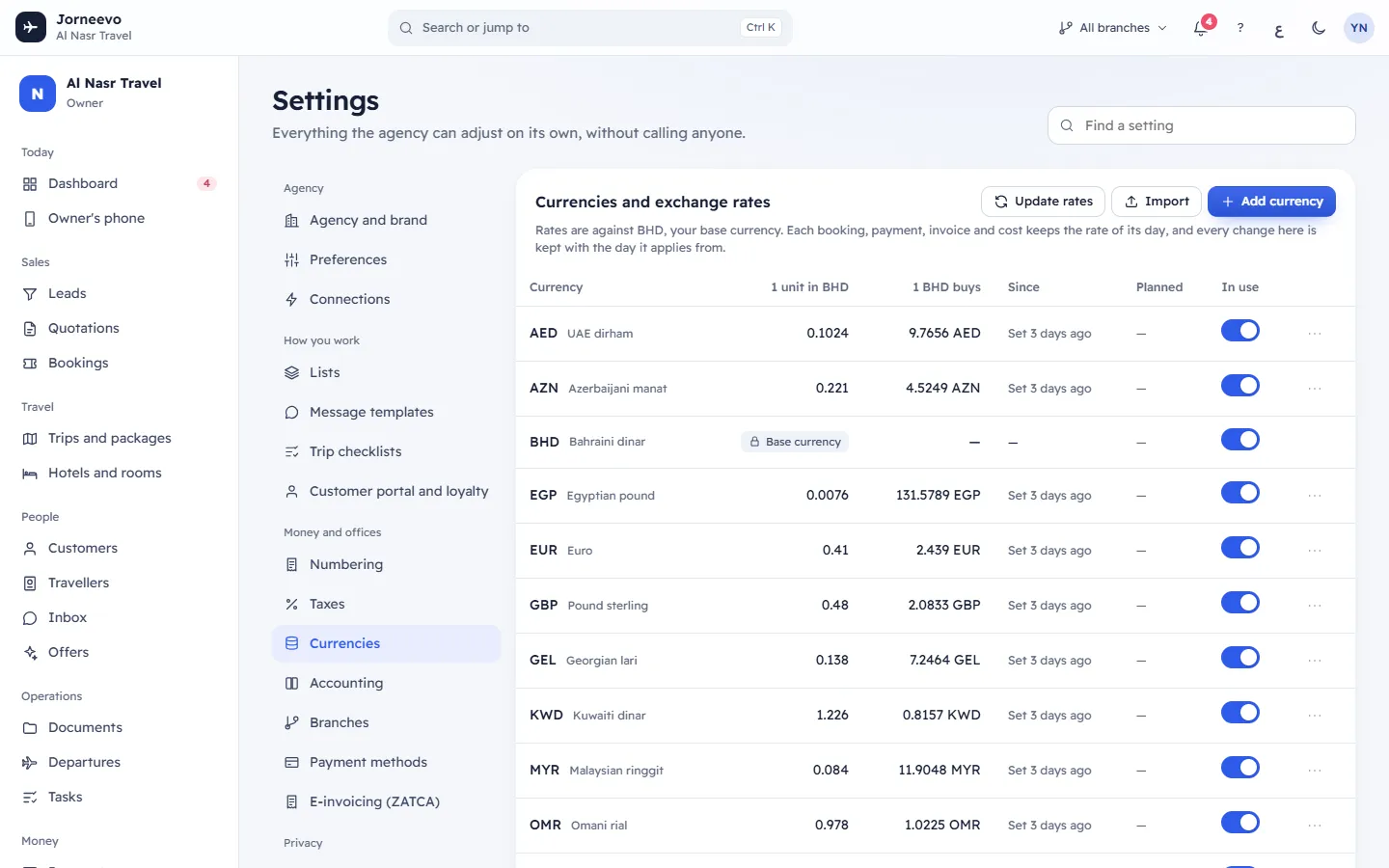
Currencies and exchange rates
The note under the title says which currency the rates are against: Rates are against …, your base currency. At the top: Update rates, Import and Add currency.
| Column | What it shows |
|---|---|
| Currency | The code and the name, for example SAR Saudi riyal |
| 1 unit in … | What 1 unit is worth in your base currency, with ▲ or ▼ and the % change from the previous rate. The base currency shows Base currency |
| … buys | The other direction: how much of the currency 1 unit of your base currency buys |
| Since | The day the current rate applies from, and where it came from (see below). Without dated history: Set … (when it was set) |
| Planned | A rate waiting for a future day, with its date, and × (Remove the planned rate) |
| In use | Switch. Currencies in use are offered for prices and reports and are refreshed by Update rates. The base currency is always in use |
The row menu has New rate, Rate history and Remove (no menu on the base currency).
Where a rate came from
| Label | Meaning |
|---|---|
| Typed | Entered by hand with Add currency or New rate |
| Rates source | Copied with Update rates from the address in Where rates come from |
| Imported | Loaded from a CSV or Excel file with Import |
| Starting rate | An approximate rate the system set when the currency first appeared. Replace it with your real rate |
Rate history
Rate history opens a side panel: … rate history, 1 … in …. Each rate applies from its day until the next one. Each row shows From (the day, In force on the current rate, Planned on a future one, who entered it and when), Rate, Per … (the other direction) and Source. A planned rate has Remove. No history yet means the rate was set before rates were kept with dates; the next rate you enter starts the history.
Reports open in
The currency reports, the dashboard and the owner’s phone show at first. Anyone can switch on the screen; their choice is remembered on their device. Choose the base currency or any currency in use. The message Report currency saved appears.
Where rates come from
The web address Update rates reads. Rates never change on their own. Press Update rates to copy today's rates
from this address (each becomes a history entry from today), or enter rates by hand or from a file. Use {BASE}
where the base currency goes. Left empty, a free source is used, which needs no key:
https://open.er-api.com/v6/latest/{BASE}. The address must start with https://. Last updated … shows the last refresh.
Press Save; the message Rates source saved appears.
The base currency note
The base currency (…) is set on the agency page. It cannot change once money is recorded, because every saved rate is against it; show reports in another currency instead. See Why can't I change the main currency?.
What you can do here
- Add a currency, enter a new rate, plan a rate for a future day or import a file: Add a currency and its exchange rates.
- Press Update rates. The message says how many rates were updated and from which source, and lists the codes the source did not have (Not found: …).
- Turn In use off for a currency you no longer use. Its rates stay.
- Remove a currency. The window Remove …? says: Its history stays, so records already saved in it keep converting at the rate of their day.
- Remove a planned rate with × or in Rate history. The message Planned rate removed appears.
Tip
When you add a branch in a new currency, the currency is added with an approximate rate, or with rate 1 and In use off when no rate is known. Enter the real rate before you sell in it.
If something goes wrong
- There is no exchange rate for …. Add it in Settings → Currencies. (on bookings, payments or reports): add the currency and its rate here.
- Only rates for a future day can be removed. Enter a new rate to correct one already in use.: a rate in force or in the past stays as the record of what applied. Enter a new rate from today instead.
- The base currency cannot be removed: the base currency always stays.
- Could not reach the rates source (…): the address did not answer. Check it, or enter rates by hand.
- The rates address must start with https:// or Use an address that starts with https://: correct the address.
- The source returned rates for …, not …: the address returns rates against another currency. Put
{BASE}in the address, or use a source that returns rates for your base currency.
Related articles
- Add a currency and its exchange ratesAdd a currency, enter a new rate from today or a future day, import many rates from a file, or copy today's rates from your source.
- Why can't I change the main currency?The main currency is locked once money or exchange rate history is recorded. When it can change, what happens, and what to do instead.
- Agency and brandYour agency's name, country, time zone, main currency, language, VAT number, contact details, brand colour and logo, with a live preview.
- BranchesYour offices: each works by its country's currency, VAT and e-invoicing, and prints its own seller details on its invoices.