The Documents screen
Every traveller's papers for a trip in one grid, checked against what the trip needs, with upload, view, send and delete in place.
Documents shows the papers of every traveller on one trip in a single grid: one row per traveller, one column per document the trip needs. You see at a glance what is missing, file what arrives, and tell the customer when everything is ready. Operations and sales staff use it most in the weeks before a departure.
What you see
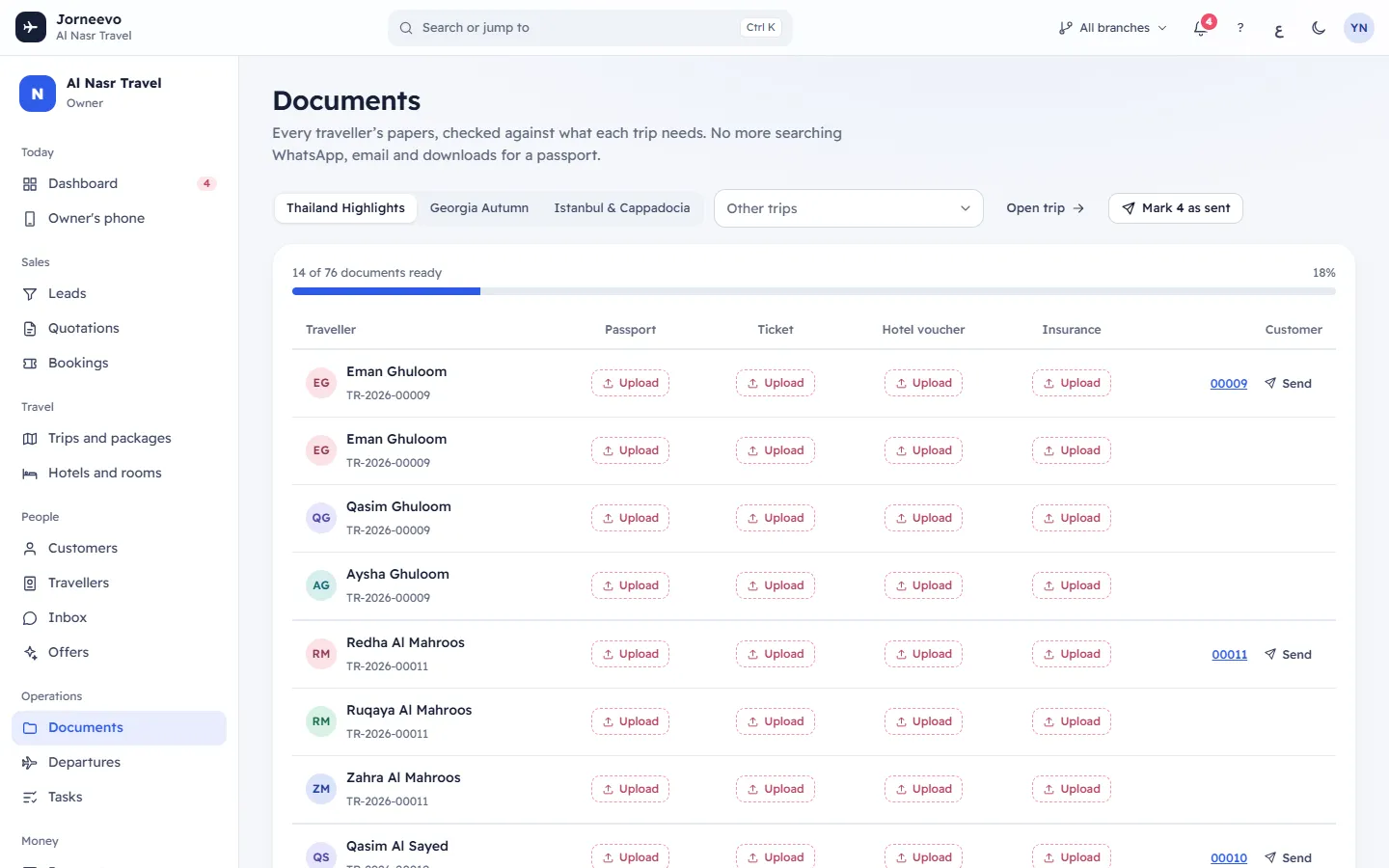
The trip picker (top)
- The three nearest trips, as buttons. Trips that have not returned yet come first, the next departure first; finished trips come after them.
- Other trips: a list of every other trip that is published, closed for sale or completed, with its code, name and departure date. Draft and cancelled trips are not listed.
- The trip you worked on last opens first the next time you come back.
- Booking with a booking number: shown when you came from a booking (Open in Documents on the booking's Documents tab). The grid then shows that booking only. Press the x on it to see the whole trip.
- Open trip: opens the trip page.
- Mark … as sent: marks every received document in the grid as sent to its customer (see Send documents to the customer).
The grid
- At the top: "… of … documents ready", the percentage and a progress bar. The bar turns green when nothing is missing.
- If the trip has no required documents, the note This trip has no required documents set, so every type is shown. appears and the grid shows every document type of the agency.
- Traveller: the travellers of the trip's confirmed bookings, grouped by booking (a line separates bookings). Under each name you see the booking number, or Ready to fly when the traveller has every document.
- One column per document type, for example Passport, Visa or Ticket. Each cell shows:
- a single tick: Received;
- a double tick: Sent to the customer;
- Upload: the document is missing and you can file it (hover: Click or drop a file here);
- Missing: the document is missing and your role cannot upload;
- — (hover: One for the whole booking): the type is filed once per booking, on the booking's first traveller.
- Customer: on each booking's first row, the last digits of the booking number (opens the booking) and Send. Send is highlighted when every traveller on the booking is ready.
- The grid shows 40 travellers at a time. Press Show more for the next 40.
- When the last missing document of the trip is filed, the grid is stamped READY TO FLY.
Under the grid
- Drop files or take a photo: drop a file here, or press it to choose a file or take a photo on a phone ("PDF or image. You choose the traveller and the type.").
- Recently filed: the six latest documents of the trip, with the type, the traveller, how long ago, and View.
The document menu
Press a tick to open its menu: the file name (or No file attached) and its expiry date, then View, Download, Mark sent to customer, Replace file and Delete. You only see the actions your role allows.
What you can do here
- File a document in a cell, by dropping it, or with File a document: Upload travel documents.
- Open or download a file: press the tick, then View (PDF files and pictures open in a new tab) or Download.
- Tell the customer the documents are ready, and mark documents as sent: Send documents to the customer.
- Remove a document filed by mistake: Delete a document.
- Find passports that expire too soon: Check passports that expire too soon.
Statuses
| Status | What it means | What moves a document to it |
|---|---|---|
| Missing | The trip needs this document and none is filed. | Nothing filed yet, or the file was deleted. |
| Received (single tick) | The file is in the system. | You upload or replace it, or the customer sends it from their trip page. |
| Sent to the customer (double tick) | The agency has given this document to the customer. | You mark it as sent. |
| Ready to fly | The traveller has every document the trip needs. | The traveller's last missing document is filed. |
If something goes wrong
- No trips yet: no trip is published, closed for sale or completed. Publish a trip first.
- No travellers on this trip yet: the trip has no confirmed booking with travellers.
- This trip could not load: press Try again.
Related articles
- Upload travel documentsFile a passport copy, visa, ticket or voucher for a traveller, by clicking a cell, dropping a file or choosing the traveller and type.
- Send documents to the customerTell the customer by WhatsApp or email that their travel documents are ready, then mark the documents as sent.
- Delete a documentRemove a document filed by mistake, with its stored file, so the cell shows the document as missing again.
- Documents: common questionsFile types and sizes, storage limits, who can delete, why a traveller or document type is missing, and what the customer sees.