Inbox
The chats customers start from their account: find a conversation, read it with the customer's bookings alongside, reply, assign and close.
Inbox holds the chats with your customers from their customer account. Your replies reach them in the app; when they are away, the system can also tell them by WhatsApp or email. Use it to answer questions about trips, payments and documents in one place.
Note
Customers can write to you only when the customer account is switched on: Settings → Customer portal and loyalty → Customers can sign in.
What you see
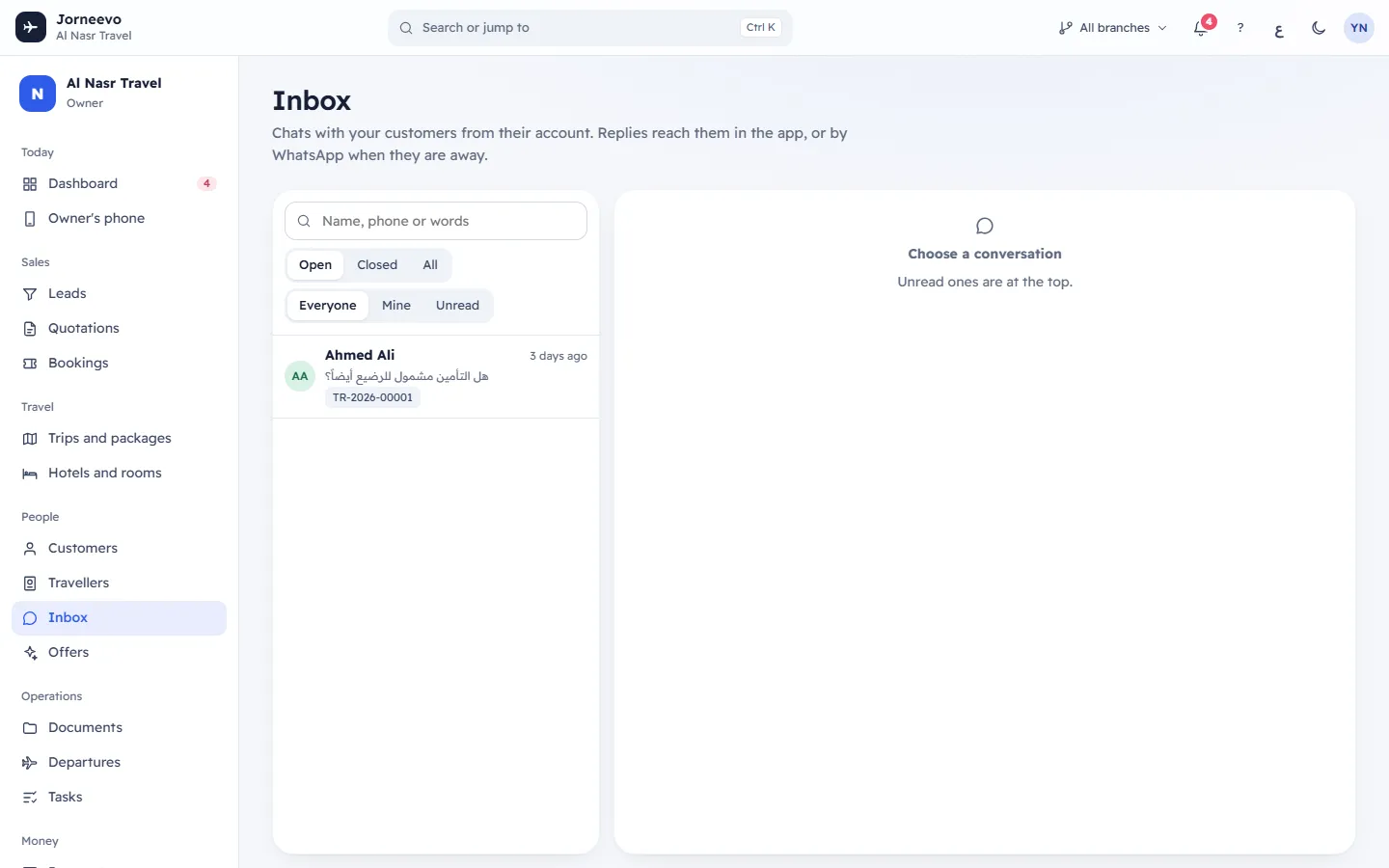
On a computer the screen has two parts: the list of conversations, and the open conversation next to it. On a phone you see the list first; open a conversation to read it and press Back to the list to return.
Conversations
At the top of the list:
- Name, phone or words: search by the customer's name (in English or Arabic), their phone number, or any words in the messages.
- Open, Closed, All: which conversations to show. The list starts on Open.
- Everyone, Mine, Unread: all conversations, only those assigned to you, or only those with messages nobody has read yet.
Then the conversations (up to 100): those with unread messages first, then the one with the newest message first. Each shows:
- The customer's initials, with a green dot when the customer is in the app now (Online now).
- The customer's name and how long ago the last message came.
- The start of the last message. You: in front means it came from your team; a paper clip means a file.
- The booking number when the conversation is linked to a booking, and Closed when it is closed.
- A count of unread messages, for example 2, when the customer wrote and nobody has read it yet.
With none: No conversations here and When a customer writes from their account, it shows here. With no conversation open: Choose a conversation.
The conversation
The header shows:
- The customer's name: press it to open the customer's file.
- Whether the customer is In the app now, when they were last seen (Last seen 2 h ago), or Not seen in the app yet, and their phone number.
- Assigned to: the team member who follows this chat, or Nobody. Your own name shows with (me).
- Close, or Reopen when the conversation is closed.
Under the header, when the customer has bookings: up to six of them, each with the booking number, the trip, its date and the amount still due. Press one to open the booking. The linked booking is highlighted. Link a booking (the link icon) lets you choose which booking the chat is about, or Not about a booking.
The messages are grouped by day. The customer's messages are on one side, your team's on the other with the name of the person who wrote. Pictures show in the chat (press one to open it full size); other files show as a link with their name. Lines such as Closed by Mariam record who closed or reopened the conversation. Under your last message: Sent, or Seen by the customer once they have read it.
At the bottom, the reply box:
- Attach a file (the upload icon): sends a photo or a PDF at once, with any text you typed.
- Quick replies (the note icon): adds a ready answer. It shows only when your agency has quick replies.
- The reply box: Reply, or Reply (the customer reads Arabic) when the customer's language is Arabic. Up to 4000 characters.
- Send, or
Ctrl Enter(Cmd Enteron a Mac).
The list refreshes every few seconds, and the open conversation every five seconds, so new messages appear by themselves.
What you can do here
- Reply to a customer, with a quick reply or a file: Reply to a customer chat.
- Assign a conversation to a colleague, link it to a booking, close it or reopen it.
- Find a past conversation with All and the search.
Statuses
| Status | What it means |
|---|---|
| Open | The conversation is in progress. Every new conversation starts open. |
| Closed | Someone pressed Close. It opens again by itself when the customer writes or when you reply. |
| Unread | The customer wrote and nobody has opened the conversation since. Opening it marks it read. |
| Sent / Seen by the customer | Under your last message: delivered to the customer's account, then read by them. |
If something goes wrong
- This conversation could not be opened: it no longer exists, or it belongs to a customer of a branch you do not cover. Go back to the list and refresh.
- The Inbox item is missing from the menu: your role does not include chatting with customers. Ask the agency owner.
Related articles
- Reply to a customer chatAnswer a customer who wrote from their account, with text, a quick reply, a photo or a PDF, then assign, link or close the chat.
- Inbox questionsWhen replies also go by WhatsApp or email, closing chats, the unread badge, quick replies and who sees which conversations.
- What each alert meansEvery alert on the dashboard and in the bell: what triggers it, what it says, where its button goes and what makes it go away.