Offers
The offers customers see in their account and the promo codes they type when booking: their discount, dates, audience, uses and status.
Offers lists what your customers see in their customer account, and the promo codes they can use when they book there. An offer can be a discount on one trip, a code for one group of customers, or a seasonal message with no discount at all.
What you see
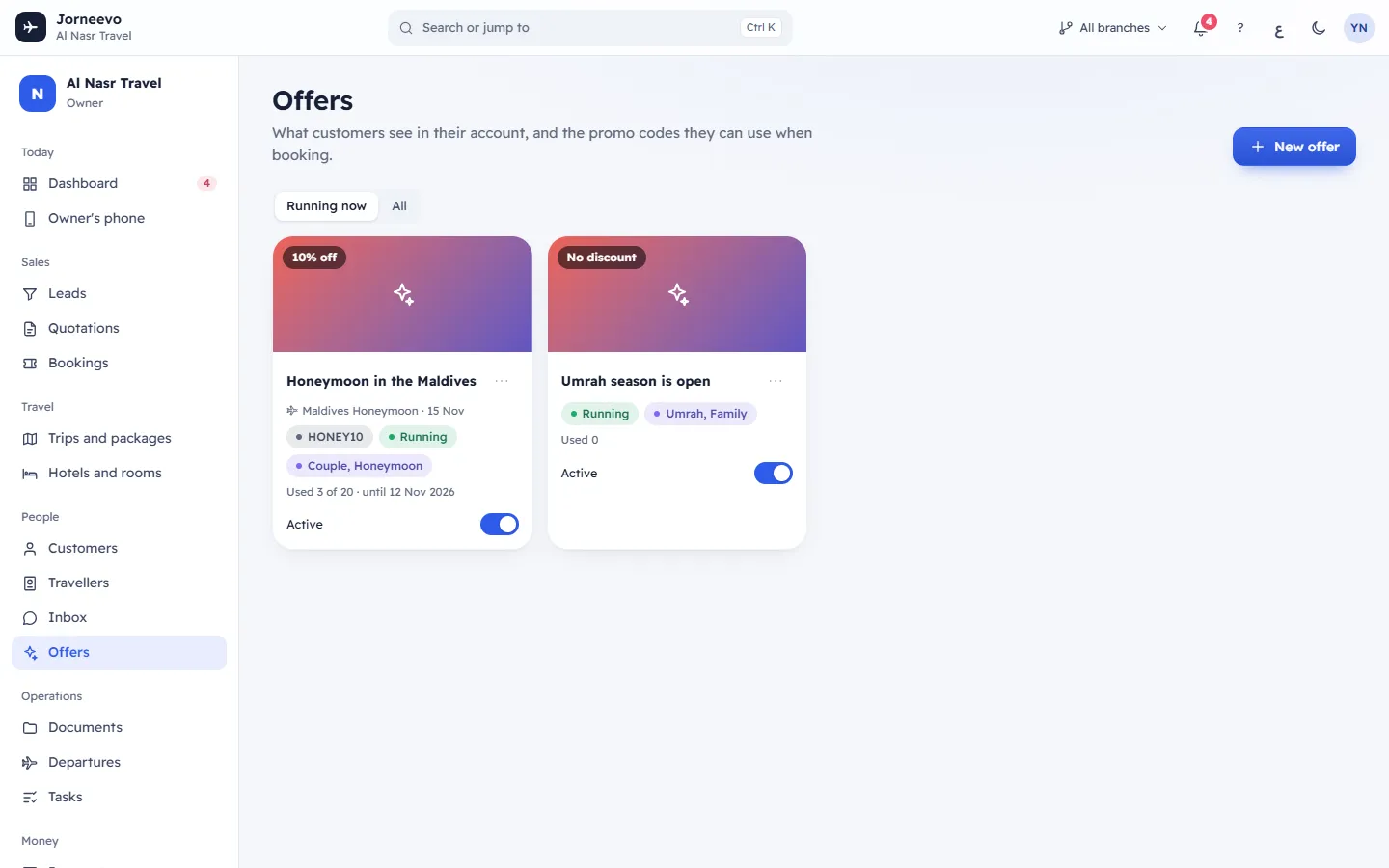
The header
- New offer: opens the New offer panel. See Create an offer for the customer account and Create a promo code.
- Running now and All: the screen starts on Running now, which shows only the offers customers can use today. Press All to see the ones that are switched off, used up or outside their dates as well.
The offer cards
Each offer is a card:
- The picture (or a sparkle when there is none), with the discount on it: 10% off, 50 BHD off or No discount.
- The title, and the menu (⋮) with Edit, Copy the code (when the offer has a code) and Delete.
- The trip and its departure date, when the offer is for one trip.
- The promo code, for example SPRING10.
- The status (see below).
- Who it is for: the customer groups and the tags (shown with #), when the offer is not for every customer.
- Code only, when the offer is hidden from the customer account and works only with its code.
- Used 3 of 20 · until 31 Dec 2026: how many bookings used it, out of the limit, and its last day.
- Active: the switch that turns the offer on or off at once.
Offers that are not running show faded. With no offer to show: No offers yet and Make one: a discount on a trip, a code for a segment, a seasonal message., with a New offer button.
Note
On Running now, when you have offers but none of them is running, the screen shows No offer is running now and Your offers are paused, finished, used up or not started yet. Press Show all offers to see them.
The offer panel
New offer or Edit offer opens a panel with a preview at the top (How customers see it) and these fields:
| Field | What it does |
|---|---|
| Add a picture / Change the picture | A JPEG, PNG or WebP picture for the card. |
| Title in English | Required, up to 120 characters. Save stays grey without it. |
| Title in Arabic | Shown to customers who use the app in Arabic. |
| Text in English, Text in Arabic | A few lines about the offer. |
| Trip | Any trip, or one trip: customers book this trip straight from the offer, and the code works only for it. |
| Discount | %, Amount or None. Then Percent off (up to 100) or Amount off in your main currency. It starts at 10%. |
| Promo code | Optional. 3 to 30 letters, numbers, _ or -; spaces are removed and letters become capitals. Unique in your agency. |
| Uses at most | How many bookings may use the offer in total. Empty: no limit. When editing, it shows Used 3 times. |
| Smallest group | The fewest travellers a booking needs to use the offer (1 to 50). |
| Starts, Last day | When the offer runs. It runs until the end of the last day. Both are optional. |
| Who sees it | The customer groups it is for. No choice: every customer. |
| Or customers tagged | Customer tags separated by commas, for example vip, repeat. A customer in one of the groups or with one of the tags qualifies. |
| Branch | All branches (the offer works on bookings of every branch) or one branch (it works only on bookings of that branch, and only for a trip of that branch). Shown when your agency has more than one branch. If your role covers only some branches, All branches is not offered: you make offers for your own branch. |
| Show in the customer account | On: the offer shows in the customer account. Off: only people who know the code can use it. |
| Order | Lower numbers show first in the customer account. |
Press Save to keep the offer (the message Offer saved appears) or Cancel to close the panel without saving.
What you can do here
- Create an offer for the customer account: Create an offer for the customer account.
- Create a promo code: Create a promo code.
- Edit an offer from its menu, copy its code to share it, or switch it off with Active.
- Delete an offer: press Delete in its menu and confirm. Bookings that already used it keep their discount. The message Offer deleted appears.
Statuses
| Status | What it means |
|---|---|
| Running | Active, its start date has come, its last day has not passed and it is not used up. Customers can use it. |
| Off | Someone turned Active off. Turn it on to run it again. |
| Used up | The number of uses reached Uses at most. Raise the limit to run it again. |
| Not in its dates | Active, but before its start date or after its last day. |
| Code only | Not a status but a label: the offer is hidden from the customer account and works with its code. |
Related articles
- Create an offer for the customer accountShow a picture, a message and a discount to your customers in their account, for one trip or any trip, for everyone or one group.
- Create a promo codeMake a code such as SPRING10 that customers type when they book in their account, with a limit on uses, dates and group size.
- Offers and promo codes questionsAnswers about used-up offers, offer dates, code-only offers, how a code is used when booking and offers for one branch.