Build a quotation with options
Prepare up to six options side by side for one customer, with prices, hotels and inclusions, and check exactly what the customer will see.
Build a quotation when a customer asks for prices. Give them two or three options side by side (for example a 4-star and a 5-star hotel), so they compare and choose instead of asking for more.
Before you start
- You need permission to create and send quotations.
- The customer can be an existing customer, a lead (start from the lead: Turn a lead into a quotation or a booking), or someone new you add while you build the quotation.
Steps
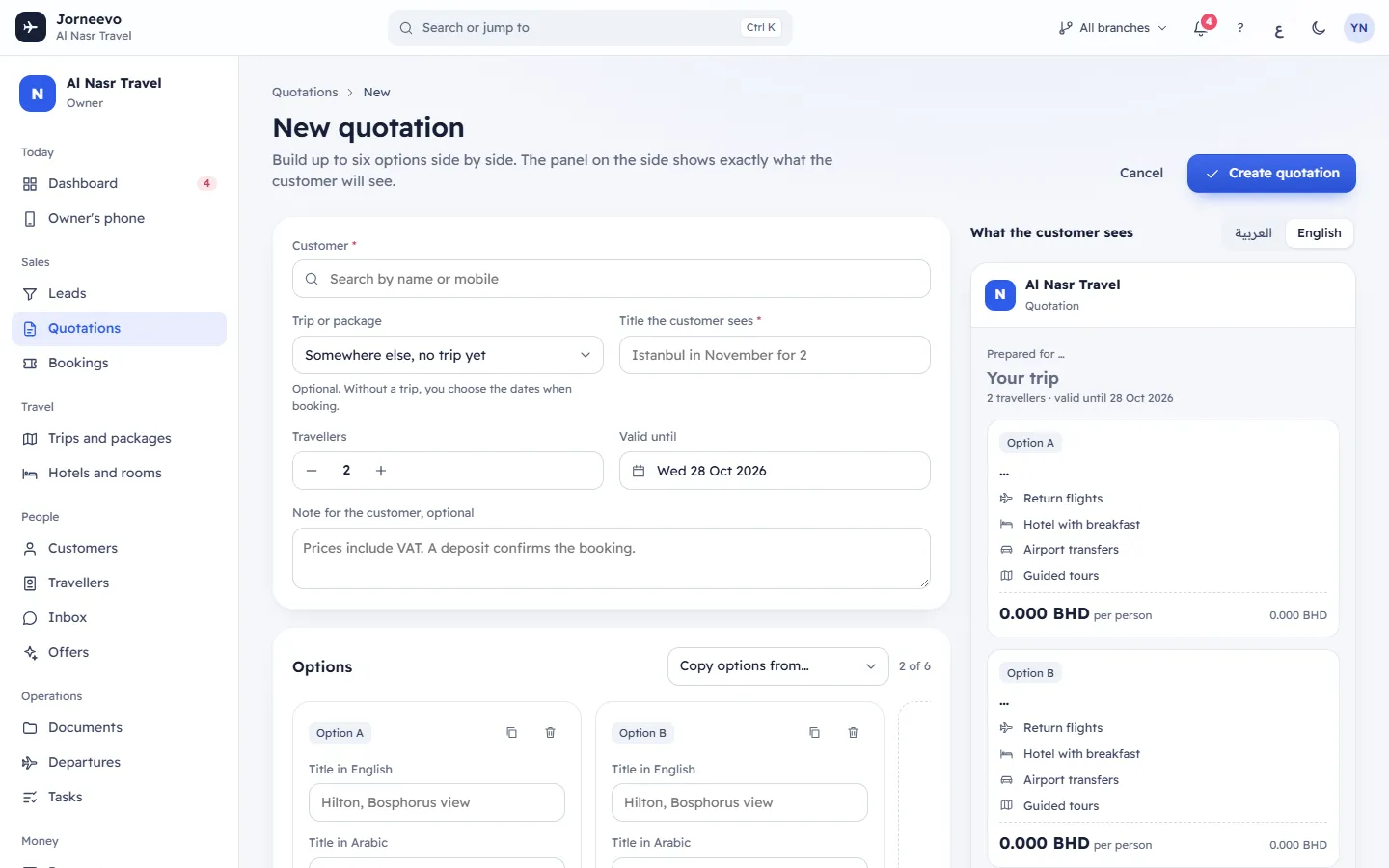
- Open Quotations and press New quotation (or press
N). - Under Customer, type a name or mobile and pick the customer. If they are new, press Add “…” as a new customer, type the Full name and Mobile, and press Add customer.
- If the quotation is for one of your trips or packages, choose it in Trip or package. The title and any empty prices fill from the trip. Otherwise keep Somewhere else, no trip yet: you choose the dates when you book.
- Type the Title the customer sees, for example "Istanbul in November for 2". Set the number of Travellers and check Valid until.
- If you want, type a Note for the customer, optional.
- For option A, type the Title in English (and the Title in Arabic for Arabic-speaking customers), choose the Airline and the Hotel, and type the Price per person. If you see costs, type Our cost per person and check the Margin.
- Under What is included, click the items to switch them on or off. Add anything else in Something else it includes and press Add.
- Add more options: press Add option B (it copies the last option, so you only change what differs), or Duplicate option on an option. To reuse an earlier quotation, choose it in Copy options from….
- Check What the customer sees on the side. Switch between العربية and English to check both.
- Press Create quotation.
After you create it
- The message … is ready to check and send appears and the quotation opens with the status Draft and its own number.
- It has a customer link from the start. Nothing reaches the customer until you send it: see Send a quotation to the customer.
- If you started from a lead, the quotation shows in the lead's Quotations.
- To change it later, use Edit quotation in the ⋮ menu, the pencil on an option, or click a price to change it. Save quotation keeps your changes and Quotation saved appears.
Tip
Copy options from… brings every option of an earlier quotation, prices included, and says Options copied from …. Check the prices before sending. Check them: hotel prices change.
Note
The customer never sees your cost or margin. People who cannot see costs can change the options without losing the costs already saved.
If something goes wrong
The message Some fields need attention appears, and each field shows what is missing:
- Choose the customer: no customer is chosen.
- Give the quotation a title: Title the customer sees is empty.
- Add at least one option: every option was removed.
- Title needed: an option has no Title in English.
- Price needed: an option's Price per person is empty or zero.
Related articles
- Send a quotation to the customerSend the quotation link by WhatsApp, email or SMS, or copy it into any chat, and see what changes when the customer opens it.
- The quotation page and the builderEverything on a quotation: the header, the banners, the option cards, the buttons and menu, and every field of the screen where you build it.
- Turn a lead into a quotation or a bookingMake a quotation from a lead in one click, turn the lead into a customer, or start a booking when the lead has booked.
- Turn a quotation into a bookingBook the option the customer chose in one step: the customer, travellers, price and hotel rooms carry over, with an optional deposit.