The quotation page and the builder
Everything on a quotation: the header, the banners, the option cards, the buttons and menu, and every field of the screen where you build it.
A quotation shows the customer up to six options side by side, each with its price per person. This page is where you check the quotation, send it, follow the customer's answer and turn the chosen option into a booking.
What you see
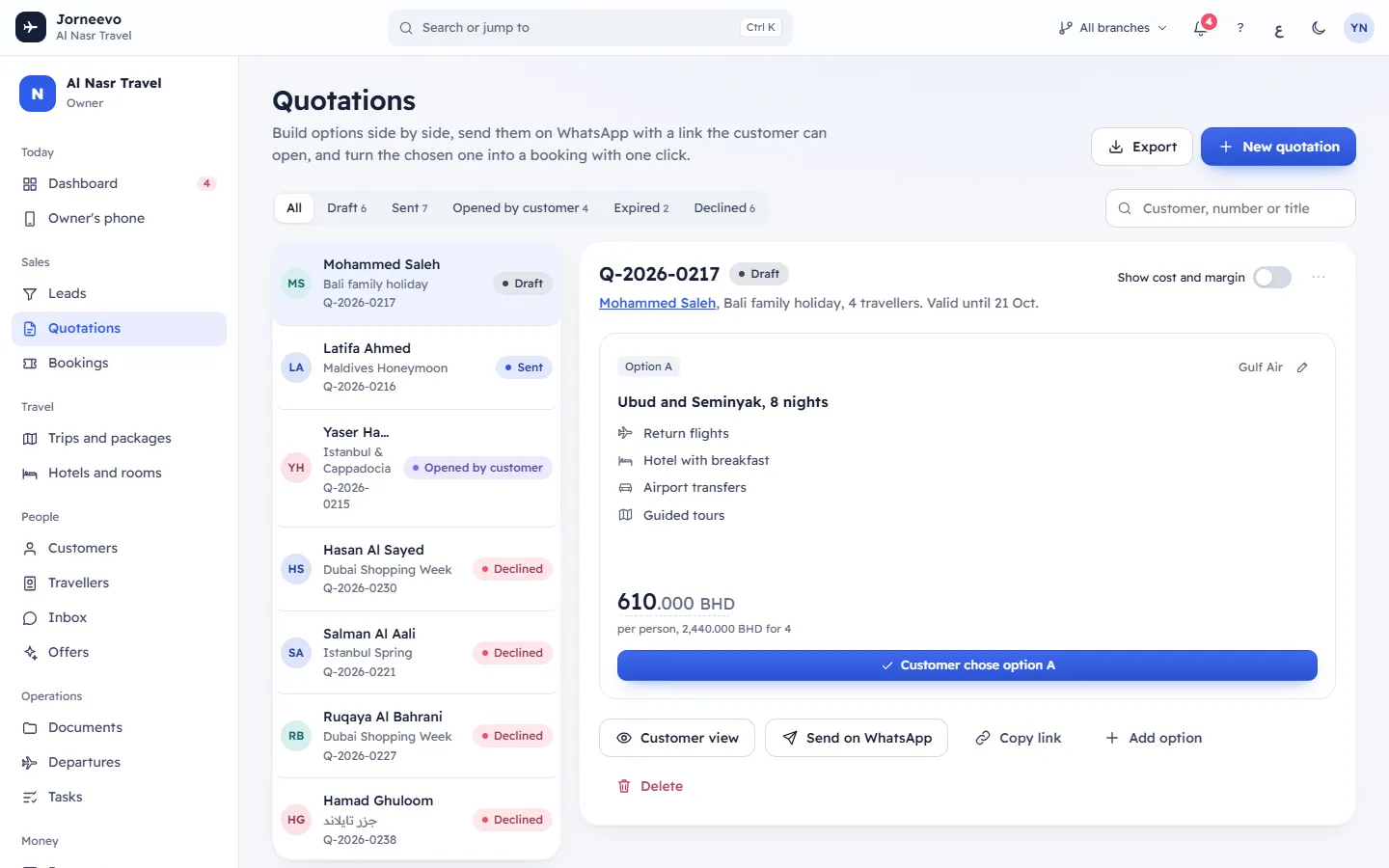
The header
- The quotation number and its status, for example Sent.
- The customer's name (click it to open the customer's file), the title, the number of travellers, and Valid until … or, when the date has passed, Expired ….
- The trip or package, when the quotation has one (click it to open the trip).
- Show cost and margin: a switch for people who can see costs. The system remembers your choice.
- The ⋮ menu, described below.
The banners
| Banner | When it shows | Button |
|---|---|---|
| This quotation has expired. Extend it to send it again. | The Valid until date has passed. | Extend … days |
| … accepted option …. Turn it into a booking when you are ready. | The customer chose an option online. | Create booking |
| The customer declined this quotation. Duplicate it to send new options. | The customer declined, or you marked it declined. | Duplicate |
| … opened it …. | The customer opened the link (with the date). | none |
When the customer wrote a note while accepting or declining on their page, it shows under the banners with the date: …'s note, or …'s reason for declining.
The option cards
Each option has a card:
- Option A (B, C …) and the airline.
- A pencil, Edit option, that opens the builder on that option.
- The option's title, and the hotel with its stars (click it to open the hotel).
- What is included, one line per item.
- The price per person. Click it (Click to change the price) to type a new price, then press
Enterto save orEscto cancel. The message Option … is now … per person confirms it. - per person, … for …: the total for the quotation's travellers.
- Cost and Margin with the margin percentage, when Show cost and margin is on. A negative margin shows in red.
- Customer chose option …: opens the booking window for that option. On an accepted quotation, the chosen card is highlighted and shows Book this option instead. See Turn a quotation into a booking.
After the booking is made, the chosen card turns over and shows Booking created with the booking number and Customer, travellers, prices and hotel rooms carried over. Nothing was typed twice.
The buttons under the options
- Customer view: opens the page the customer sees, in a new tab.
- Send on WhatsApp (or Send again once sent). Disabled when the customer has no mobile: This customer has no mobile number.
- Copy link: copies the customer's link. Link copied. Paste it in any chat.
- Add option: opens the builder with a new option, while there are fewer than six.
- Delete, or Open booking once the quotation became a booking.
The menu
The ⋮ menu has Edit quotation, Open customer view, Copy customer link, Duplicate, Send by email (disabled without an email), Send by SMS (disabled without a mobile), Mark as declined and Delete.
The send buttons (Send on WhatsApp, Send by email, Send by SMS) are hidden on an expired or declined quotation. Once the customer accepts or the quotation is booked, it is locked: the pencil, the price click, Edit quotation, the send buttons, Add option and Mark as declined are hidden. Delete is hidden once it is booked. If you can only view quotations, you see the quotation and the links only.
The book window
Book option … for … turns an option into a booking. It has the option list (when there are several), Departs and Returns (only when the quotation has no trip), Adults, Children, Deposit received now, Paid by, the total and Create booking. See Turn a quotation into a booking.
The builder
New quotation (from Quotations, or Make a quotation on a lead) and Edit quotation open the builder. Its header says New quotation or Edit …, with Cancel and Create quotation (or Save quotation).
The details:
| Field | What to enter |
|---|---|
| Customer | Required. Type a name or mobile in Search by name or mobile and pick the customer. Change picks another. If nobody matches, Add “…” as a new customer (or New customer) asks for Full name and Mobile, then Add customer. |
| Trip or package | Optional: one of your upcoming trips, or Somewhere else, no trip yet. Without a trip, you choose the dates when booking. Picking a trip fills an empty title, fills empty prices with the trip's price (and costs, for people who see them) and lists only the hotels in the trip's destination (all hotels when none match). |
| Title the customer sees | Required, for example "Istanbul in November for 2". |
| Travellers | 1 to 60. The totals use this number. |
| Valid until | The last day the customer can accept. It starts at today plus your agency's usual validity (7 days unless changed in Settings → Preferences), and cannot be before today. |
| Note for the customer, optional | Shown on the customer's page, for example "Prices include VAT. A deposit confirms the booking." |
The Options section shows … of 6 and, on a new quotation, Copy options from… (your 8 most recent quotations, for the chosen trip when there is one). Each option has:
| Field | What to enter |
|---|---|
| Title in English | Required, for example "Hilton, Bosphorus view". |
| Title in Arabic | Optional. Arabic-speaking customers see it instead of the English title. |
| Airline | From your airline list, or No airline. |
| Hotel | One of your contracted hotels, or No hotel from our contracts. Picking one fills an empty title. |
| Price per person | Required, above zero. The line under it shows Total … for …. |
| Our cost per person | Only for people who see costs. The line shows Margin and its percentage. The customer never sees it. |
| What is included | Click the items to switch them on or off. Type Something else it includes and press Add (or Enter) for an item not in the list; Remove takes it off. |
Each option's header has Duplicate option (a copy right after it) and Remove option (when there is more than one). The last card, Add option …, Copies the last option so you only change what differs.
On the side, What the customer sees shows the customer's page as you type, in العربية or English. It starts in the customer's language.
A quotation that was accepted or booked cannot be opened in the builder: you see This quotation is accepted and can no longer change and Back to the quotation.
What you can do here
- Build a quotation with options
- Send a quotation to the customer
- When the customer accepts or declines online
- Turn a quotation into a booking
- Duplicate, extend, decline or delete a quotation
Messages you may see
- This quotation could not be loaded: it was deleted or the link is wrong. Go back to Quotations.
Related articles
- Build a quotation with optionsPrepare up to six options side by side for one customer, with prices, hotels and inclusions, and check exactly what the customer will see.
- Send a quotation to the customerSend the quotation link by WhatsApp, email or SMS, or copy it into any chat, and see what changes when the customer opens it.
- Turn a quotation into a bookingBook the option the customer chose in one step: the customer, travellers, price and hotel rooms carry over, with an optional deposit.
- Duplicate, extend, decline or delete a quotationCopy a quotation to send new options, extend one that expired, record that the customer said no, or delete one you no longer need.
- How a quotation moves from draft to bookingEvery quotation status and what moves a quotation into it, how validity and automatic expiry work, and why a quotation locks after it is accepted.