The quotations screen
All your quotations in one list, filtered by status or found by customer, number or title, with the selected quotation shown beside it.
Quotations lists every quotation your branch has made. Use it to follow up the ones waiting for an answer and to open any quotation to send it or turn it into a booking.
What you see
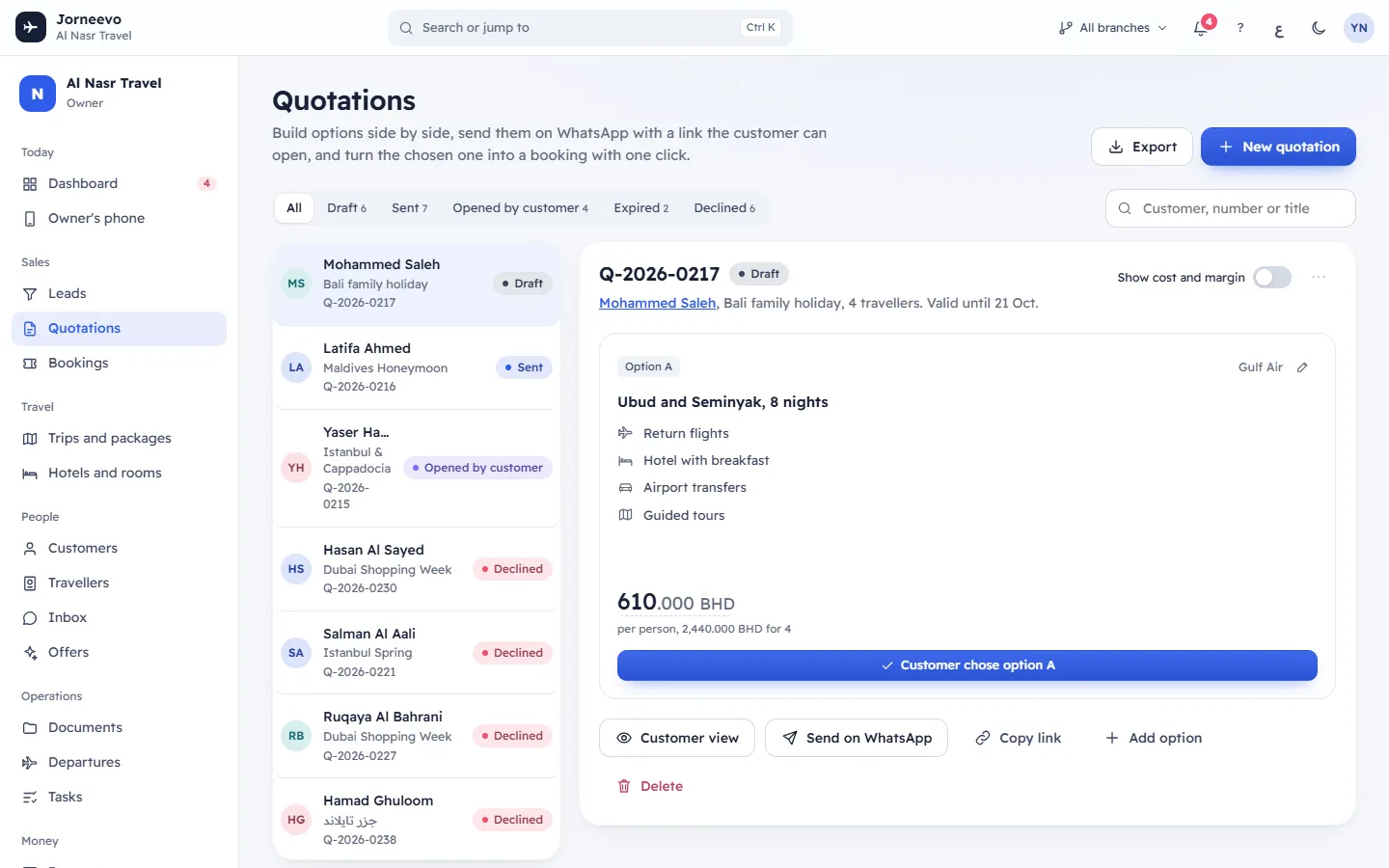
The top of the screen
- Export: downloads an Excel file of the quotations that match the status filter and the search.
- New quotation (shortcut
N): opens the quotation builder. See Build a quotation with options.
The filters
- The status buttons: All, then Draft, Sent, Opened by customer, Accepted, Booked, Expired and Declined. Each shows how many quotations it has. A status with no quotations is hidden.
- Customer, number or title (shortcut
/): finds a quotation by the customer's name or mobile, its number or its title.
The system remembers your status filter for the next time.
The list
Each row shows the customer's initials and name, the quotation's title, its number and its status. Point at the number to see Valid until and the date. The list shows 30 quotations; press Show more to load the next ones.
The quotation beside the list
On a wide screen, the selected quotation shows on the right (on the left in Arabic), and the first one opens by itself. On a phone or a narrow window, the list and the quotation show one at a time: tap a row to open it, and All quotations to go back. See The quotation page and the builder for everything on it.
Statuses
| Status | Meaning |
|---|---|
| Draft | Saved but not sent yet. |
| Sent | Sent to the customer by WhatsApp, email or SMS. |
| Opened by customer | The customer opened the link after it was sent. |
| Accepted | The customer chose an option online. It is waiting for you to book it. |
| Booked | A booking was made from it. |
| Expired | The Valid until date has passed without an answer. |
| Declined | The customer said no online, or you marked it as declined. |
See How a quotation moves from draft to booking for what moves a quotation from one status to the next.
The Excel file
The file has one row per quotation: Number, Customer, Mobile, Title, Travellers, Status, Options (how many), From per person, Up to per person, Accepted option, Booking, Valid until, Sent and Created. People who can see costs also get Best margin per person.
Messages you may see
- No quotations yet and Make one from a lead, or press New quotation.: your branch has no quotations. Press New quotation.
- No quotations match and Try another status or search.: nothing matches. Press Show all to clear the filter and the search.
- Could not load quotations. with Try again: the connection failed.
- Pick a quotation and Its options, prices and status show here.: choose a quotation in the list.
Related articles
- The quotation page and the builderEverything on a quotation: the header, the banners, the option cards, the buttons and menu, and every field of the screen where you build it.
- Build a quotation with optionsPrepare up to six options side by side for one customer, with prices, hotels and inclusions, and check exactly what the customer will see.
- How a quotation moves from draft to bookingEvery quotation status and what moves a quotation into it, how validity and automatic expiry work, and why a quotation locks after it is accepted.
- Send a quotation to the customerSend the quotation link by WhatsApp, email or SMS, or copy it into any chat, and see what changes when the customer opens it.