Sign-in security
Decide who in your agency must use two-step sign-in, see who is protected, and require or reset it for one person.
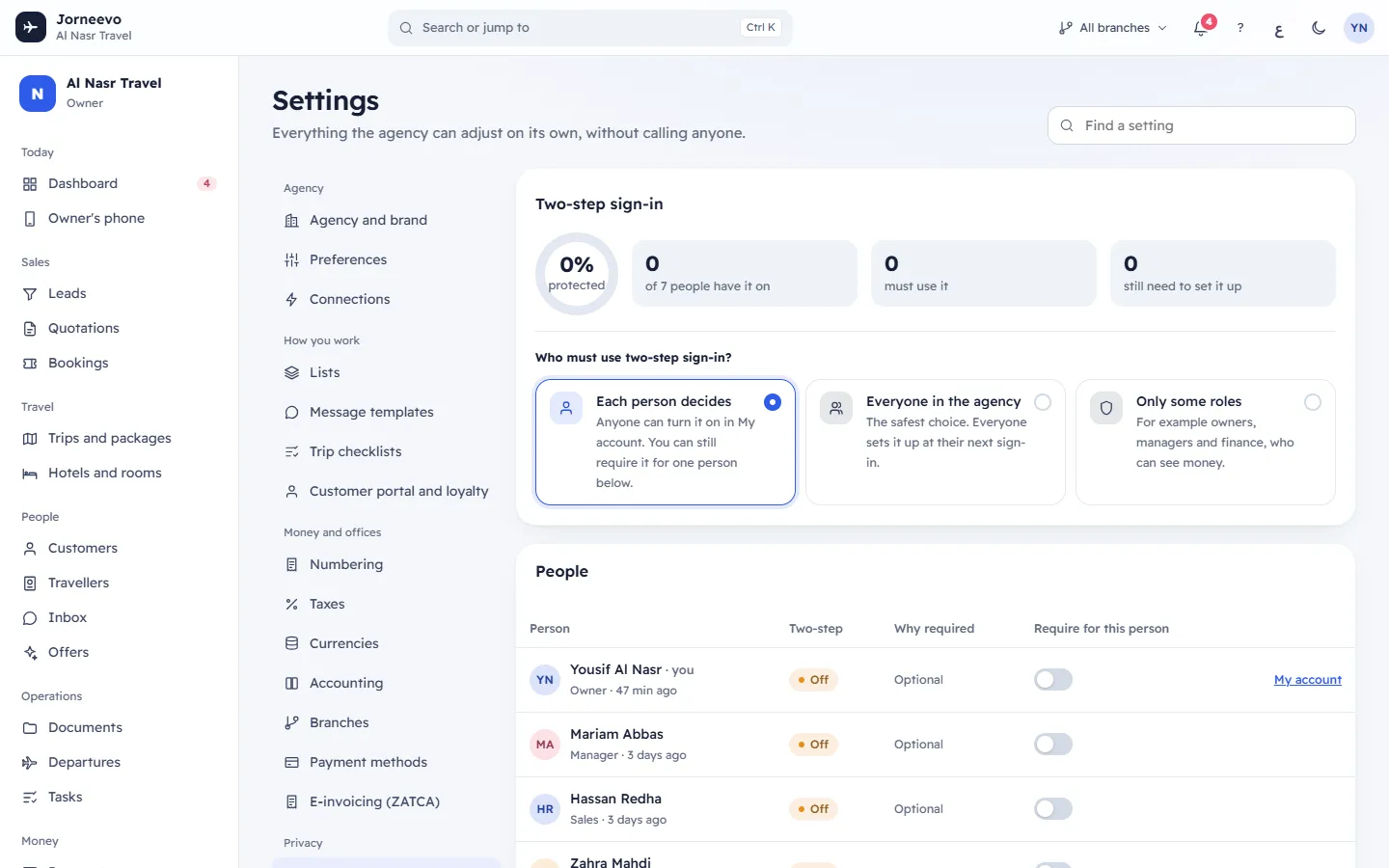
This screen protects your agency's sign-ins. You choose who must use two-step sign-in (a password plus a six-digit code from a phone app), and you see each person's status. Open it from Settings → Sign-in security, in the Privacy group.
What you see
Platform note
When the platform requires two-step sign-in for your agency (or for every agency), a note at the top says The platform requires two-step sign-in for everyone in this agency. This always applies, whatever you choose below. Your own rule cannot switch that off.
Two-step sign-in
The first card shows four numbers for the people who are Active (invited and disabled people are not counted):
- A ring with the share of people who have it on, for example 75% protected.
- of … people have it on: how many have set it up.
- must use it: how many are required to use it, for any reason.
- still need to set it up: people who are required but have not set it up yet. It is highlighted when above zero.
Under Who must use two-step sign-in? you pick one rule:
- Each person decides: anyone can turn it on in My account. You can still require it for one person in the table below.
- Everyone in the agency: the safest choice. Everyone sets it up at their next sign-in.
- Only some roles: for example owners, managers and finance, who can see money. Role buttons appear with the number of people in each role; press a role to include or leave it out.
When you change the rule, a line shows how many people it covers and how many still need to set it up, with Undo and Save rule. Save rule stays greyed out under Only some roles until you pick at least one role.
People
A table of everyone in the agency except disabled people:
| Column | What it shows |
|---|---|
| Person | Name (you next to your own), role and when they last signed in. |
| Two-step | Their status (see below). When it is on: since the date it was turned on, and how many recovery codes are left when 3 or fewer. |
| Why required | Why they must use it: Platform, Everyone, Role or Person. Point at a tag to read the full reason. Optional when nothing requires it. |
| Require for this person | A switch that requires it for this one person, on top of the agency rule. already required appears next to it when another reason already applies. |
| (last column) | Reset for someone who has it on, or My account on your own row. |
The Require for this person column and the Reset buttons show only if your role can manage the team. Rows of owners are locked unless you are an owner yourself.
At the bottom: Every change here is written to the audit log. A reset signs the person out everywhere. Codes and secrets are never shown to anyone, including owners.
What you can do here
- Require two-step sign-in for everyone or for some roles: Require two-step sign-in for your team.
- Require it for one person, or reset it after a lost phone: Two-step sign-in for one teammate.
- Set it up for yourself: open My account from your row (or from your name at the top of the screen).
- Read every change later in Settings → Data and logs → Audit log: Data and logs.
Statuses
| Status | Meaning |
|---|---|
| On | The person has set up two-step sign-in. They type a code after their password. |
| Must set up | They are required to use it and have not set it up. At their next sign-in (or next page load) they see only the setup screen. |
| Off | Not set up and not required. |
| Not joined | The person was invited and has not accepted the invitation yet. |
Related articles
- Require two-step sign-in for your teamMake everyone, or only some roles, use two-step sign-in, and see what your teammates are asked to do next.
- Two-step sign-in for one teammateRequire two-step sign-in for one person, or reset it when they lose their phone, and how recovery codes help.
- Team and rolesSee everyone who works in your agency with their role, branch and status, and decide what each role can see and do.
- Data and logsDownload all your agency's data, see every message the system sent, and read who changed what and when.