Team and roles
See everyone who works in your agency with their role, branch and status, and decide what each role can see and do.
Team and roles is where you manage the people who use the system and what they are allowed to do. Open it from Team and roles in the menu. It has two tabs: Team needs Manage the team, Roles and permissions needs Manage roles. You see only the tabs your role allows.
What you see
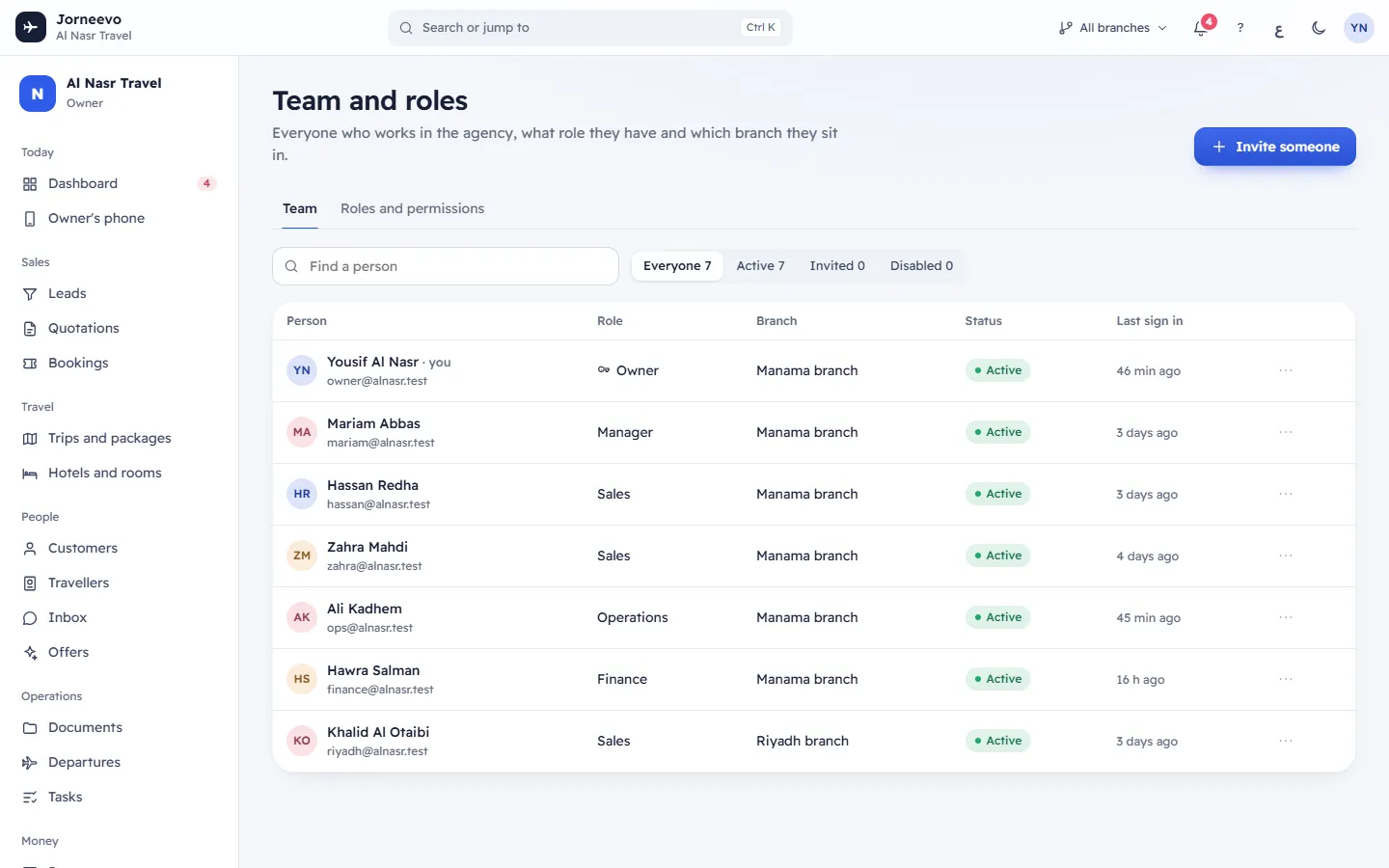
Team tab
At the top: Invite someone, a Find a person search (name, Arabic name or email) and a status filter with counts: Everyone, Active, Invited, Disabled. When your plan limits the number of users, the right side shows for example 4 of 5 seats used (active and invited people take a seat; disabled people do not).
The table:
| Column | What it shows |
|---|---|
| Person | Name (you next to your own) and sign-in email. |
| Role | The role. A key icon marks owners. |
| Branch | The branch the person works in, or — for none. |
| Status | Active, Invited or Disabled, and a two-step tag: 2-step when two-step sign-in is on, Must set up when it is required and not set up yet. |
| Last sign in | How long ago, Not joined yet for invitations, or Never. |
| (menu) | The menu of actions at the end of the row. Owner rows show a lock instead when you are not an owner: Only an owner can change an owner. |
Disabled people show faded. If nobody matches the search, you see Nobody here.
The row menu has:
- Edit: name, sign-in email, role, branch and mobile.
- Send the invitation again (invited people) or Password reset link (everyone else).
- Under Two-step sign-in (not for invitations): Require two-step sign-in, with Already required by the agency rule when the agency rule covers them, and Reset two-step (lost phone) when they have it on.
- Cancel invitation (invited), Enable (disabled) or Disable (active). Not shown on your own row.
Roles and permissions tab
At the top: New role, Find a permission, the Compare role buttons (press one to hide or show that role's column; at least one stays) and Only where they differ (shows only the permissions where the shown roles are not the same). Your Compare choices are remembered on this device.
The grid has one row per permission, grouped into Sales, Travel, People, Operations, Money, Insights and Admin, and one column per role with the number of people in it.
- Each cell is a switch that gives or removes that permission.
- Each group row has All or None to switch the whole group for that role.
- Under Give discounts, a box up to … % sets the role's highest discount.
- The Owner column is locked: The owner always has every permission.
- Each other role's header has a menu with Rename and Delete role.
If the search finds nothing you see No permission matches; with Only where they differ on and identical roles, These roles have the same permissions. A note at the bottom says that every change to a role is written to the audit log, and that people see the change the next time their page loads.
Windows
- Invite someone to the team: Name, Email, Role (with its number of permissions), Branch, Mobile (optional) and Their language, then Send invitation. Branch is required for a role that does not see every branch; No own branch (sees every branch) is offered only for owners and roles with See and work in every branch.
- Edit …: Name in English, Name in Arabic, Sign-in email (only an owner can change it), Role, Branch and Mobile, then Save.
- The link window after an invitation or a password reset link: what happened to the email (for example Emailed to … or Email is not connected, so nothing was sent.), how long the link works (7 days for an invitation, 24 hours for a reset link), the link with Copy, and Done.
- New role: Role name in English, Role name in Arabic and Start from, then Create role.
- Rename role: Name in English and Name in Arabic, then Save.
What you can do here
- Invite someone: Invite a teammate.
- Change someone's role or branch, disable them or send a reset link: Change, disable or remove a team member.
- Require or reset two-step sign-in for one person: Two-step sign-in for one teammate.
- Create or change a role: Create or change a role.
- Understand the default roles: Roles and permissions explained.
Statuses
| Status | Meaning |
|---|---|
| Active | The person accepted the invitation and can sign in. Takes a seat. |
| Invited | The invitation was sent and not accepted yet. The link works for 7 days. Takes a seat. |
| Disabled | The person cannot sign in and was signed out everywhere. Their bookings and history stay. Does not take a seat. |
Related articles
- Invite a teammateAdd a new person to your agency with a role and a branch; they get an email link to choose their own password.
- Change, disable or remove a team memberChange someone's role, branch or sign-in email, send them a password reset link, or stop them signing in when they leave.
- Create or change a roleMake a role that fits a job in your agency, switch its permissions on or off, set its discount limit, rename or delete it.
- Roles and permissions explainedWhat the six default roles can do, how a role decides what each person sees, and how discount limits work.
- Branches and who sees whatHow a person's branch and the permission to see every branch decide which bookings, trips and payments they see.