Data and logs
Download all your agency's data, see every message the system sent, and read who changed what and when.
This screen holds your agency's records: a full download of your data, the log of every WhatsApp, email and text message the system sent, and the audit log of every change. Open it from Settings → Data and logs, in the Privacy group.
What you see
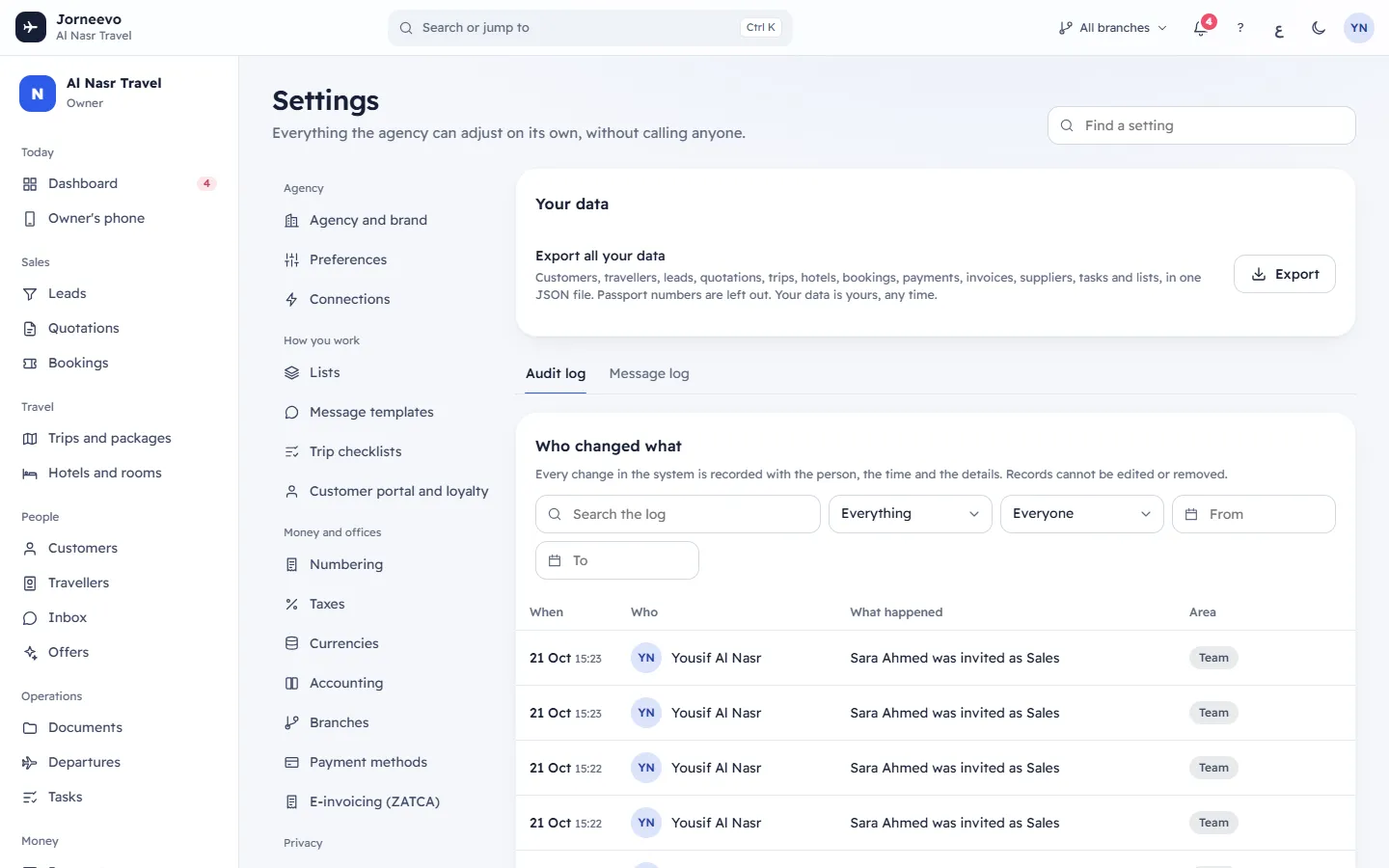
Your data
The row Export all your data with an Export button. The file holds your customers, travellers, leads, quotations, trips, hotels, bookings, payments, invoices, suppliers, tasks and lists, in one JSON file. Passport numbers are left out.
Export works only if your role includes Export all data. Otherwise the button is greyed out and says Your role cannot export data when you point at it.
Note
This screen exports only. To bring customers in from a spreadsheet, use Customers → Import.
Audit log
The Audit log tab, titled Who changed what, shows only if your role includes See the audit log. Every change in the system is recorded with the person, the time and the details. Records cannot be edited or removed.
Filters:
- Search the log: words in the description or the person's name.
- Area: Everything, or one area such as Bookings, Payments, Team, Roles, Agency settings, Connections or Plan and billing.
- Who: Everyone or one person.
- From date and To date: both days are included.
- Clear removes all filters.
Columns: When (date and time), Who (the person, or System for automatic changes), What happened and Area. Rows with an arrow open when you click them: they show the details of the change and the IP address it came from.
Message log
The Message log tab, titled Messages sent: every WhatsApp, email and SMS the system sent or tried to send, newest first.
Filters: Search by recipient or text, the channel (All, WhatsApp, Email, SMS) and Status (Any status or one status below).
Columns: When, To (with the channel icon), Message (subject and start of the text) and Status. Click a row to read the whole message, the Provider, the Template, the exact date and time, and the error text if it failed. Invitation and password links are hidden in the log.
Both logs show 50 rows at first. Show more adds 50 at a time. The audit log loads the latest 300 entries for your filters; narrow the filters to see older ones.
What you can do here
- Export your data, search the audit log and the message log: Export your data and read the audit log.
- Find out why a message did not arrive: The customer did not receive the WhatsApp or SMS message.
- Check what support did while it had access: Support access.
Statuses
Message statuses in the Message log:
| Status | Meaning |
|---|---|
| Sent | Handed to WhatsApp, the email server or the SMS provider. |
| Logged only | Recorded but not sent, because that channel is not connected. |
| Ready in WhatsApp | WhatsApp was opened with the message ready, for a staff member to press send. Used when WhatsApp is not connected to a provider. |
| Failed | It could not be sent. Open the row to read the error. |
Related articles
- Export your data and read the audit logDownload a full copy of your agency's data, find who changed something and when, and check which messages went out.
- The customer did not receive the WhatsApp or SMS messageWhy a confirmation, receipt, reminder or trip page code did not reach the customer, how to read the message log, and what to fix first.
- Support accessLet the platform's support team look at your account for a set time, see whether access is open, and answer their requests.
- Sign-in securityDecide who in your agency must use two-step sign-in, see who is protected, and require or reset it for one person.