The Suppliers and profit screen
See what each trip really earns, what you still owe each supplier and when it is due, and keep your list of suppliers.
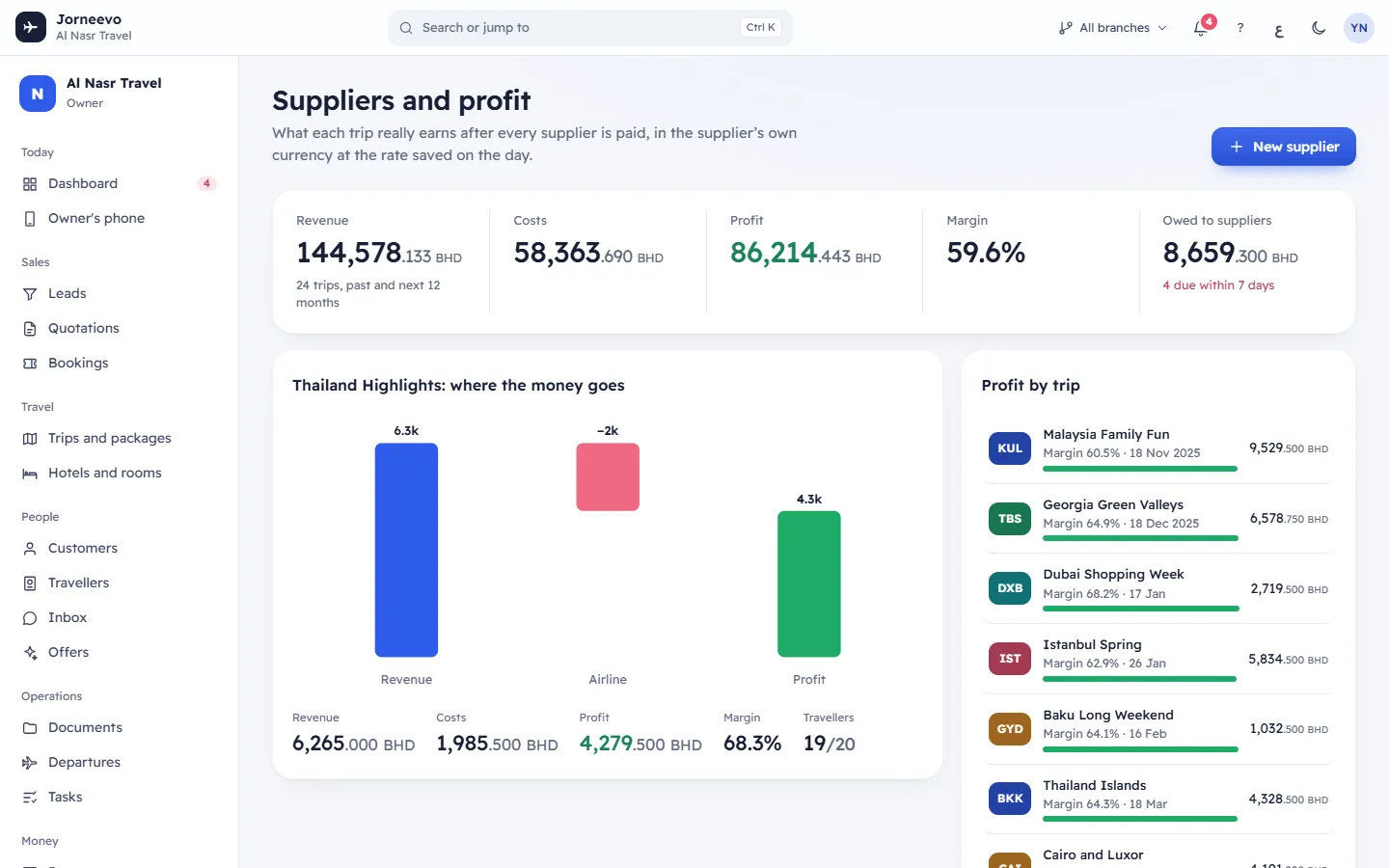
Suppliers and profit shows what each trip really earns after every supplier is paid: airlines, hotels, ground operators and anyone else you pay for a trip. Finance and operations use it to record costs and pay suppliers; the owner uses it to see the profit. Open it from Money → Suppliers and profit in the menu.
What you see
What you see depends on your role:
| You can | You see |
|---|---|
| See profit and see reports | The profit numbers, the chart and Profit by trip |
| See supplier costs and margins, or manage suppliers and costs | Owed to suppliers and the Payables tab |
| See suppliers | The Suppliers tab |
| Manage suppliers and costs | New supplier, Add a cost, Paid, Part and every edit |
The numbers at the top
- Revenue, Costs, Profit and Margin: the totals of all trips that depart in the last 12 months and the next 12 months. The line under Revenue says how many trips that is.
- Owed to suppliers: everything still unpaid, in your main currency. Under it you see how many costs are due within 7 days (in red), or Nothing due this week.
…: where the money goes (the trip name first)
A chart for one trip. It starts with the trip's Revenue, takes away the costs of each supplier type (for example Airline or Hotel), shows any other cost as Trip costs, and ends with the Profit. Under the chart: Revenue, Costs, Profit, Margin and Travellers (booked out of the seats). The trip shown first is the one that departs closest to today and has sales.
Profit by trip
Every trip that departs within a year before or after today, by departure date. Each line shows the trip code and name, the Margin and the date, a bar and the profit. The bar is red for a loss, sand-coloured under 10% and green otherwise. Click a trip to show it in the chart.
The Payables tab
The supplier costs you still have to pay. The number on the tab counts them.
- Choose Still to pay, For the trip selected in Profit by trip, or Everything.
- Total owed adds up what is left to pay in the list, in your main currency.
- Columns: Supplier (with what the cost is for, and per traveller when it is charged per traveller), Type, For (the trip; click it to open the trip), In their currency (what is left, and "of" the full amount after a part payment; — when the cost is in your main currency), In your main currency, and Due.
- The list shows unpaid costs first, then by due date. Costs without a due date come last.
- The note under the table: foreign currency amounts use the rate saved when the cost was entered, so profit does not change when rates move.
The Suppliers tab
Your suppliers, by name. The number on the tab counts the active ones.
- Find a supplier searches the English and Arabic name and the contact person.
- Supplier type shows one type, or All types. Show archived adds archived suppliers (shown faded).
- Columns: Supplier (with the number of costs), Type, Currency, Contact (with the phone), Terms and Still owed in the supplier's currency.
- Click a supplier to open its panel: contact details (the phone and email open your phone or mail app), the Costs with their payments, and the buttons Edit supplier and Add a cost.
What you can do here
- Add a supplier with New supplier: see Add a supplier.
- Add a cost with Add a cost, on the Payables tab or in a supplier's panel: see Record a supplier cost.
- Pay a supplier with Paid, Part or Record payment: see Record a payment to a supplier.
- See a cost's payments: in the supplier's panel, open the ⋮ menu of the cost and choose Payments (Hide payments closes them).
- Delete a cost: ⋮ → Delete. The message Delete this cost? reminds you that the trip's profit is worked out again without it.
- Edit, archive or bring back a supplier from the ⋮ menu of its row: Edit, Remove or Archive, Bring back.
- Download the supplier list with Export: an Excel file of the suppliers you see (search, type and archived filter). It has the name, Arabic name, type, currency, contact, phone, email, terms and whether the supplier is active. If you can see supplier costs, it also has the number of costs, the total in your main currency and what is owed in the supplier's currency.
- Understand the numbers: How profit is calculated.
Statuses
The Due column shows where each cost stands:
| Shown | Meaning |
|---|---|
| Paid (green) | The payments cover the whole cost. |
| No date | Unpaid and no due date was entered. |
| … days late (red) | The due date has passed. |
| Today, Tomorrow (red) | Due today or tomorrow. |
| A date (sand) | Due within the next 7 days. |
| A date (plain) | Due later. |
A supplier with costs cannot be deleted: it is archived instead and its costs stay. A payment shown as Money back is money the supplier returned to you.
Related articles
- Add a supplierAdd an airline, hotel or ground operator once, with its currency, contact, payment terms and VAT details, so you can record its costs.
- Record a supplier costEnter what a supplier charges you for a trip, in its currency, with the due date and the VAT on its invoice, so trip profit is exact.
- Record a payment to a supplierMark a supplier cost as paid in one click, or record a part payment with its date, method and reference, and undo it if needed.
- How profit is calculatedProfit is a trip's confirmed sales minus its supplier costs, or its planned costs until a supplier cost is entered; margin is profit over revenue.