The Tasks screen
Your team's to-do list with quick add, filters and bulk changes, next to the checklist of the next trip that leaves.
Tasks holds everything your team must do: tasks you add yourselves, each trip's checklist, and tasks the system creates for you. Each trip creates its own checklist from a template, and anyone can assign tasks with a due date. Open it from the menu: Tasks.
What you see
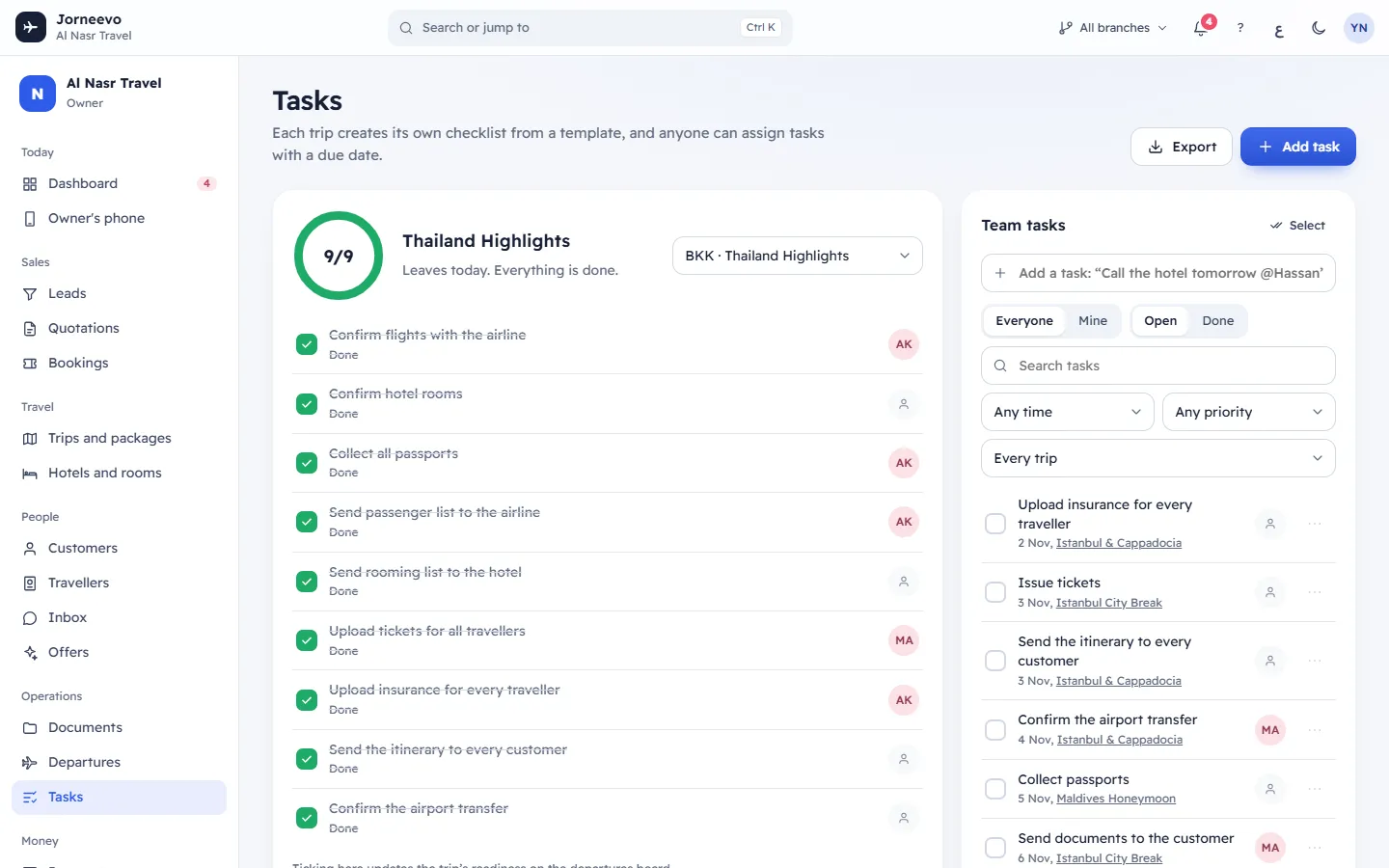
The header has Export and Add task.
Trip checklists (on the side, for roles that can see trips). The checklist of a published trip that leaves soon:
- a ring with the tasks done out of the total, "Leaves in 6 days.", and "3 things left before departure." or Everything is done.;
- a menu to pick another upcoming trip;
- the trip's tasks, which you can tick here. Ticking here updates the trip’s readiness on the departures board.
- A READY stamp and the message "… is ready to depart" when the last task is ticked.
Without access to trips, the card says You can see your own tasks on the right.
Team tasks
- An overdue chip ("2 tasks overdue") and Select (to change many tasks at once).
- The quick-add line: Add a task: “Call the hotel tomorrow @Hassan”. Press
Nto jump to it. See Create and assign a task. - The filters:
- Everyone or Mine (people who cannot manage tasks start on Mine);
- Open or Done;
- Search tasks: the title in English or Arabic, the trip name or the booking number. Press
/to jump to it; - Due: Any time, Overdue, Due today or This week (open tasks only);
- Priority: Any priority or one priority;
- Trip: Every trip or one trip.
- The task rows, 20 at a time with Show more: the tick box, the title, the priority chip (not for Normal), the due label, the person, the trip and booking, and a menu (Task actions) with Edit task and Delete task.
- At the bottom, a reminder of the keys:
Nnew task,/search.
Open tasks come first, then by due date (tasks without a date last). The screen remembers your filters in this browser.
What you can do here
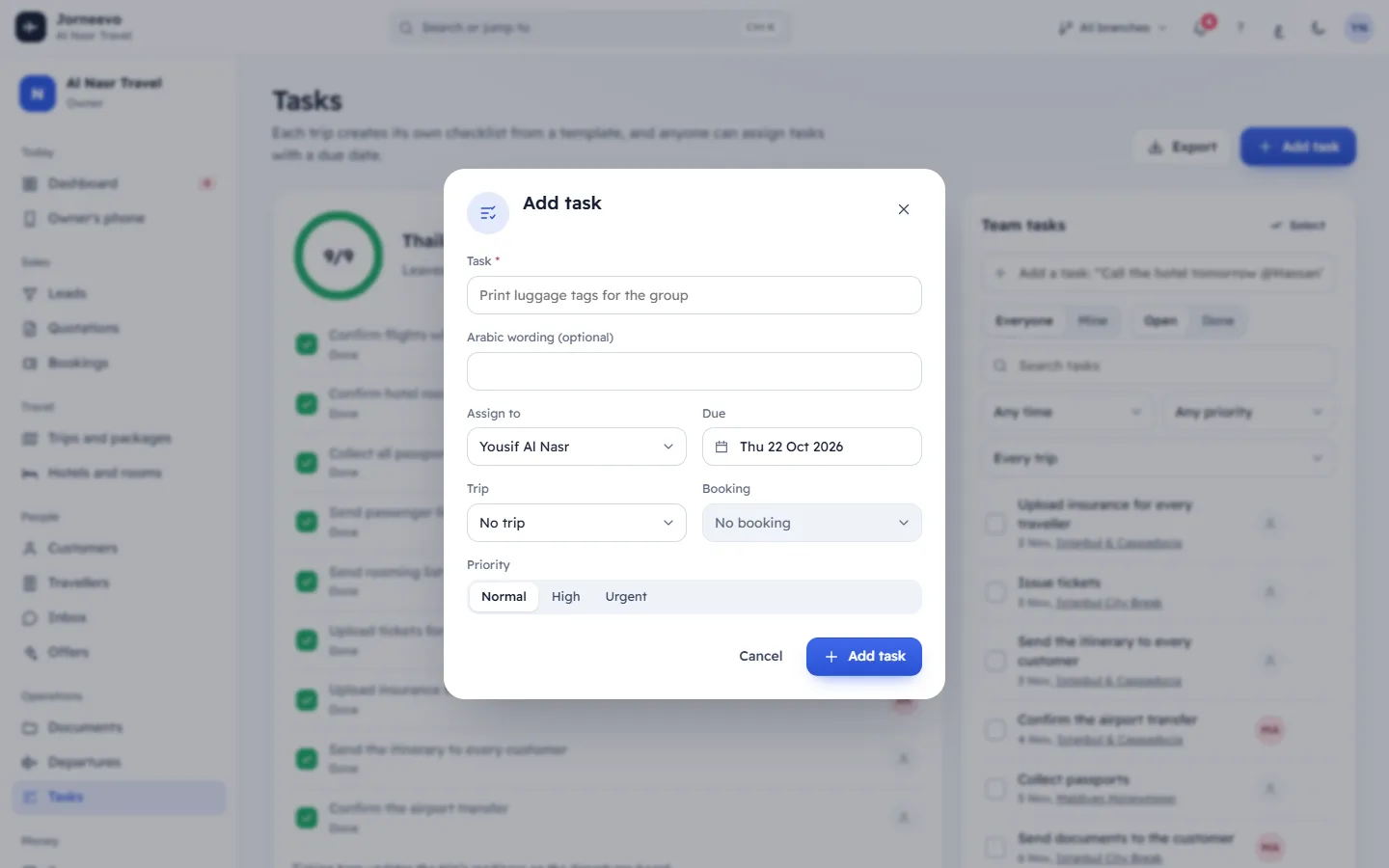
- Add a task or assign it: Create and assign a task.
- Tick, reopen, reassign or move many tasks: Complete, reopen or change many tasks at once.
- Export: downloads the filtered tasks as Excel (task, status, due, priority, assigned to, trip, booking, done on, created). The message Tasks downloading for Excel appears.
When the list is empty
- Nothing left. Nice work.: every open task in this view is done.
- No finished tasks here yet: nothing is done in this view.
- No tasks match these filters: press Clear filters.
- Type a task above, for example “Call the hotel tomorrow”.: no tasks yet.
- No upcoming checklists: no published trip with a checklist is coming up. Published trips bring their checklist here.
- This trip has no checklist yet: add tasks to the trip or apply templates. See Build a trip checklist from templates.
Related articles
- Create and assign a taskAdd a task in one line with a date and a person, such as "Call the hotel tomorrow @Hassan", or use the full form with trip, booking and priority.
- Complete, reopen or change many tasks at onceTick a task done, reopen it, or select many tasks to mark them done, reassign them or move their due date in one go.
- Build a trip checklist from templatesEvery new trip gets its checklist from your templates, with due dates counted back from departure. Add templates made later with Apply templates.
- Task statuses, priorities and due labelsEvery label a task can show: open or done, the priorities, the due-date labels, and the words the quick-add line understands.