The customers list
Find any customer by name or mobile, filter by segment or source, see who owes you money, and export or import your list.
Customers lists everyone who pays you: people and companies. Open it from the menu, under People. The list is on one side and the customer you pick opens beside it, so you can move from one file to the next without going back.
What you see
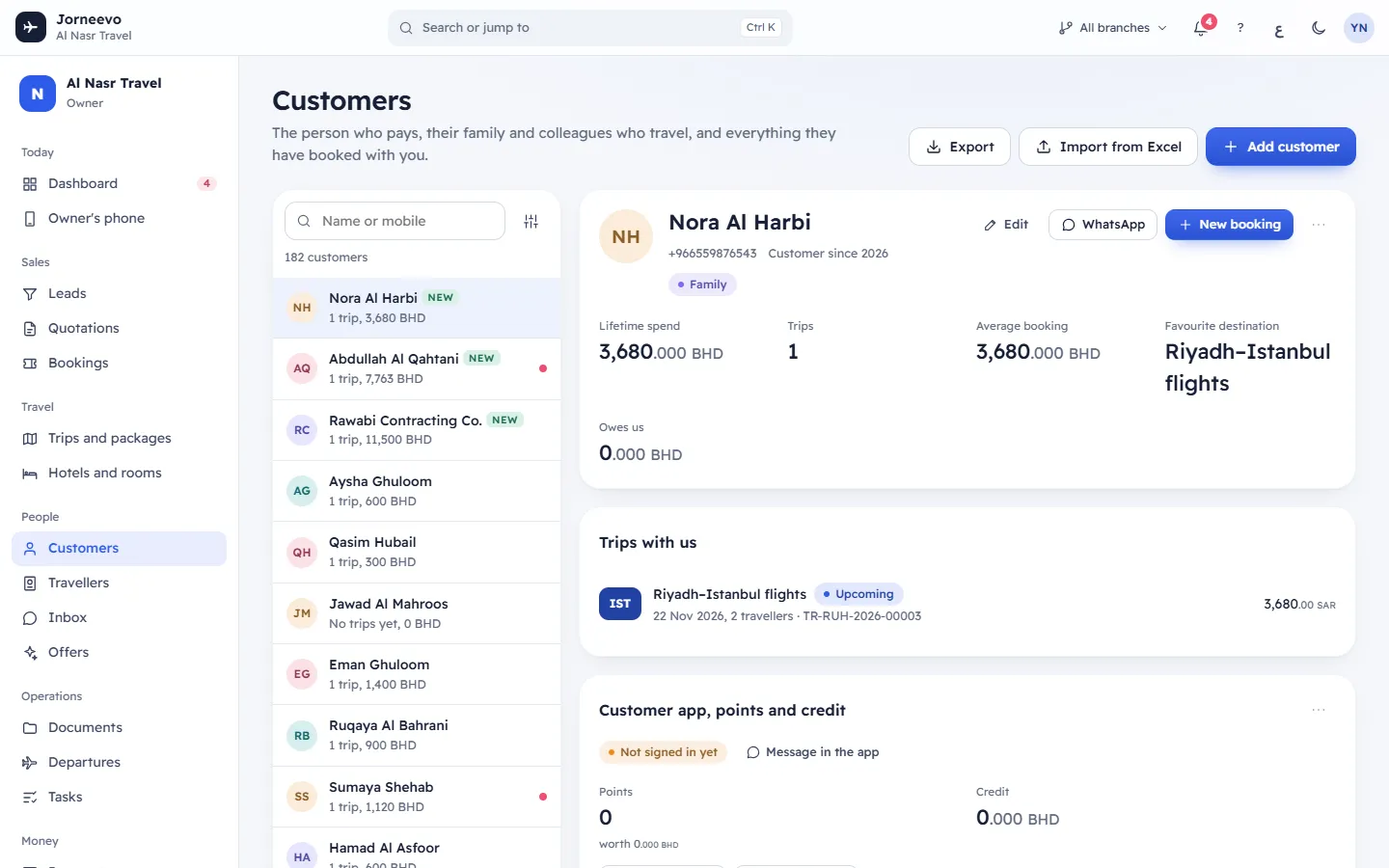
The header
- Customers, with the line "The person who pays, their family and colleagues who travel, and everything they have booked with you."
- Export: downloads the list as an Excel file. It keeps the search, filters and order you are using now. The column titles follow your screen language. The button is greyed out when the list is empty.
- Import from Excel: opens the import window. See Import customers from Excel.
- Add customer: opens the form for a new customer. Shortcut:
N. See Add a customer.
You see Import from Excel and Add customer only when your role can add and edit customers.
Search and filters
- Name or mobile: type part of a name (English or Arabic), a mobile number or an email. The list updates as you type.
Press
/to jump to the search box. - The Filter and order button (the sliders icon) opens a menu with three groups:
- Segment: All segments, or one of your agency's segments (for example VIP or Corporate).
- Came from: All sources, or one of your sources (for example Instagram or Walk-in).
- Order: Newest first (the default) or By name.
- The button is highlighted while a filter or By name is on. Your choice is remembered the next time you open the screen.
- Under the search box, a count line shows how many customers match, for example "12 customers". When a segment or source filter is on, Clear filters appears next to it.
Segments and sources are your agency's own lists. You change them in Settings → Lists.
The list
Each row shows:
- The initials and the name (the Arabic name on the Arabic screen, when there is one).
- NEW: the customer was added in the last 7 days.
- The number of trips (No trips yet, "1 trip", "3 trips") and how much the customer has spent with you. Only confirmed bookings count.
- A coral dot when the customer still owes money. Point to it to see Owes and the amount.
The list shows 40 customers at a time. The last row shows how many you see of the total, for example "40 of 312"; press Show more to load the next ones.
The customer panel
Click a row to open that customer beside the list. On a wide screen the first customer opens by itself. When nobody is open, the side shows Pick a customer: "Their trips, travellers and preferences show here." On a phone you see the list or the customer, one at a time; press All customers to go back to the list. Everything in the panel is explained in A customer's file.
Empty and error messages
| Message | What it means |
|---|---|
| No customers yet | The agency has no customers. Press Import or Add customer. |
| No customers match | Nobody matches the search or filters. Press Clear search and filters. |
| Add “…” | Shown when a search finds nobody: opens Add customer with what you typed as the name (or as the mobile, when it is a number of 5 digits or more). |
| Could not load customers. | The list did not load. Press Try again. |
What you can do here
- Add a customer
- Import customers from Excel
- Open a customer to see their trips, travellers and points: A customer's file
- Merge duplicate customers
Tip
The exported file can hold up to 20,000 customers. Apply a segment or source filter first if you only need part of the list.
Related articles
- A customer's fileEverything about one customer on one page: contact details, spend, trips, customer app, points, family travellers, quotations and messages.
- Add a customerSave a new customer, a person or a company, with their contact details, language and preferences, without creating a duplicate.
- Import customers from ExcelBring your existing customer list from an Excel or CSV file in three steps; customers you already have are merged, not doubled.
- Customers, travellers and companiesThe customer pays, the travellers fly: how people, families and company customers fit together, and why you enter a passport only once.
- Customers: frequent questionsShort answers about deleting customers, duplicates, companies, message language, balances and what each role can see.