Add a customer
Save a new customer, a person or a company, with their contact details, language and preferences, without creating a duplicate.
Add a customer when someone new asks you for a trip. The customer is the person or company who pays; the people who travel are added to them after you save.
Before you start
- You need permission to add and edit customers.
- Have the name as written in the passport, and a mobile number or an email.
- For a company that needs a tax invoice, have its VAT number and full address.
Steps
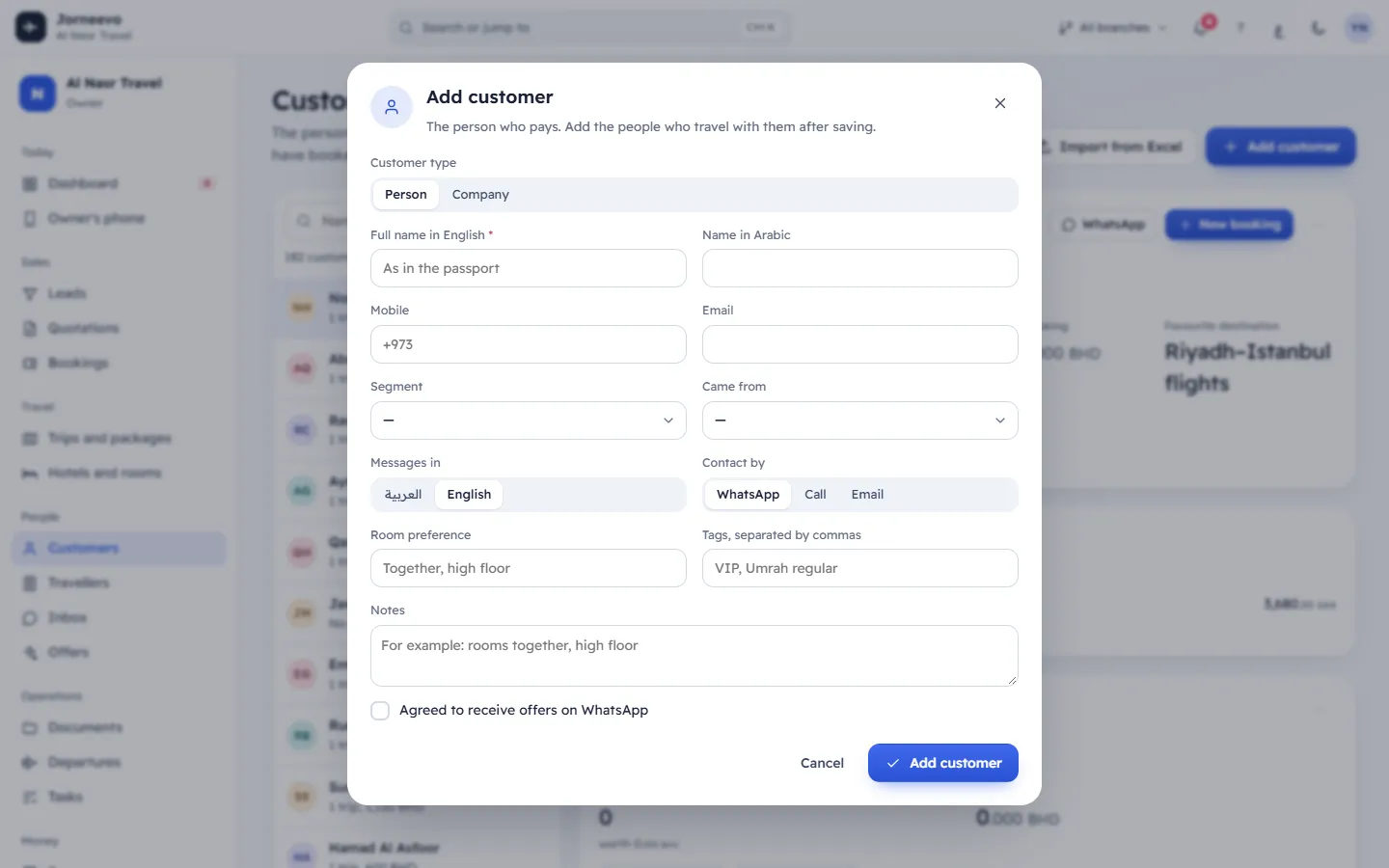
- Open Customers and press Add customer (or press
N). The Add customer window opens. - Under Customer type, choose Person or Company.
- Type Full name in English as in the passport (for a company, Company name in English). Add the Name in Arabic if you have it: it is used on the Arabic screen and in Arabic messages.
- Type the Mobile and, if you have it, the Email. The mobile shows your country's dialling code as a hint.
- If a box appears with This mobile or email is already saved for: or A customer with this name is already saved:, the customer may already exist. Press Open next to the name to go to that customer instead. You can still save; merge the two later.
- For a company, fill Tax details for invoices: the VAT number, the Commercial registration, or an Other id (choose the Id type and type the Id number) when there is no VAT number. Then choose the Country and type the address: Street, Building number, Additional number, District, City and Postal code.
- Choose the Segment and Came from (where the customer heard of you), if you use them.
- Under Messages in, choose العربية or English: confirmations, receipts and reminders go out in this language.
- Under Contact by, choose WhatsApp, Call or Email. Add a Room preference (for example "Together, high floor"), Tags, separated by commas (for example VIP) and Notes if useful.
- Tick Agreed to receive offers on WhatsApp only if the customer agreed to receive offers.
- Press Add customer.
After you add the customer
- The message "… added" appears and the customer's file opens. See A customer's file.
- You are the customer's Owner.
- Add the people who travel with them: Add family travellers to a customer.
- A company with a VAT number gets a tax invoice with its details as the buyer.
Tip
When a search on Customers finds nobody, press Add “…”: the form opens with the name or mobile you typed.
If something goes wrong
- Enter a name: the name is empty. Type the full name.
- Invalid email: the email is not complete. Check it, for example
name@example.com. - Only companies have a VAT number here. Choose "Company".: a person cannot have a VAT number. Choose Company or clear the VAT number.
- VAT number: … or Commercial registration: …: the number does not match the format of the address country. The hint under the field shows the right format; check the number and the Country.
- Enter the id number: you chose an Id type without a number. Choose what kind of id this is: you typed an Id number without choosing its type.
- Building number: 4 digits or Postal code: 5 digits: in Saudi Arabia the building number has 4 digits and the postal code 5.
- Add customer is missing: your role cannot add customers. Ask the agency owner.
Related articles
- The customers listFind any customer by name or mobile, filter by segment or source, see who owes you money, and export or import your list.
- Customers, travellers and companiesThe customer pays, the travellers fly: how people, families and company customers fit together, and why you enter a passport only once.
- Add family travellers to a customerSave the people who travel with a customer, with their passports, once, so every future booking can use them.
- Merge duplicate customersJoin two records of the same customer into one, keeping their bookings, travellers, quotations, points, credit and chats.