The Departures board
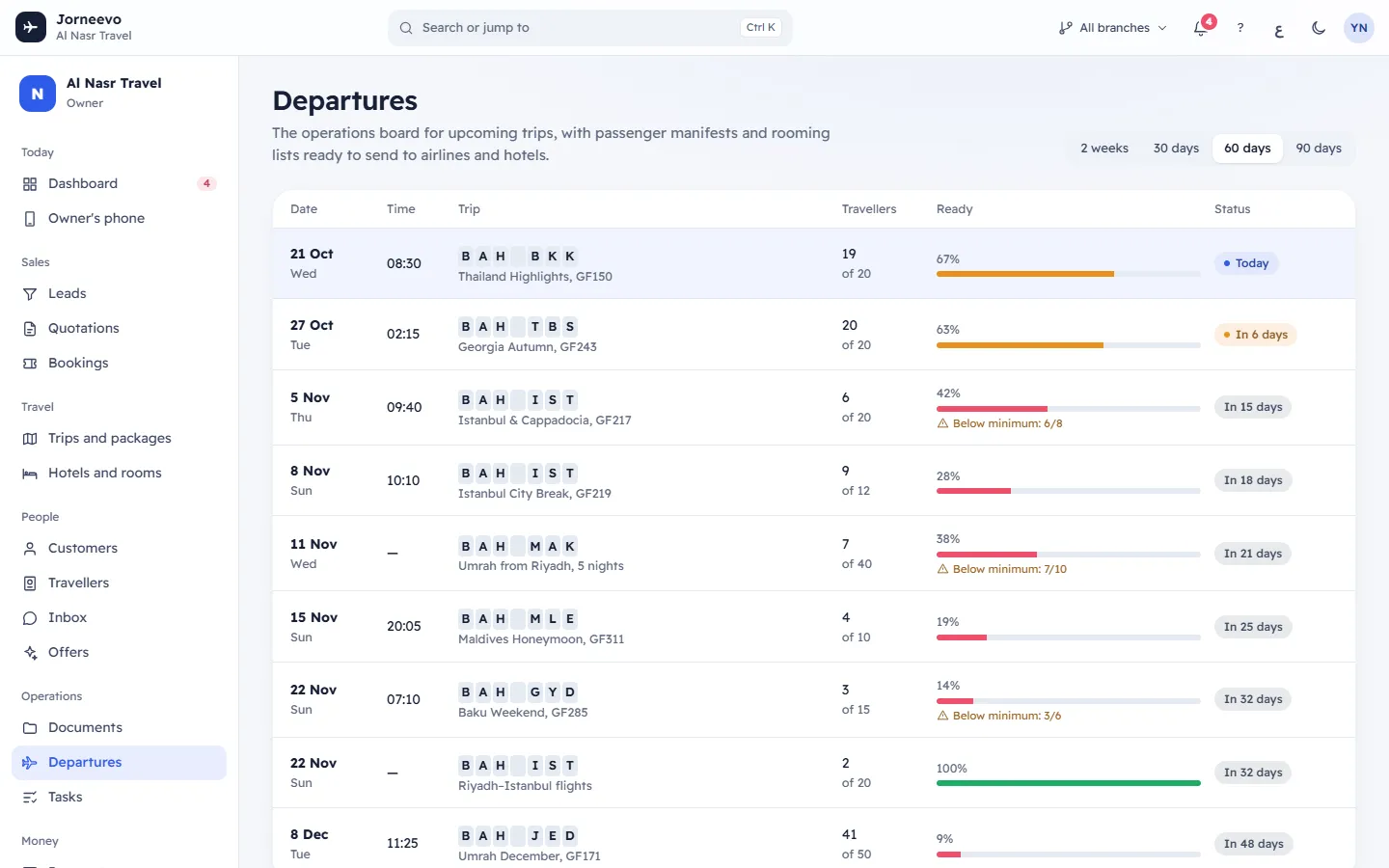
The operations board for trips leaving soon, with a readiness score, minimum warnings, the passenger manifest and the rooming list.
Departures lists the trips that leave in the coming weeks, like an airport departures board, and tells you how ready each one is. Below the board, the selected trip's passenger manifest and rooming list are ready to send to the airline and the hotel. Operations staff use it every day.
What you see
The period (top)
Choose how far ahead to look: 2 weeks, 30 days, 60 days (the first time) or 90 days. The board keeps your choice for the next time.
The board
Trips that are open for sale or closed for sale, leaving between today and the end of the period, the soonest first. Draft, cancelled and completed trips are not on the board.
| Column | What it shows |
|---|---|
| Date | The departure date and the day of the week. |
| Time | The departure time set on the trip, or — when there is none. |
| Trip | The airport codes (the agency's home airport, then the trip code), the trip name and the outbound flight. |
| Travellers | Travellers on confirmed bookings, and "of …" the seats for sale. |
| Ready | The readiness score in % with a bar: green above 80%, amber above 50%, red at 50% or less. A warning "Below minimum: …/…" shows when the trip has fewer counted travellers than its minimum. |
| Status | When it leaves: Today, Tomorrow or "In … days". Dark for today and tomorrow, amber within 14 days. |
Hover over the Ready bar to see what it is made of: Documents in %, Checklist tasks done out of all tasks, Rooming list sent, Rooming list not sent or No hotel, and how much is "still to collect" (or All paid). If your role does not see money, you see the share collected in % instead. Check upcoming departures and minimums explains the score.
The selected trip (below the board)
The first trip is selected when the page opens; click any row to select another. The panel shows the trip name, the date, the time and the airline and flight, with three buttons:
- Excel (CSV): downloads the tab you are on as a CSV file, with passport numbers masked.
- Excel with passports: downloads the full manifest and rooming list as an Excel file. Shown only to roles that can export manifests.
- Open trip: opens the trip page.
Two tabs, each with its count:
- Passenger manifest: the travellers of confirmed bookings, by booking number. Columns #, Name as in passport (surname / given names and the airline title MR, MRS, MSTR, MISS or INF, with the name as typed below), Passport (last digits, or Missing), Nationality, Date of birth, Booking (last digits, opens the booking) and Room (room number and hotel). The note under it reminds you that full passport numbers appear only in the Excel export, and every export is logged.
- Rooming list: one card per room given out: Room and its number, the room type, the guests, the hotel and the floor. Click a card to open the hotel.
What you can do here
- Check which trips are ready and which need work: Check upcoming departures and minimums.
- Send the airline its passenger list: Excel with passports (or Export manifest (Excel) in the trip's ⋮ menu).
- Send the hotel its rooming list: the Rooming list tab, then Excel (CSV); or the Excel file, whose second sheet is the rooming list.
- Fix what is missing: Open trip, then the Travellers and documents, Hotels and rooms or Checklist tab.
Statuses
| Status | What it means |
|---|---|
| Today, Tomorrow (dark) | The trip leaves within a day. |
| "In … days" (amber) | The trip leaves within 14 days. |
| "In … days" (plain) | The trip leaves in more than 14 days. |
| "Below minimum: …/…" | Counted travellers / the trip's minimum to run. |
If something goes wrong
- Nothing leaves in this period: no published or closed trip leaves before the end of the period. Choose a longer period.
- No travellers yet: the selected trip has no confirmed booking with named travellers.
- No rooms given out yet: no hotel rooms are contracted or given out for this trip. Press Contract rooms (if your role manages hotels) to open the trip.
- This trip could not load: press Try again.
Related articles
- Check upcoming departures and minimumsRead each trip's readiness score and minimum warning on the Departures board, and find what still needs doing before it leaves.
- Departures: common questionsWhy a trip is missing from the board, how readiness and minimums are counted, and how passports appear in manifests.
- The Documents screenEvery traveller's papers for a trip in one grid, checked against what the trip needs, with upload, view, send and delete in place.
- Passport validity checksHow the system decides that a passport is valid, expires soon or has expired, and which screens warn you.