Issue a credit note or a debit note
Correct an issued invoice with a credit note (by amount or by chosen lines) or add an extra charge with a debit note.
An issued invoice never changes. Issue a credit note when you charged too much, a service was not provided or the booking is cancelled. Issue a debit note when you need to charge more, for example an extra night or an upgrade.
Before you start
- You need the permission Issue invoices and credit notes.
- The booking must have an issued invoice. You cannot credit more than is still open on it.
Steps for a credit note
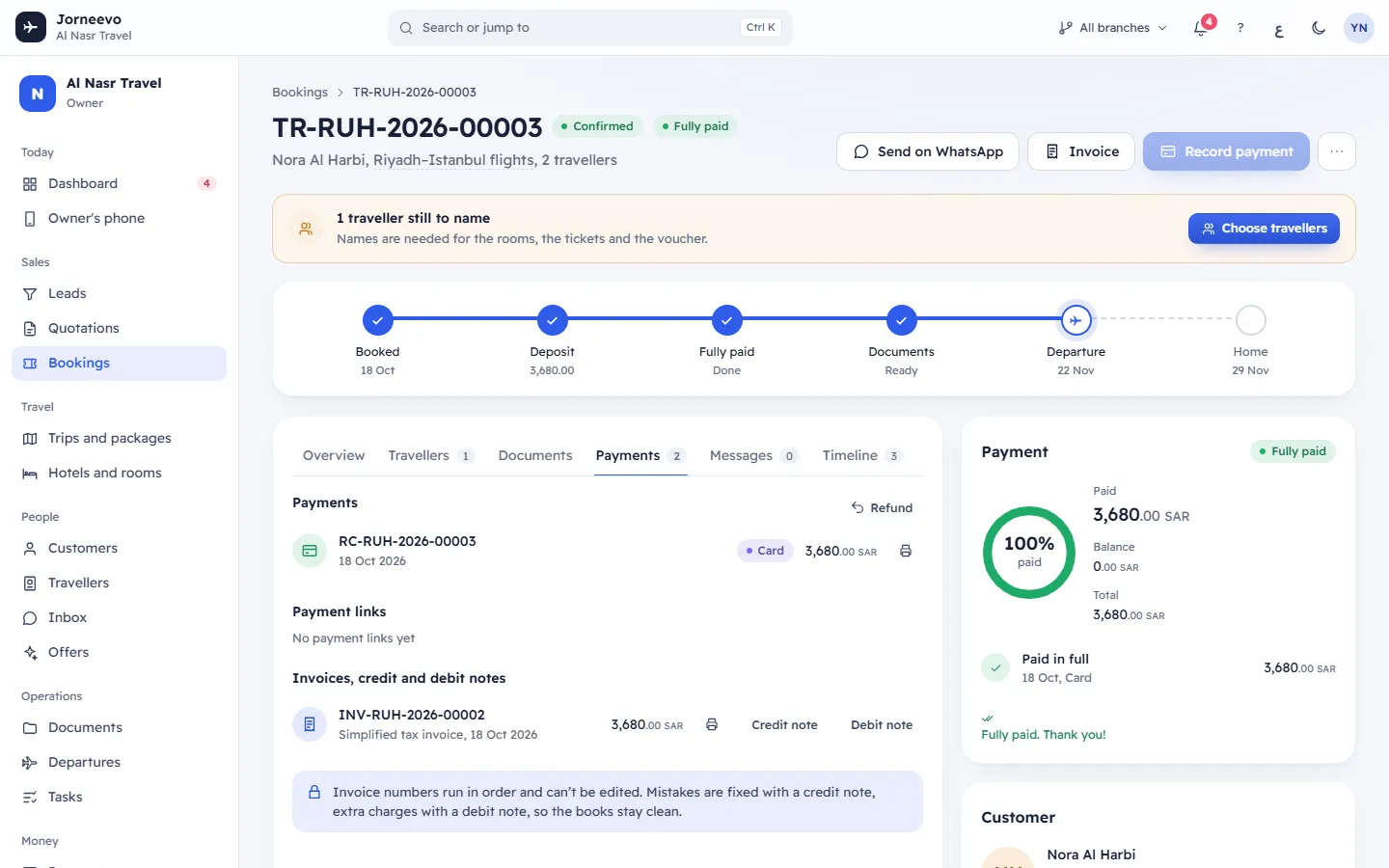
- Open the booking and go to the Payments tab. Under Invoices, credit and debit notes, find the invoice.
- Press Credit note on its row. The button shows only while something is still open on the invoice.
- Under Credit, choose how to credit:
- An amount: type the amount in Amount in …, tax included. It starts with everything still open. The amount is Split over the invoice’s tax rates in proportion.
- Chosen lines: in the table (Line, Tax, Invoiced, Left, Quantity to credit), type the quantity to credit on each line. Each line keeps its own tax. Credit note total shows the sum.
- Type the Reason, for example "Service not provided". It is printed on the note and, in Saudi Arabia, sent to ZATCA.
- Press Issue credit note.
You can also start from Payments → Invoices: pick the invoice, press Issue credit note, type the Amount and the Reason. This shorter window credits by amount only.
Steps for a debit note
- On the booking's Payments tab, press Debit note on the invoice row.
- Type the amount in Amount in …, tax included. It is Taxed like the invoice’s main line.
- Type the Reason, for example "Extra night", and press Issue debit note.
After you issue it
- The message Credit note … issued or Debit note … issued appears with a Print button.
- The note gets its own number from its own series, for example
CN-2026-00007orDN-2026-00003, and its row shows for and the invoice number, and the reason. A credit note shows as a negative amount. - The invoice row shows what is still open (… open), or fully credited when credit notes cover the invoice and its debit notes. Once an invoice is fully credited, Issue invoice is available again for the booking.
- In Saudi Arabia the note is signed and sent to ZATCA like the invoice, pointing to the original invoice, and gets its own ZATCA chip.
- The print shows Original invoice with its number and date, and the Reason.
Warning
A credit note corrects the invoice, not the money. If the customer must get money back, give a refund on the booking as well. A debit note does not ask the customer for money by itself either.
If something goes wrong
- Give a reason: the reason is empty.
- Choose at least one line: with Chosen lines, no quantity is filled in.
- Enter an amount up to … or You can credit up to … on this invoice: the amount is more than what is still open.
- You can credit up to … on "…": the quantity on that line is more than what is left on it.
- This invoice is already fully credited: nothing is left to credit. Issue a new invoice if needed.
- Enter an amount above zero: the amount is empty or zero.
- Line … is not on the invoice: the screen is out of date. Refresh the page and choose the lines again.
- This invoice is void: notes cannot be issued against a void invoice. Only the system marks a document void (for example when support corrects data); no screen can void one.
Related articles
- Tax invoices, credit notes and debit notesHow invoices, credit notes and debit notes work together, how they are numbered, and what open, fully credited and void mean.
- Issue an invoiceIssue the tax invoice of a booking from its Payments tab, then print it or save it as a PDF for the customer.
- Invoices: common questionsAnswers about changing or deleting an invoice, wrong customer details, invoicing before payment, printing, currencies and the Rounding line.
- How VAT is worked out, and the Rounding lineHow the system works out VAT on each invoice, why prices include tax, and why a Rounding line of 0.01 sometimes appears.