Issue an invoice
Issue the tax invoice of a booking from its Payments tab, then print it or save it as a PDF for the customer.
Issue the invoice when the customer needs a tax document for the booking, usually once it is fully paid. One booking has one open invoice at a time; later changes go on a credit note or a debit note.
Before you start
- You need the permission Issue invoices and credit notes.
- The booking must have item lines and must not be cancelled.
- For a branch in Saudi Arabia, the branch's seller details must be complete and the booking must be in a currency with 2 decimals, such as SAR. For a company that gets a tax invoice (B2B), the customer's address must be complete too: see Issue a ZATCA e-invoice for a Saudi company.
Steps
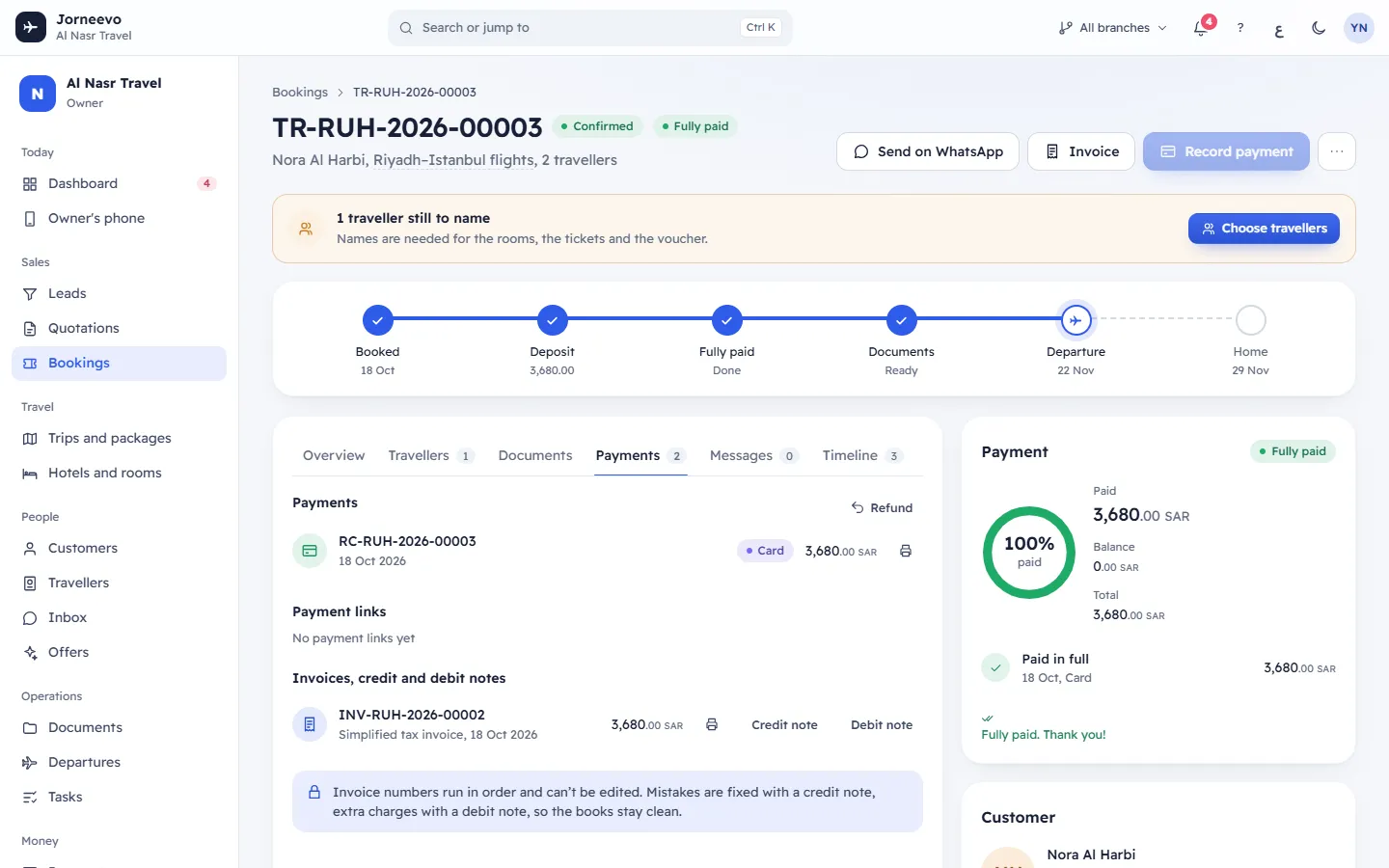
- Open the booking and press Invoice at the top. The Payments tab opens. When the booking is fully paid and has no invoice yet, the Next step card also shows Fully paid. Issue the invoice? with an Issue invoice button.
- Under Invoices, credit and debit notes, press Issue invoice.
- The message Invoice issued: … appears with the new number. Press Print in the message, or the printer button on the invoice row (Print or save PDF).
- In the printable page, press Print or save as PDF. Choose your printer, or save as PDF in the browser's print window to send the file to the customer.
After you issue it
- The invoice gets the next number of the series, for example
INV-2026-00042. Branches in Saudi Arabia number their own documents, so the number carries the branch code. Numbers run in order and cannot be edited. - The row shows the number, Tax invoice or Simplified tax invoice, the date and the total. Which one the customer gets is decided by the customer and your settings: see Choose a simplified or a standard (B2B) invoice.
- The seller (your branch) and the buyer (your customer) are copied onto the invoice. Changing the customer later does not change an issued invoice.
- Each line gets its tax from your tax rules, and the print shows a Tax breakdown and the totals. A Rounding line may appear: see How VAT is worked out, and the Rounding line.
- In Saudi Arabia, when the branch's e-invoicing is on, the invoice is signed and sent to ZATCA at once, and a ZATCA chip appears on the row, for example ZATCA: Cleared. A standard (B2B) invoice is cleared before you hand it over; a simplified (B2C) one is reported. ZATCA's outcome also shows on the booking's Timeline. While e-invoicing is still off, the invoice is not an e-invoice and has no chip.
- The booking's Timeline records Invoice … issued.
Note
The printed language follows the screen: the invoice prints in the language you are using, with the other language beside each heading. Switch the language in the top bar to print the other version.
If something goes wrong
- Issue invoice is missing: the booking already has an open invoice, the booking is cancelled, or your role does not include issuing invoices.
- This booking already has an invoice. Issue a credit note first to change it.: credit the full open amount of the current invoice, then issue a new one. See Issue a credit note or a debit note.
- This booking has no lines to invoice: add the items to the booking first.
- Complete the branch's details for e-invoicing first: … (Settings → Branches): the branch is missing seller details, such as the commercial registration or the 4-digit additional number. Ask someone who manages settings to complete them.
- This customer gets a tax invoice (business with a VAT number). Complete their address first: …: open the customer, press Edit and fill in the address fields listed.
- E-invoices need a currency with 2 decimals; this booking is in …: a Saudi branch cannot e-invoice in BHD, KWD, OMR or other 3-decimal currencies. Sell in SAR at that branch.
Related articles
- Issue a credit note or a debit noteCorrect an issued invoice with a credit note (by amount or by chosen lines) or add an extra charge with a debit note.
- Choose a simplified or a standard (B2B) invoiceDecide which customers get a tax invoice (B2B) and which get a simplified tax invoice, and what changes on the document.
- Issue a ZATCA e-invoice for a Saudi companySet up a Saudi business customer's VAT number and national address, issue its tax invoice and check that ZATCA cleared it.
- Tax invoices, credit notes and debit notesHow invoices, credit notes and debit notes work together, how they are numbered, and what open, fully credited and void mean.
- How VAT is worked out, and the Rounding lineHow the system works out VAT on each invoice, why prices include tax, and why a Rounding line of 0.01 sometimes appears.