Add a lead
Save a new enquiry in seconds with the quick add line on the board, or with the full Add lead form, and spot a mobile you already have.
Add a lead as soon as someone asks about a trip, even if you only have a name. The sooner it is on the board, the sooner the team replies, and the reply time counts in Average first reply.
Before you start
- You need permission to add and move leads.
- Your agency needs lead stages and sources in Settings → Lists. A new agency already has a starting list.
Steps: the quick add line (fastest)
- Open Leads in Board view.
- Click the line at the top of the first column, Name and mobile, then Enter (or press
N). - Type the name and the mobile, then a comma and what they asked for. For example:
Sara 3333 4444, Georgia in December. The system takes the name, the mobile and the request apart by itself. - Check the source in the small Source list under the line. It starts with the source you used last, or the source chosen in the filter above the board.
- Press
Enter(or the tick button). The card appears at the top of the first column and … added shows.
The hint under the empty line shows who the lead is for: you, or the person chosen in the Owner filter.
Press More to move what you typed into the full form, or Esc to clear the line.
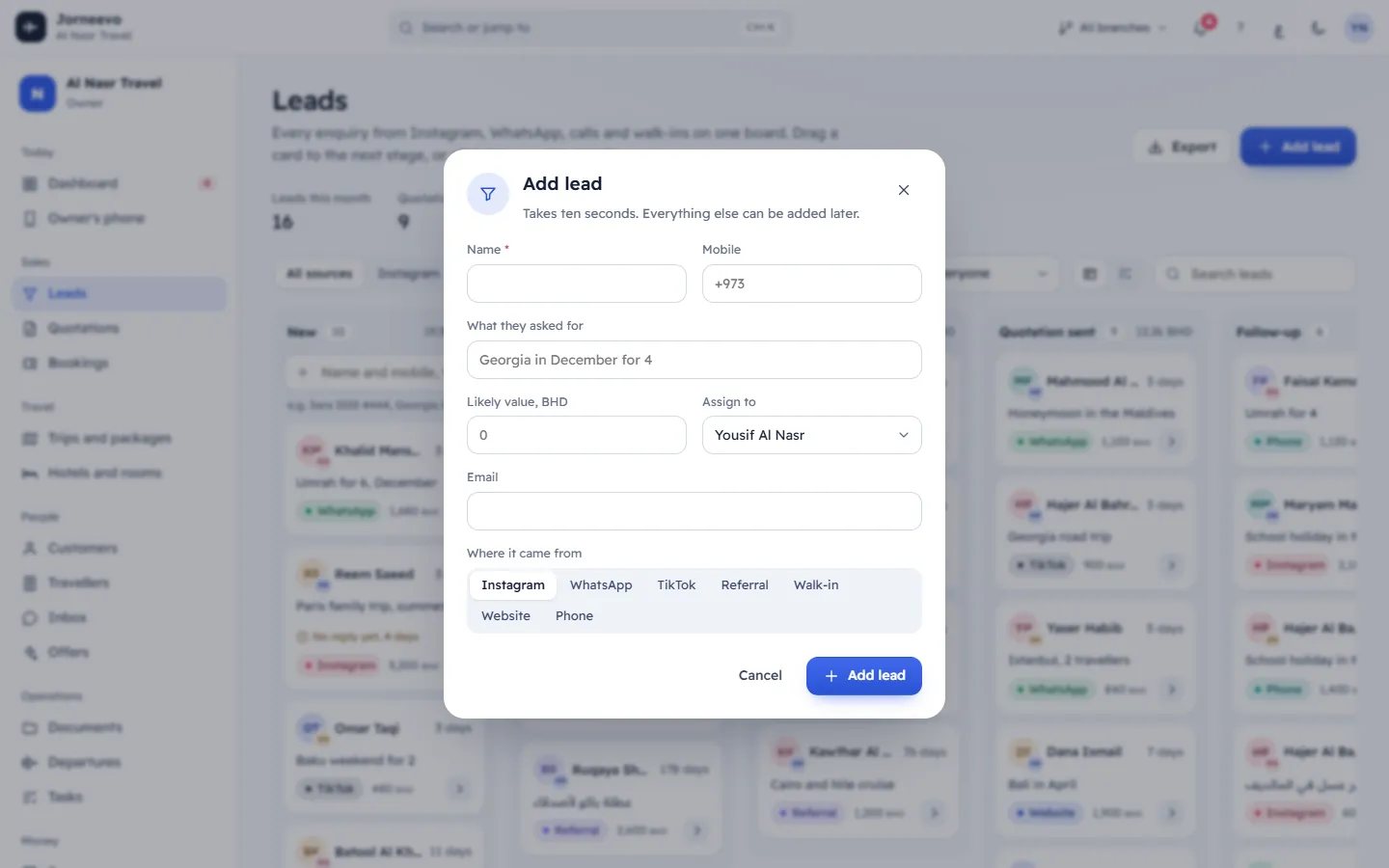
Steps: the Add lead form
- Press Add lead at the top of Leads (in List view,
Nopens it too). - Type the Name. It is the only field you must fill.
- Type the Mobile. The box shows your country's dialling code as a guide.
- Fill what you know: What they asked for (for example "Georgia in December for 4"), Likely value in your main currency, Assign to (you by default) and Email.
- Under Where it came from, choose the source. The one you used last is already chosen.
- Press Add lead. The message Lead added appears and the lead is on the board.
If the mobile is already saved
When you type a mobile of 7 digits or more, the form checks it. If an open or booked lead, or a customer, has the same mobile, the box This mobile is already saved lists them, each marked Lead or Customer:
- Press Open on a lead to open that lead instead of adding a copy.
- Press Open on a customer to go to that customer's file.
- Or add the lead anyway: You can still add it; converting the lead links it to the saved customer.
After you add it
- The lead starts in the first stage, with a new lead number.
- The owner is you unless you chose someone else. The source is remembered for your next lead.
- On the board, the card shows No reply yet, … until someone calls, sends a WhatsApp message, adds a note or moves the lead. Then the time of the first reply is saved.
Tip
A walk-in customer at the desk? Add the lead with the quick add line while they talk, then open the card and press Make a quotation. See Turn a lead into a quotation or a booking.
If something goes wrong
- Type the name first: the quick add line has only a number. Type the name before the mobile.
- Enter a name: the Name field of the form is empty.
- The quick add line is missing: you are in List view, or your role cannot add leads. Switch to Board, or ask the agency owner.
Related articles
- The leads boardEvery enquiry on one board or list: the numbers at the top, the filters, the stage columns, the cards and the lead's details panel.
- Move a lead through the stagesDrag a card to the next column, use its arrow, pick a stage in the lead's panel, or move and assign many leads at once from the list.
- Turn a lead into a quotation or a bookingMake a quotation from a lead in one click, turn the lead into a customer, or start a booking when the lead has booked.
- How the sales pipeline worksHow an enquiry becomes a lead, a quotation and a booking: the stages, the first reply, conversion, lost reasons and where to change them.