The leads board
Every enquiry on one board or list: the numbers at the top, the filters, the stage columns, the cards and the lead's details panel.
Leads holds every enquiry your agency receives: Instagram and WhatsApp messages, calls and walk-ins. Sales staff use it to follow each enquiry from the first message until the customer books or is lost.
What you see
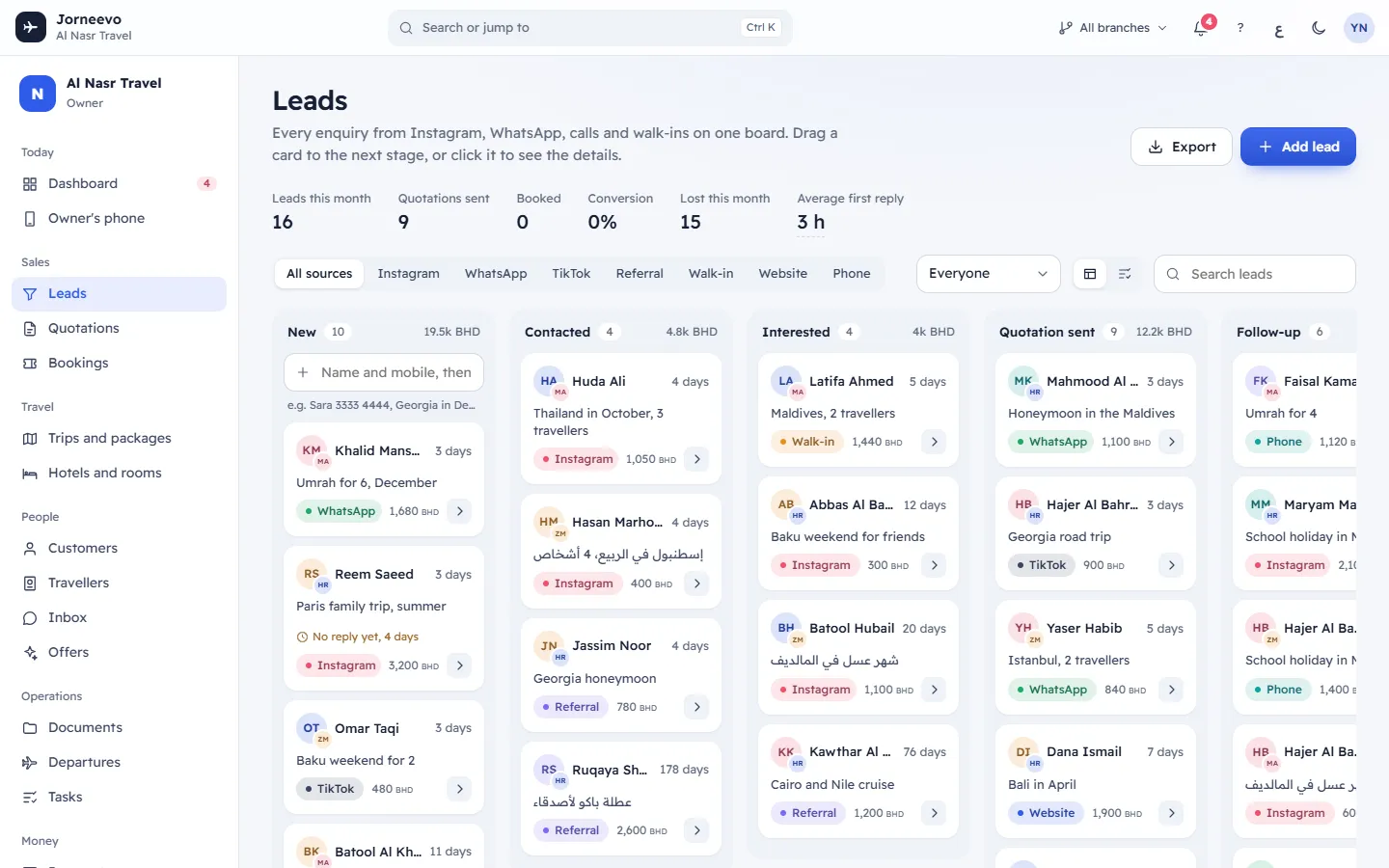
The top of the screen
- Export: downloads an Excel file of the leads that match the current filters. On the board, the file has every lead, lost ones included. In the list, it has open and booked leads, and lost ones too when Show lost leads is ticked. The message Preparing the Excel file… shows while the file is made.
- Add lead (shortcut
N): opens the full form. See Add a lead.
The numbers
The strip of numbers covers the current month. It follows the Owner filter, not the source or the search.
| Number | What it counts |
|---|---|
| Leads this month | Leads added since the first day of the month. |
| Quotations sent | Quotations sent to customers this month. Only people who can see quotations see it. |
| Booked | Leads that reached the booked stage this month. |
| Conversion | Booked divided by Leads this month, as a percentage (100% at most). |
| Lost this month | Leads marked as lost this month. |
| Average first reply | The average time between adding a lead and the first reply, for leads added in the last 90 days. |
Click the Average first reply time to see First reply by owner, last 90 days: each team member with their average and, in brackets, the number of leads it covers. A first reply is the first call or WhatsApp message from the lead's panel, the first note, the first stage move, or the first quotation sent.
The filters
- All sources and one button for each source in your list: show only the leads from one source.
- Owner: Everyone, or one team member's leads.
- View: Board (columns) or List (a table).
- Search leads (shortcut
/): finds a name, a mobile, an email, a word of the request or a lead number.
The system remembers your source, owner and view for the next time you open the screen.
The board
One column for each lead stage, in the order set in Settings → Lists. Each column header shows the stage name, the number of leads and the total likely value. The board shows open and booked leads. Lost leads are only in the list.
- The first column starts with the quick add line, Name and mobile, then Enter. See Add a lead.
- A column shows 20 cards. Press Show 20 more (or the number left) at the bottom to see more.
- An empty column shows Drop a card here, or Nothing here when you cannot move leads.
- A lead whose stage was removed from the list shows in the first column.
Each card shows:
- The lead's initials and, beside them, the owner's initials (point at them to see Owner and the name).
- The name and how long the lead has been in this stage (point at it to see the date).
- What they asked for.
- No reply yet, … in the first column, while nobody has replied to a new lead.
- The source, the likely value, and an arrow, Move to the next stage.
Booked leads have a green card. Click a card, or press Enter on it, to open the lead.
The list
- Show lost leads: adds lost leads to the list. The count of leads shows on the same line.
- Columns: Lead (name with mobile or email), What they asked for, Source, Stage (a lost lead shows Lost and its reason), Likely value, Owner, First reply (how long the first reply took), In stage (time in the stage and the date added).
- 40 leads at a time. Press Show more to load the next ones.
- A tick box on each row, and Select all shown in the header, when you can manage leads. Press
Spaceon a row to tick it. - No leads match and Try another source, owner or search. when nothing matches the filters.
When you tick rows, a bar appears with … selected, Assign to…, Move to stage…, Export selection and Clear. See Move a lead through the stages.
The lead's panel
Click a lead to open its panel on the side. The top shows the name and the mobile, email or lead number.
- Chips: the source, the stage (or Lost), the likely value and the lead number. The ⋮ menu has Delete lead.
- A banner when something needs attention:
- Waiting for a first reply for …: nobody has replied yet. A call, a WhatsApp message, a note or a stage move counts.
- Marked as lost with the reason.
- Booked. Create the booking when you are ready. with New booking.
- What they asked for, Likely value, Owner, Mobile, Email, Source: change them in place. Each field is saved when you leave it, and Saved appears. Changing the owner shows Assigned to ….
- Customer: the linked customer (click to open), or Convert to customer. See Turn a lead into a quotation or a booking.
- Stage: one button per stage. Click one to move the lead. It is hidden for a lost lead.
- Quotations: the lead's quotations with their number and status. Click one to open it.
- Notes: type in the box (for example "prefers a hotel near the Haram") and press
Enteror Add note. Each note shows who wrote it, or System, and when. With no notes: No notes yet. - The last line: when the lead was added, how long the first reply took, and the lead number.
The bottom of the panel has Mark as lost (or Reopen for a lost lead), the phone button Call (when there is a mobile), WhatsApp (opens a chat that starts with "Hello" and the name; disabled without a mobile) and Make a quotation.
If you can only view leads, the fields are read-only and the buttons that change the lead are hidden.
What you can do here
- Add a lead in seconds: Add a lead
- Move leads between stages, or many at once: Move a lead through the stages
- Mark a lead as lost, reopen it: Mark a lead as lost
- Turn a lead into a customer and a quotation: Turn a lead into a quotation or a booking
- Delete a lead: open it, press ⋮ → Delete lead, then Delete. The lead and its notes are removed; its quotations stay.
Statuses
| Status | Meaning |
|---|---|
| Open | The lead is in one of the stages and on the board. |
| Booked | The lead reached the stage marked as booked. It stays on the board, in green. |
| Lost | Someone marked it as lost with a reason. It leaves the board and shows in the list with Show lost leads. |
Messages you may see
- Could not load leads. with Try again: the connection failed. Press Try again.
- No pipeline stages yet and Add lead stages in Settings, Lists.: your agency has no stages. Add them in Settings → Lists.
- This lead could not be loaded.: the lead was deleted or you lost the connection. Close the panel and refresh.
Related articles
- Add a leadSave a new enquiry in seconds with the quick add line on the board, or with the full Add lead form, and spot a mobile you already have.
- Move a lead through the stagesDrag a card to the next column, use its arrow, pick a stage in the lead's panel, or move and assign many leads at once from the list.
- Mark a lead as lostClose a lead that will not book, with the reason, and undo it or reopen the lead later if the customer comes back.
- Turn a lead into a quotation or a bookingMake a quotation from a lead in one click, turn the lead into a customer, or start a booking when the lead has booked.
- How the sales pipeline worksHow an enquiry becomes a lead, a quotation and a booking: the stages, the first reply, conversion, lost reasons and where to change them.