Send a payment link or a reminder
Remind one customer or many about their balance, with a secure payment link they can pay by card.
Send a reminder when a balance is due soon or overdue. The reminder uses the Payment reminder message, in the customer's language, with the balance, the due date and a link to pay online.
Before you start
- Reminders need permission to edit bookings or to record payments. Creating a payment link needs permission to record payments.
- The customer needs a mobile number (WhatsApp, SMS) or an email.
- Messages only leave the system when the channel is connected in Settings → Connections. Until then they are kept in the message log and show Logged only.
Remind one customer from the booking
- Open the booking. When the balance is due, the Next step card shows Collect the balance of ….
- Press Send reminder by … (for example Send reminder by WhatsApp: the customer's usual channel).
- If the booking has no open payment link and you may record payments, a new link for the whole balance is made (it works for 3 days) and goes in the message. You see Reminder sent with a payment link. Otherwise the open link goes in the message and you see Reminder sent.
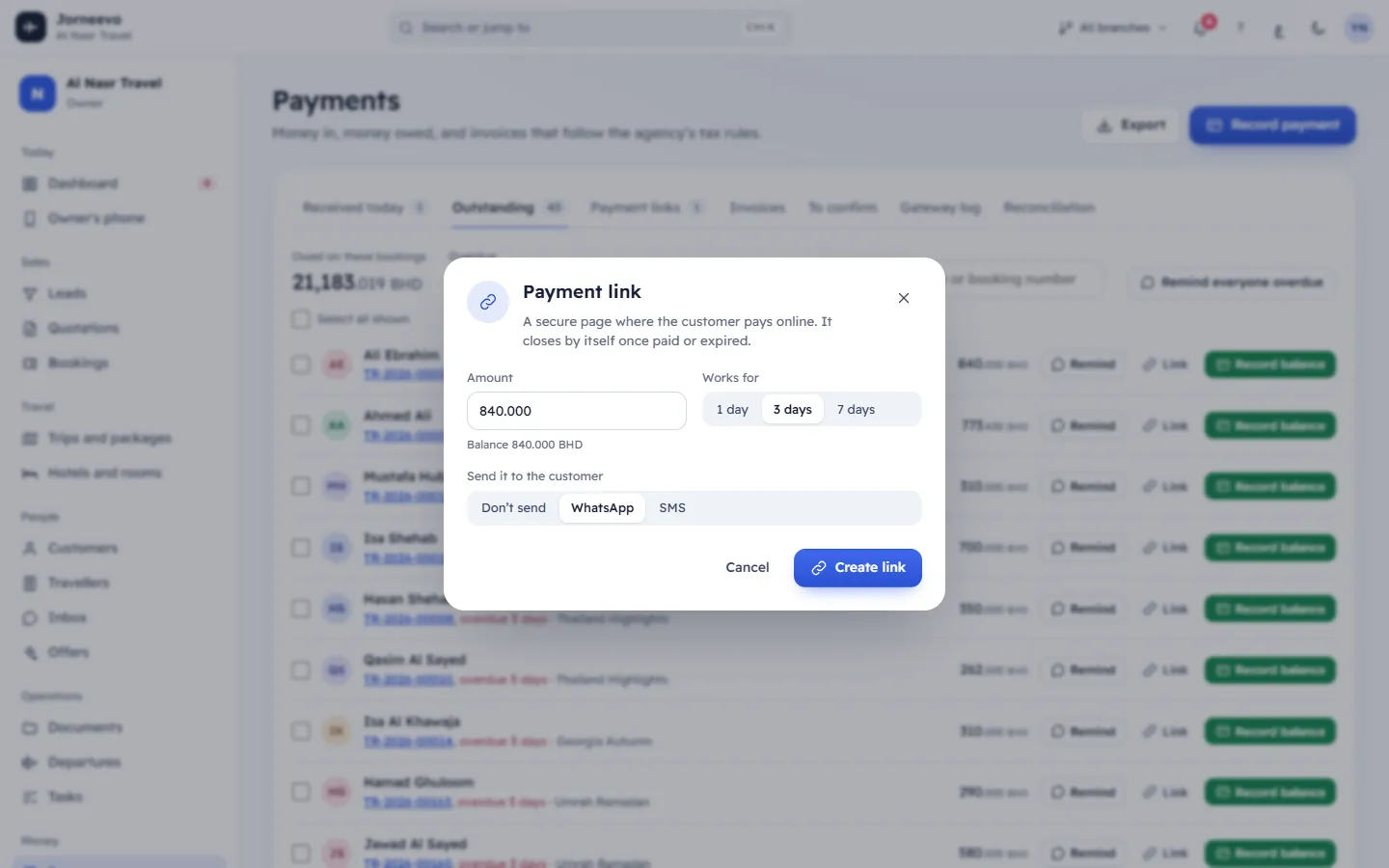
Make a link with your own amount and send it
- In the booking's Payment panel, press Payment link (or New link in the Payments tab).
- Type the Amount (up to the balance), choose Works for: 1 day, 3 days or 7 days.
- Under Send it to the customer, choose WhatsApp, Email or SMS, then press Create link. You see Payment link sent. With Don’t send, press Copy link and paste it yourself.
- To send an open link again later, press Send reminder with this link next to it in the Payments tab, check the message preview and press Send (or Open in WhatsApp).
Remind many customers at once
From Payments → Outstanding:
- Press Remind everyone overdue, then Send reminders to confirm. Each overdue customer gets the reminder in their own language.
- Or tick some rows (or Select all shown) and press Remind …. There is nothing to confirm.
From Bookings:
- Tick the bookings, then press Send payment reminder (…) in the bar that appears. Only bookings that still owe money count.
- Choose the channel: Their usual channel (WhatsApp for customers with a mobile, email for the rest), WhatsApp, Email or SMS.
- Press Send …. Each booking shows a result: Sent, Logged only, Ready in WhatsApp, Failed or Skipped. Press Open chat next to Ready in WhatsApp to send it in WhatsApp.
Note
From the booking and from Bookings, a booking without an open link gets a new 3-day link for its balance. From Payments → Outstanding, the reminder carries the open link if there is one; otherwise it goes without a link, so create one first with Link on the row.
After you send it
- The message appears in the booking's Messages tab, and the booking's Timeline records who sent it and how.
- When the customer pays through the link, the payment is recorded by itself. See Payment links explained.
- If WhatsApp is set to click-to-chat, WhatsApp opens with the message ready (one chat per customer when you send many): press send there. The message WhatsApp is open with the message. Press send there. reminds you.
If something goes wrong
- No phone or email on file (the Remind button is greyed out): add a mobile or an email on the customer.
- Skipped with Cancelled or Nothing owed: the booking is cancelled or already paid, so no reminder was sent.
- Failed with No phone number or email: the customer cannot be reached on that channel.
- There is no open payment link, so the message goes without one. Create a link first to include it.: you chose Payment reminder in Send a message without an open link. Create a link first.
- The message was not sent: …: the channel answered with an error. Check Settings → Connections.
Related articles
- Payment links explainedWhat a payment link is, how long it works, what the customer sees and how the payment reaches the booking by itself.
- Take a deposit by payment linkLet the customer pay the deposit online by card: the link is made when you confirm the booking, or later from the booking.
- Record a paymentAdd a payment the customer made in cash, by card machine or by bank transfer, and send them the receipt.
- Online payment problems and fixesThe customer paid but the link still shows open, the link expired, the card was declined, a refund failed or the gateway refused: what to check.