Take a deposit by payment link
Let the customer pay the deposit online by card: the link is made when you confirm the booking, or later from the booking.
Use a payment link when the customer wants to pay the deposit by card from their phone instead of at the office. The money is recorded on the booking by itself as soon as the gateway confirms it.
Before you start
- A payment gateway is connected in Settings → Connections → Online payments. While it shows Test mode: no real money, customers see a test payment page and no real money moves.
- An online method (for example Payment link or BenefitPay) is switched on in Settings → Payment methods.
- You need permission to create bookings and to record payments.
Steps when you create the booking
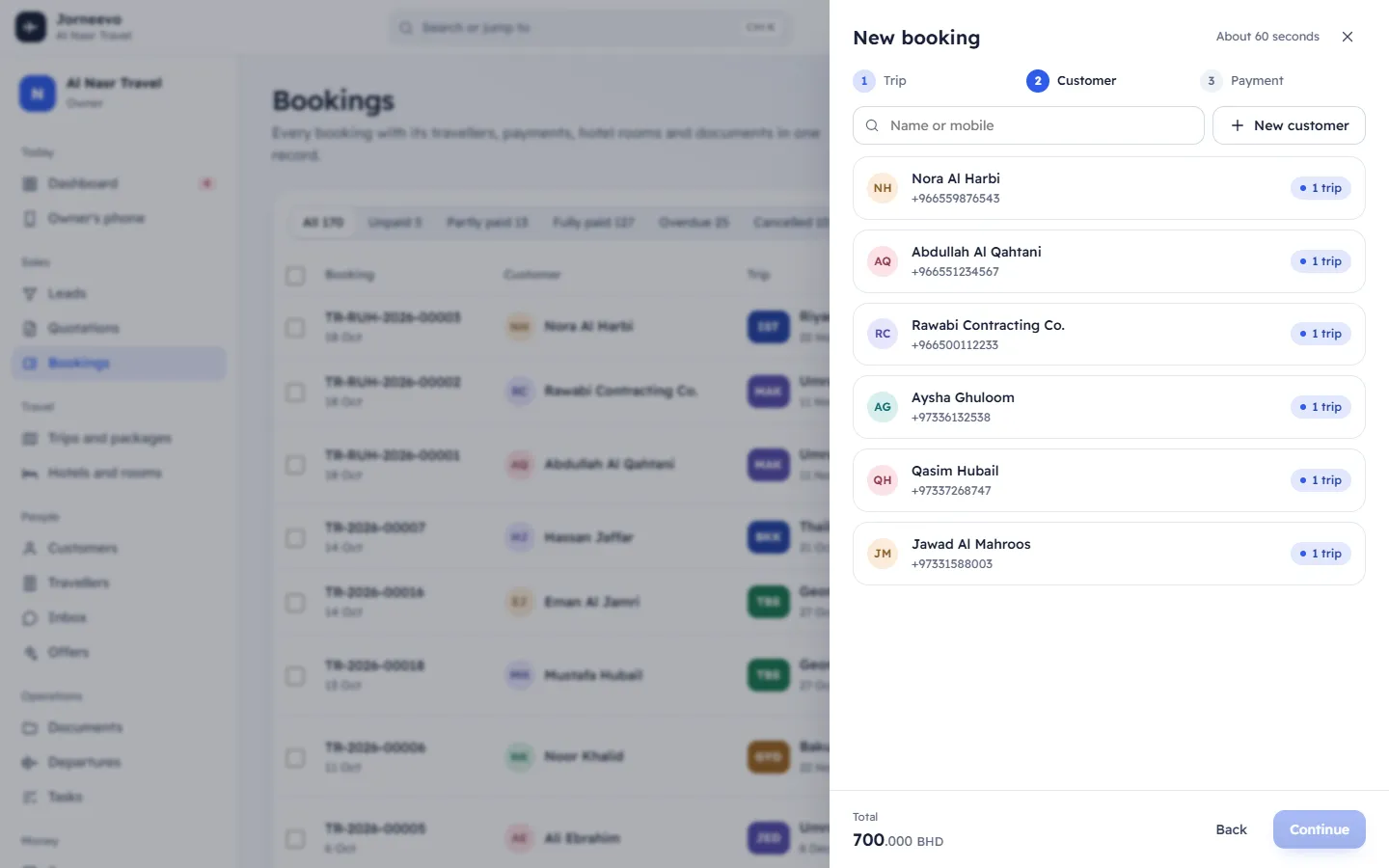
- In New booking, go through the Trip and Customer steps as usual (see Create a booking).
- On the Payment step, choose the deposit under Deposit now: 30%, 50% or Full amount.
- Under Paid by, choose an online method. The hint says A secure payment link for the deposit is created and copied when you confirm.
- Under Send the confirmation, choose a channel if you want the customer to get the booking confirmation.
- Press Confirm booking. The message Deposit payment link created and copied appears, with Open.
- Paste the link in your chat with the customer, or send it from the booking with Send reminder with this link (see Send a payment link or a reminder).
Steps for a booking that already exists
- Open the booking and press Payment link in the Payment panel.
- In Amount, type the deposit. It starts with the whole balance and cannot be more.
- Choose how long it works in Works for: 1 day, 3 days or 7 days.
- Under Send it to the customer, choose WhatsApp, Email or SMS, or Don’t send to copy it yourself.
- Press Create link. The window shows the amount, when it expires and the link, with Open and Copy link.
After the customer pays
- The payment is recorded on the booking with the online method and a receipt number. Nobody has to record it.
- The link shows Paid in the booking's Payments tab and in Payments → Payment links.
- The customer sees Payment received. Thank you! and gets the receipt on the channel chosen in Settings → Preferences → Send online payment receipts by.
- The booking moves to Deposit paid (less than 35% of the total paid) or Partly paid.
Note
A link made when you confirm a booking works for 3 days. Until the customer pays, the booking shows no deposit: the seats are held, and the balance shows the whole amount.
If something goes wrong
- Enter an amount up to the balance of …: the amount is zero or more than the balance.
- This booking is cancelled. Restore it before asking for a payment.: restore the booking first.
- The link expired before the customer paid: create a new one. See Online payment problems and fixes.
Related articles
- Create a bookingBook a customer on a published trip in three steps, take the deposit and send the confirmation, in about a minute.
- Send a payment link or a reminderRemind one customer or many about their balance, with a secure payment link they can pay by card.
- Payment links explainedWhat a payment link is, how long it works, what the customer sees and how the payment reaches the booking by itself.
- Record a paymentAdd a payment the customer made in cash, by card machine or by bank transfer, and send them the receipt.