Record a payment
Add a payment the customer made in cash, by card machine or by bank transfer, and send them the receipt.
Record a payment each time a customer pays you directly: cash at the office, a card machine, a cheque or a bank transfer you have checked. The booking's balance goes down at once and the customer can get a receipt.
Note
Payments made online through a payment link are recorded by themselves. Do not record them again.
Before you start
- You need permission to record payments.
- The booking must be confirmed. A cancelled booking cannot take a payment until you restore it.
- The method must be switched on and offered in the booking's branch (Settings → Payment methods).
Steps
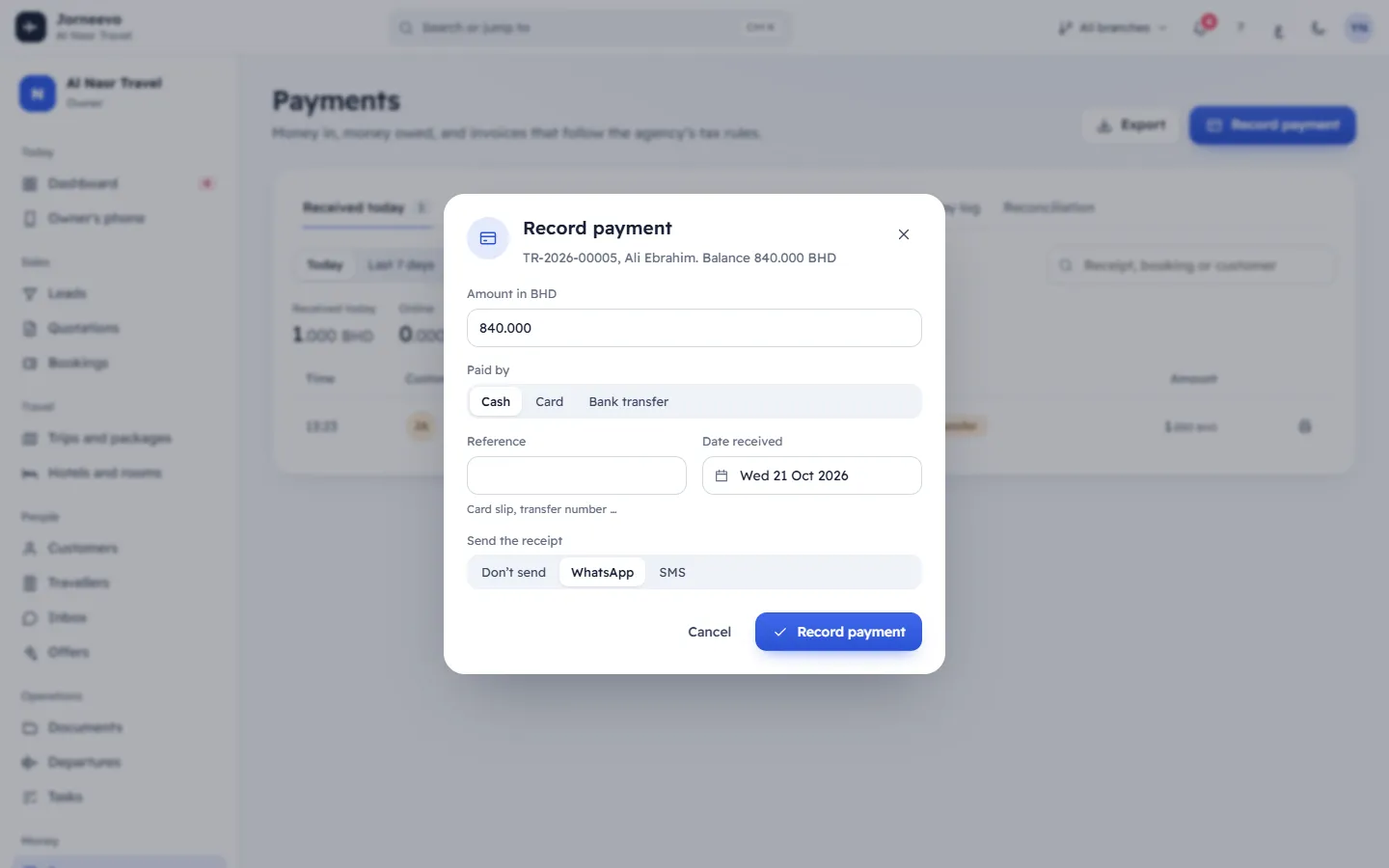
- Open the booking and press Record payment (at the top of the booking, or in its Payment panel). You can also start from Payments: press Record payment, then pick the booking under Which booking?. Bookings with a balance are listed, the ones due first at the top; type a name or a booking number to find one. On the Outstanding tab, Record balance on a row opens the same window for that booking.
- Check the window's header: it shows the booking number, the customer and the Balance.
- Type the amount in Amount in … (the booking's currency). It starts with the whole balance; change it for a part payment.
- Choose the method in Paid by. You see the methods the booking's branch accepts, except online methods (they are paid through a payment link) and customer credit or loyalty points (the customer uses those from their account). The method you used last on this computer is chosen for you.
- Type the Reference if there is one, for example the card slip or the transfer number. It helps when you reconcile.
- Check the Date received. It is today unless the money came in earlier; it cannot be a future date.
- Under Send the receipt, choose WhatsApp, Email or SMS, or Don’t send. Only the channels the customer can be reached on are shown.
- Press Record payment.
After you record it
- The message Payment recorded appears with a Print receipt button. When the payment clears the balance, the message says the booking is now fully paid and the booking shows Fully paid. Thank you!.
- The payment gets a receipt number and appears in the booking's Payment panel and Payments tab, in Payments and in the reports. In the Payment panel the first payment shows as Deposit, or Paid in full when it paid everything at once; the last one shows as Balance paid.
- If you chose a channel, the receipt goes to the customer in their language and the message Receipt sent to the customer appears. If WhatsApp is set to click-to-chat, WhatsApp opens with the message ready: press send there.
- When the booking is fully paid, Record payment is no longer available on it.
Warning
A recorded payment cannot be deleted. If you made a mistake, give a refund for the wrong amount and record the right one, so the history stays correct for your accounts. See Give a refund.
If something goes wrong
- Enter an amount above zero: the amount is empty or zero.
- The balance is …: the amount is more than the customer still owes. Record no more than the balance.
- This booking is cancelled. Restore it before taking a payment.: restore the booking first, or refund what was paid.
- … is switched off. Turn it on in Settings → Payment methods.: the method was switched off. Pick another one, or ask someone who can change settings to turn it on.
- … is not offered in this booking's branch: the method is limited to other branches. Pick another method.
- Record payment is missing: your role does not include recording payments, or the booking is already fully paid or cancelled.
Related articles
- Create a bookingBook a customer on a published trip in three steps, take the deposit and send the confirmation, in about a minute.
- Print a receiptPrint or save as PDF the receipt of any payment or refund, from the booking or from the Payments screen.
- Give a refundReturn money to the customer: back to their card through the gateway, by hand in cash or by transfer, or as credit for a later trip.
- Send a payment link or a reminderRemind one customer or many about their balance, with a secure payment link they can pay by card.
- Welcome: how the system is organisedA quick tour of the menu, the top bar, search and help, and the five setup steps that get your agency ready.