Agency and brand
Your agency's name, country, time zone, main currency, language, VAT number, contact details, brand colour and logo, with a live preview.
Agency and brand holds who you are: the details printed on invoices and shown to customers, the currency and clock the system works with, and the colour and logo of your brand. Open it from Settings → Agency and brand.
What you see
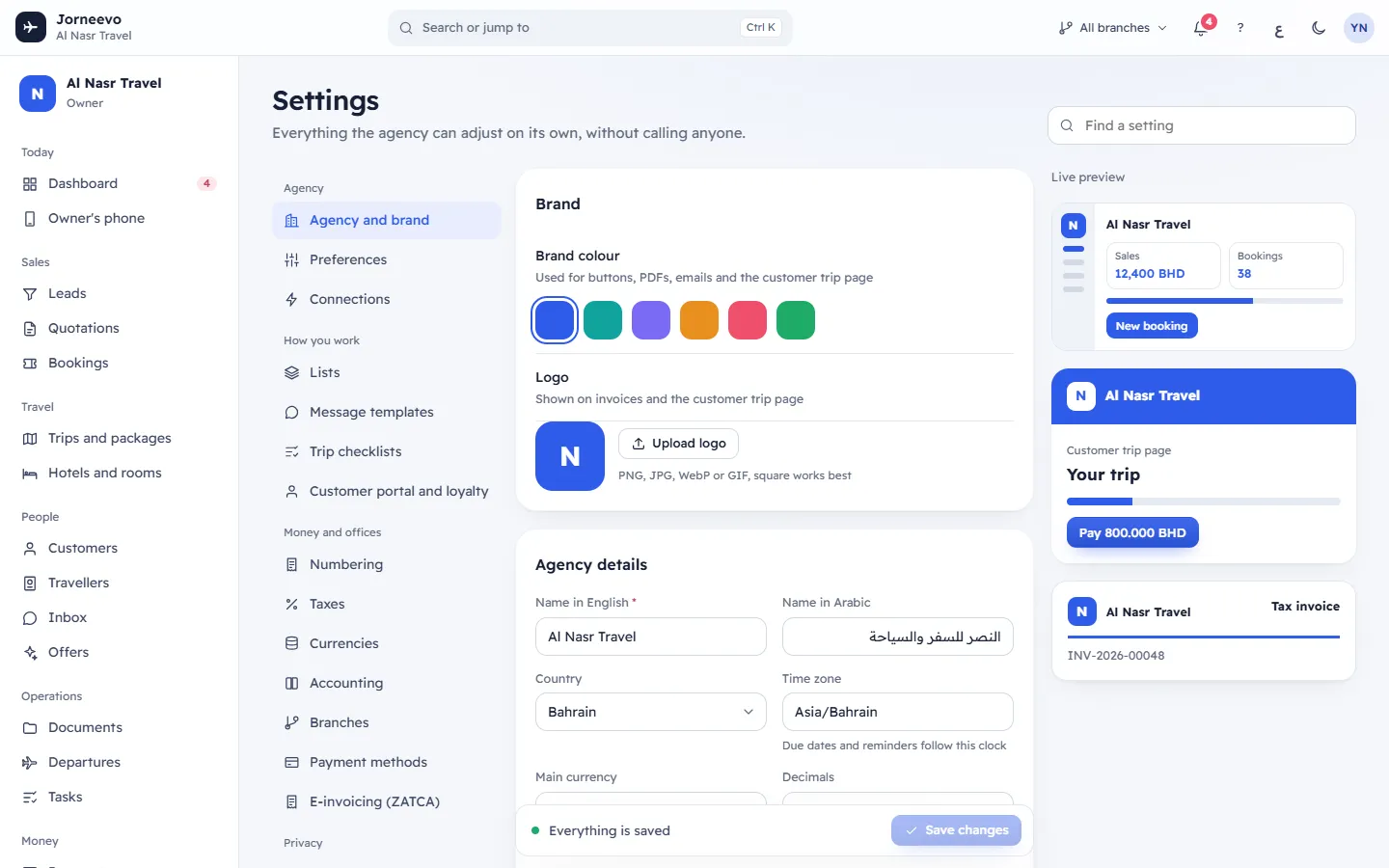
The screen has three cards on the left and a live preview on the right.
Brand
- Brand colour: Used for buttons, PDFs, emails and the customer trip page. Click a swatch to choose it. The colour is saved and applied to the whole app at once, with the message Brand colour updated everywhere. If it cannot be saved, the previous colour comes back.
- Logo: Shown on invoices and the customer trip page. The box shows your logo, or your agency's first letter
when there is none.
- Upload logo (it reads Replace logo when you already have one) opens the file picker. The message Logo updated confirms the upload.
- Remove takes the logo off. The message Logo removed confirms it.
- Use a PNG, JPG, WebP or GIF image smaller than 4 MB. A square image works best.
Agency details
| Field | What it means and the rules |
|---|---|
| Name in English | Your agency's name. It is required: Save changes stays off while it is empty. |
| Name in Arabic | Optional. Shown to Arabic readers instead of the English name. |
| Country | Pick from the list. |
| Time zone | Due dates and reminders follow this clock. Type or pick a time zone, for example Asia/Bahrain. It must be one from the list. |
| Main currency | Prices, invoices and reports use it. The list shows the currencies you added in Currencies. Changing it asks you to confirm (see below). |
| Decimals | 3 for dinars, 2 for riyals and dirhams. Choose 0, 1, 2 or 3; each choice shows a sample amount. |
| Default language | For new team members and customers. Each person can choose their own. العربية or English. |
| VAT number | Optional. Your tax registration number. |
Contact details
Printed on invoices and shown to customers. All optional: Phone, Email, Website and Address.
Live preview
Live preview shows, as you type, your name and logo in three places: a small dashboard with a New booking button in your colour, the top of the Customer trip page with Your trip and a pay button, and an invoice header marked Tax invoice with the next invoice number from Numbering.
The save bar
The name, country, time zone, currency, decimals, language, VAT number and contact details are saved with the bar at
the bottom: Save changes (or Ctrl S) and Undo changes. It shows You have unsaved changes while
something is not saved, and Everything is saved when nothing is waiting. After saving, the message Saved
appears. The brand colour and the logo do not use the bar: they are saved at once.
Changing the main currency
When you save with a different Main currency, a dialog asks Change the main currency?: amounts already saved are not converted, so change it only before you start selling, and update the exchange rates in Settings → Currencies. Press Change currency to go ahead, or Cancel.
- After the change, all your exchange rates are restated against the new main currency.
- The change is refused once you have recorded bookings, payments, invoices or supplier costs, or once your exchange rates have a history. Show your reports in another currency instead.
See Why can't I change the main currency? before you change it.
Warning
The main currency is the currency of your accounts. Choose it when you set up the agency, before the first sale.
What you can do here
- Set your colour and logo step by step: Set your brand colour and logo
- Change the main currency before you start selling: Why can't I change the main currency?
- Add the other currencies you sell in: Currencies and exchange rates
- Change how invoice numbers look in the preview: Numbering
If something goes wrong
- Use a PNG, JPG, WebP or GIF image: the file is not one of these image types. Save it as PNG or JPG and try again.
- Use an image smaller than 4 MB: make the image smaller, for example 512 × 512 pixels, and upload it again.
- The logo must be a PNG, JPEG, WebP or GIF image: the same check, made when the file arrives. Use another file.
- Choose a time zone from the list, with Unknown time zone, e.g. Asia/Bahrain under Time zone: the time zone you typed does not exist. Pick one from the suggestions.
- Use a three-letter currency code: the main currency must be a code such as
BHD. - The base currency cannot change once bookings, payments, invoices or supplier costs are recorded…: your main currency is fixed now. Choose the currency your reports open in instead.
- The base currency cannot change once exchange rates have a history…: past rates are against the current currency, so it stays.
- Choose a colour: the colour could not be used. Pick one of the swatches.
Related articles
- Set your brand colour and logoChoose the colour of your buttons, PDFs and customer pages, and upload the logo printed on invoices and shown on the customer trip page.
- Why can't I change the main currency?The main currency is locked once money or exchange rate history is recorded. When it can change, what happens, and what to do instead.
- Currencies and exchange ratesThe currencies your agency works in, their exchange rates with full history, where rates come from and the currency reports open in.
- NumberingThe running numbers your bookings, quotations, invoices, notes, receipts and leads get, for the agency and for each branch.
- The Settings screenWhere the agency adjusts everything on its own: the four groups of sections, the search box that finds any setting, and how changes are saved.