Change how documents are numbered
Change the prefix, digits, pattern, next number or yearly restart of a document series, for the agency or for one branch.
Change the numbering when you want your own prefix (for example BK for bookings), want to continue from the
numbers of your old system, or want each branch to number its own documents.
Before you start
- You need permission to change settings.
- Decide the new layout first. Numbering tokens, formats and rules lists every token with examples.
- Documents already issued keep their numbers. Only the next documents use the new layout.
Steps
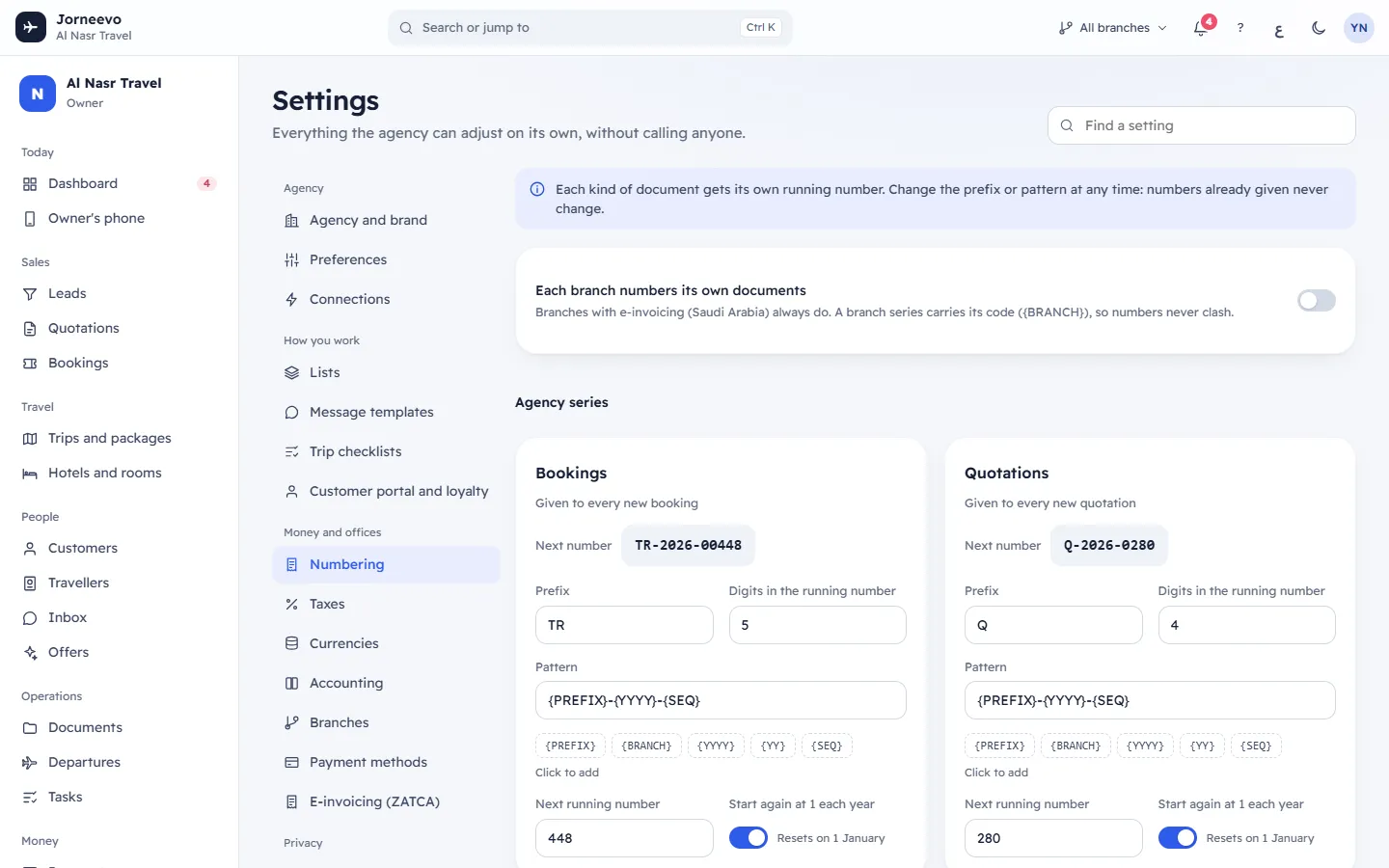
- Open Settings → Numbering.
- Find the card of the document you want to change, for example Bookings or Tax invoices. With several branches, the agency cards are under Agency series and each branch's cards are under the branch name.
- Type the new Prefix (up to 10 characters; they turn into capital letters).
- Set Digits in the running number (1 to 10).
- Edit the Pattern, or press the token buttons
{PREFIX},{BRANCH},{YYYY},{YY}and{SEQ}to add them at the end. The pattern must contain{SEQ}. - To continue from an old system, type the number to start from in Next running number. For example, if your last
invoice was 1250, type
1251. - Choose Start again at 1 each year: on to restart every 1 January, off to keep counting. A restart needs
{YYYY}or{YY}in the pattern. - Check Next number at the top of the card: it shows exactly what the next document will get.
- Press Save. The message Numbering saved appears. Press Undo instead to put the card back as it was.
Let each branch number its own documents
- With two or more branches, turn on Each branch numbers its own documents at the top. The change saves at once.
- Under each branch, press Set up now to make its series now, or leave it: it is made from the agency's series with the first document. The message Branch numbering ready appears.
- Adjust the branch cards like the agency ones. A branch pattern must keep
{BRANCH}.
Tip
Branches in Saudi Arabia always number their own documents, because each e-invoicing device needs one unbroken chain. To give one other branch its own numbers only, turn on Own document numbers in the branch instead.
After you save
- The next booking, quotation, invoice, note, receipt or lead of that series gets the number shown in Next number.
- Documents already issued keep their numbers. Nothing is renumbered.
- Tax invoices, Credit notes and Debit notes are Forward only: their next number can be raised, never lowered.
Warning
Raising the next invoice number leaves a gap in your invoice numbers that you cannot fill later. Tax rules expect invoice numbers in order, so do it only when you continue from another system.
If something goes wrong
- Save stays grey: the prefix is empty, the pattern has no
{SEQ}, the yearly restart has no year token, or the next invoice number is lower than the current one. - The pattern must contain {SEQ}: add
{SEQ}to the pattern. - Add {YYYY} or {YY}, or stop starting again each year: add a year token or turn Start again at 1 each year off.
- Cannot go below … or Invoice numbers can only move forward: type a number equal to or above the one shown.
- A branch series needs {BRANCH} in the pattern: put
{BRANCH}back in the branch pattern. - … is already used. Pick a higher next number or change the prefix.: a document already has that number. Type a higher Next running number or change the Prefix.
Related articles
- NumberingThe running numbers your bookings, quotations, invoices, notes, receipts and leads get, for the agency and for each branch.
- Numbering tokens, formats and rulesEvery numbered document, every pattern token, digits, yearly restart and branch codes, with examples and what happens to old numbers.
- BranchesYour offices: each works by its country's currency, VAT and e-invoicing, and prints its own seller details on its invoices.