E-invoicing (ZATCA)
See each Saudi branch's e-invoicing state, onboard and renew its devices with ZATCA, set document options and follow e-invoices that need attention.
This screen connects your branches in Saudi Arabia to ZATCA's Fatoora platform. Open it from Settings → E-invoicing (ZATCA). You need permission to set up and send e-invoices. Without permission to change settings (for example the Finance role), Settings opens with only the sections your role covers, such as this one.
Branches in Saudi Arabia sign every invoice, credit note and debit note with their own device certificate. Standard (B2B) documents are cleared by ZATCA before the buyer gets them; simplified (B2C) ones are reported within 24 hours. You get the one-time password (OTP) for each device from the Fatoora portal: https://fatoora.zatca.gov.sa
What you see
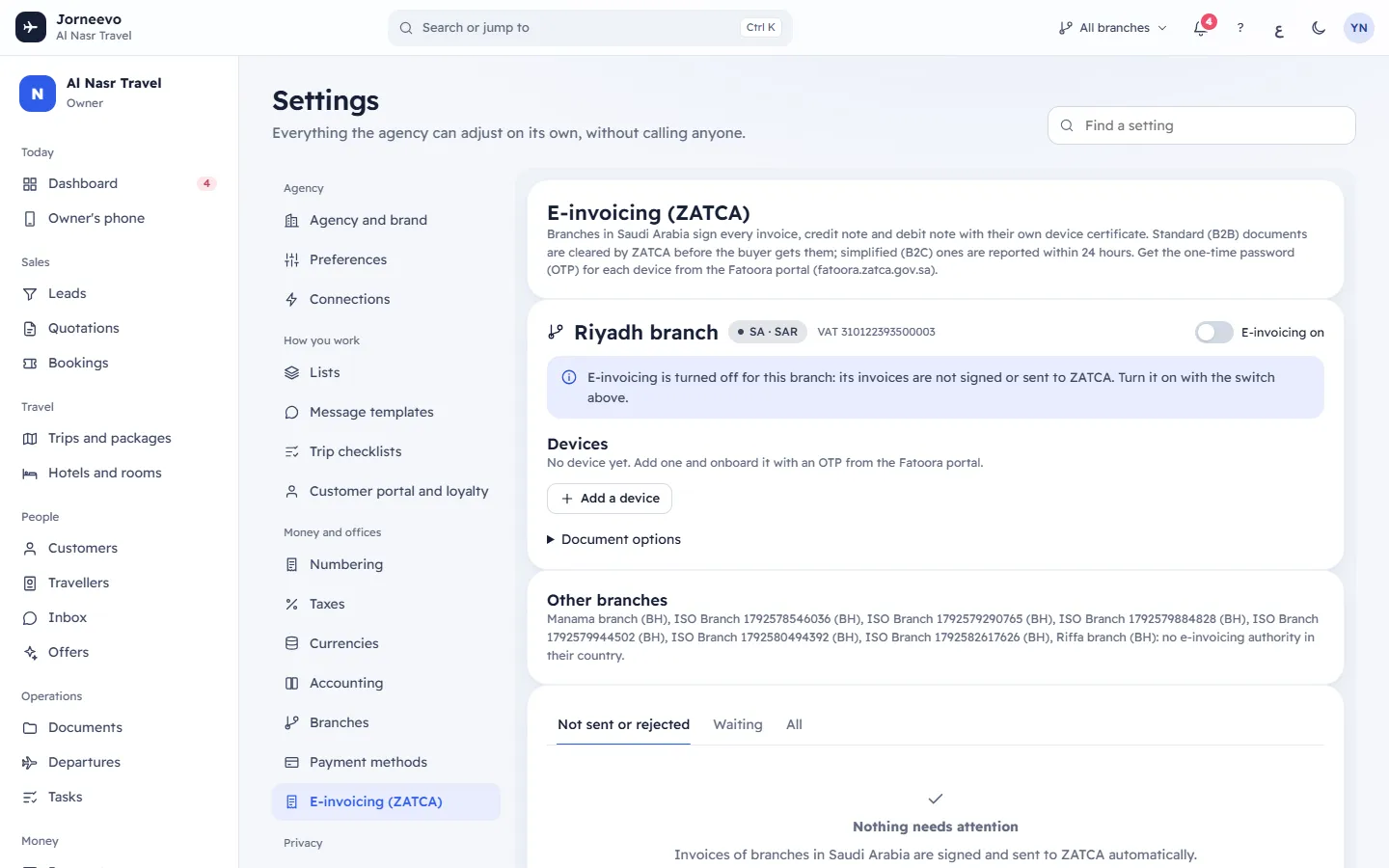
If no branch is in Saudi Arabia: No branch is in a country with e-invoicing. Add a branch in Saudi Arabia under Branches.
One panel per Saudi branch
- The branch name, SA · SAR (country and currency) and its VAT number.
- The switch E-invoicing on at the end of the branch's title line. Off, the branch's invoices are not e-invoices: they are not signed or sent to ZATCA, and they are not sent later either. The change saves at once (Saved).
- A note under the title line that says the branch's state (see Which device signs below).
- Complete the branch first: … with a link to Branches, when seller details are missing (legal name, VAT number, CR number, street, building number, district, city or postal code). Add a device stays grey until they are complete.
Devices
A device is the unit ZATCA knows your invoices by (the "EGS unit"). Each has its own certificate and its own unbroken chain of documents; most branches need one. No device yet: invoices of this branch wait (pending) until one is onboarded, then they are sent in order.
Each device row shows its name, its serial number, the documents it issues, ICV (how many documents it has signed), certificate until …, OU and the organisation unit when one was entered, and the last error in red when there is one (in Arabic on the Arabic screen). Then two labels, and Signs now on the device that signs the branch's documents:
| Environment | Meaning |
|---|---|
| Developer sandbox | ZATCA's test system for developers. Nothing is legal; for trying the flow |
| Simulation | ZATCA's pre-production copy of Fatoora, with an OTP from the simulation portal. Not legal |
| Production | The real Fatoora. Invoices signed here are your legal e-invoices |
| Status | Meaning | Buttons |
|---|---|---|
| Not onboarded | Added; onboarding not started, or the OTP step failed | Onboard, Delete |
| Compliance stage | The compliance certificate was received; the checks or the production certificate are still to do | Onboard (continues where it stopped) |
| Ready | It has its production certificate and can sign and send documents | Renew certificate, Revoke |
| Revoked | No longer used. Its certificate must also be revoked in the Fatoora portal | none |
| Problem | An onboarding step failed, or ZATCA refused the device's credentials while sending. The reason shows in red under its name. The device does not sign | Onboard (or Onboard again), Renew certificate when it had a production certificate, Revoke |
Renew soon appears on a ready device whose certificate ends within the renewal window (30 days unless the platform set another). A high-priority task Renew the e-invoicing certificate of … before … is also created for the agency.
Under the list: Add a device.
Which device signs
The note under the branch's title line says what happens to the branch's new invoices:
| Note | What it means |
|---|---|
| E-invoicing is off until this branch has a ready production device. … | The usual start. Invoices are not e-invoices (not required). When a production device finishes onboarding, e-invoicing turns on by itself |
| E-invoicing is turned off for this branch: … | A person turned the switch off. It stays off until someone turns it on |
| E-invoicing is on but no device is ready: … | New invoices wait (ZATCA: Pending) and go out in order once a device is ready |
| Active environment: Production (with the device name) | The production device signs every new invoice and sends it to ZATCA |
| Active environment: Simulation or Developer sandbox | Invoices are signed by a TEST device and are not legally valid. Onboard a production device: it takes over at once. |
The rule on the note: when several devices are ready, production signs before simulation, and simulation before sandbox. Within one environment, the oldest ready device signs. A ready sandbox or simulation device never turns e-invoicing on. Documents already signed stay with the device, and the environment, that signed them.
Document options
Open it under the branch's devices. Flags written into every document of this branch (KSA-2). Simplified documents only carry third party, nominal and summary. Five switches, each with its name beside it, in this order; each saves at once:
- Issued by a third party on our behalf
- Nominal supplies (without consideration)
- Export invoices (standard only)
- Summary invoices
- Self-billed (standard only, not with export)
Language of ZATCA's messages: English or العربية, the language ZATCA answers in for this branch.
Other branches
Branches outside Saudi Arabia are listed with no e-invoicing authority in their country.
E-invoices that need attention
At the bottom, the list of documents with three tabs: Not sent or rejected, Waiting and All. Columns: Number (with the kind and standard or simplified), Date, Customer, Branch, Total, E-invoice (the ZATCA status, the counter and the number of tries) and Problem (ZATCA's first message, or Waiting for an onboarded device). Send now sends a waiting or failed document again. When nothing is wrong: Nothing needs attention. The same list is on E-invoices.
| Status | Meaning |
|---|---|
| ZATCA: Pending | Waiting to be sent (for example while no device is ready, or between retries) |
| ZATCA: Cleared | A standard document ZATCA cleared. The cleared copy is the legal one |
| ZATCA: Reported | A simplified document reported to ZATCA |
| ZATCA: Accepted, warnings | Accepted, with warnings to read |
| ZATCA: Rejected | Refused. Correct the data and send it as a new document from the invoice |
| ZATCA: Not sent | Could not be sent, or failed the checks before sending |
What you can do here
- Onboard a device with an OTP, from adding it to the first cleared invoice: Set up ZATCA e-invoicing for a branch. If the branch's VAT number belongs to a VAT group, fill Organisation unit with the member's 10-digit TIN.
- Renew certificate before it ends: type a new OTP from the Fatoora portal (Renew existing cryptographic stamp identifier) and press Renew. A new key and certificate replace the old ones; ZATCA revokes the old certificate. The invoice counter and hash chain continue. The message Certificate renewed appears. If the renewal fails, a ready device stays ready and shows the error.
- Fix a Problem device: Renew certificate when it had a production certificate, or Onboard again (starts from a new OTP).
- Revoke a ready device or a Problem device. The window Stop using …? says: Its certificate must also be revoked in the Fatoora portal. Invoices then wait until another device of the branch is onboarded.
- Delete a device that was never onboarded.
- Set the document options and the language of ZATCA's messages.
Note
A production device takes over from a sandbox or simulation device as soon as it is ready. You can leave test devices in place, or revoke them when you no longer need them.
If onboarding fails or the OTP is refused, see ZATCA onboarding fails or the OTP is rejected.
Related articles
- Set up ZATCA e-invoicing for a branchFrom the Saudi branch's seller details to onboarding a device with the OTP from the Fatoora portal and the first cleared or reported invoice.
- ZATCA onboarding fails or the OTP is rejectedWhy a device cannot be onboarded or renewed with ZATCA, every message you may see, and how to fix it step by step.
- BranchesYour offices: each works by its country's currency, VAT and e-invoicing, and prints its own seller details on its invoices.
- Error messages: e-invoicing (ZATCA)Every message you may see when you set up ZATCA e-invoicing, send invoices to ZATCA or fix a rejected document, and what to do.