Set up ZATCA e-invoicing for a branch
From the Saudi branch's seller details to onboarding a device with the OTP from the Fatoora portal and the first cleared or reported invoice.
Do this once for each branch in Saudi Arabia. A Saudi branch starts with e-invoicing off. When its production device finishes onboarding, e-invoicing turns on by itself, and from then on every invoice, credit note and debit note of the branch is signed and sent to ZATCA.
Before you start
- You need permission to change settings and permission to set up and send e-invoices.
- The branch is registered for VAT, and you can sign in to the Fatoora portal for that VAT number: https://fatoora.zatca.gov.sa
- Have the branch's legal name in English and Arabic, VAT number, commercial registration and national address (street, building number, additional number, district, city, postal code) at hand.
Steps
1. Complete the branch
- Open Settings → Branches and Edit the Saudi branch (or press Add branch, see Add a branch).
- Check Country is Saudi Arabia and Currency is SAR (or another 2-decimal currency).
- Leave E-invoicing on Off. The hint says: Saudi Arabia requires e-invoices through ZATCA (Fatoora). It stays off until the branch has a ready production device (Settings → E-invoicing), then it turns on by itself.
- Under Seller details on invoices, fill in every field marked *: Legal name in English, Legal name in Arabic, VAT number (15 digits that start and end with 3, the same as on your Fatoora account), Registration (Commercial registration and its 10 digits), Street, Building number (4 digits), Additional number (4 digits), District, City and Postal code (5 digits).
- Press Save. The message Branch saved appears.
2. Add a device
- Open Settings → E-invoicing (ZATCA). In the branch's panel, check that no Complete the branch first note shows. The note E-invoicing is off until this branch has a ready production device. … is normal: leave the switch off.
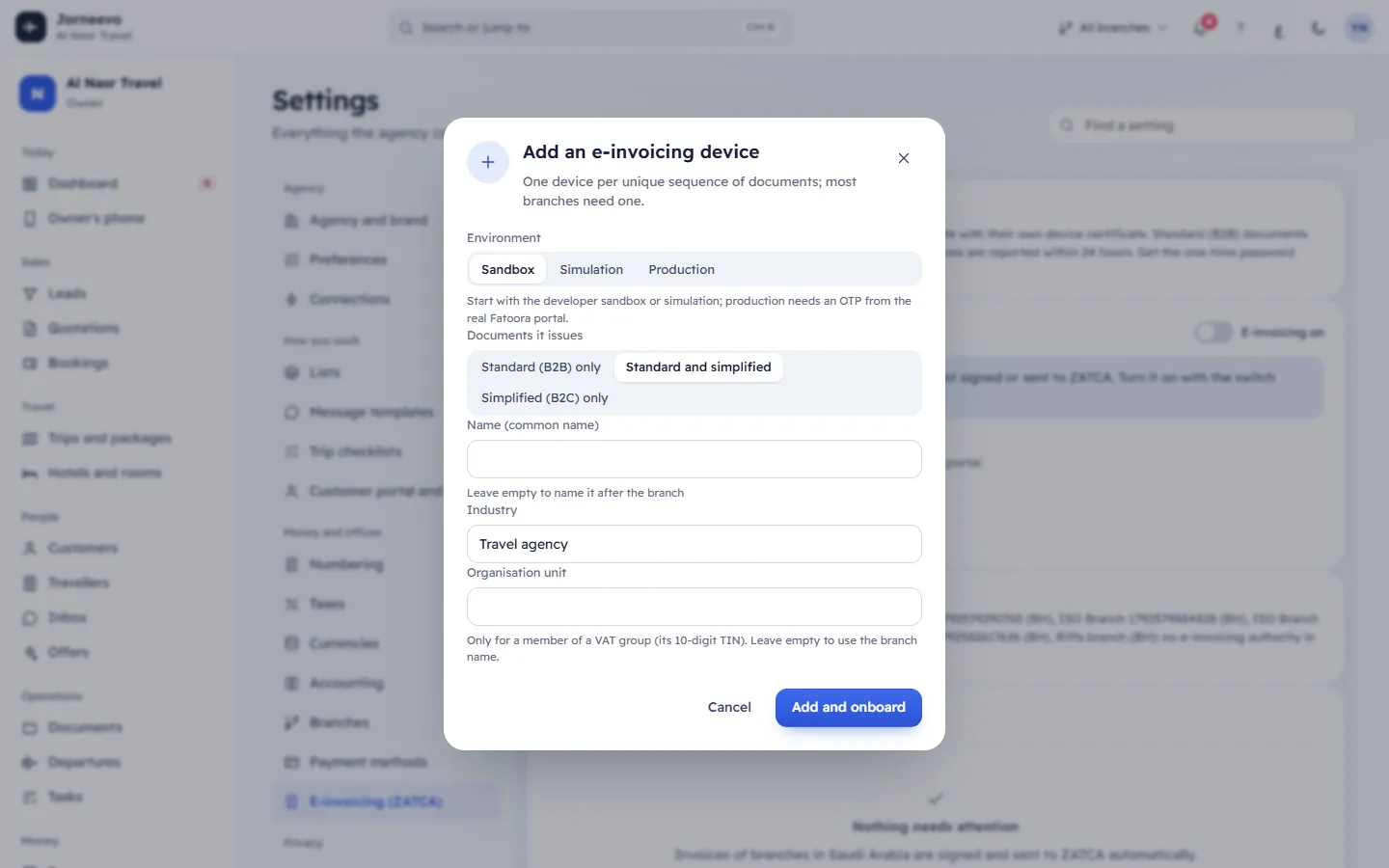
- Press Add a device. The window Add an e-invoicing device opens.
- Choose the Environment: Production for real invoices. To try the steps first, choose Sandbox or Simulation.
- Choose Documents it issues: Standard and simplified (most agencies), Standard (B2B) only or Simplified (B2C) only.
- Leave Name (common name) empty to name it after the branch, and keep Industry as Travel agency or change it. Organisation unit: leave it empty (the branch name is used). If the branch's VAT number belongs to a VAT group (its 11th digit is 1), it is required: type the member's 10-digit TIN.
- Press Add and onboard. The device is added as Not onboarded and the window Onboard … opens.
3. Onboard it with the OTP
- In the Fatoora portal, choose Onboard new solution unit/device and generate an OTP. Copy the 6 digits. The OTP is valid for one hour; use it for this one device.
- Back in the window, at One-time password → compliance certificate, type the OTP and press Request. The key and certificate request are made on the server; the private key never leaves it. The device moves to Compliance stage.
- At Compliance checks, press Run the checks. A test document of each type the device issues is signed and checked by ZATCA (six with Standard and simplified). Each line shows ✓ or ✗ with ZATCA's message.
- When every check passed, at Production certificate press Get it. The message The device is ready: invoices are signed and sent from now on appears and the step Ready is ticked. For a Production device, e-invoicing of the branch turns on by itself, and the branch's audit log records E-invoicing turned on for …: its production device … is ready.
- Press Done. If you stop earlier, Continue later keeps the progress; press Onboard on the device to go on.
4. Send the first invoice
- Issue an invoice on a booking of this branch, as usual.
- Look at its ZATCA label, or at the list at the bottom of Settings → E-invoicing (ZATCA) (tab All):
- a standard (B2B) invoice is cleared at once and shows ZATCA: Cleared;
- a simplified (B2C) invoice shows ZATCA: Pending for a short while, then ZATCA: Reported.
Note
A ready Sandbox or Simulation device never turns e-invoicing on. When the branch has several ready devices, production signs before simulation, and simulation before sandbox, so the production device takes over at once. The device that signs shows Signs now.
After you finish
- Invoices issued before e-invoicing turned on are not e-invoices (not required). They are not sent later.
- If a person had turned e-invoicing on before any device was ready, the invoices issued meanwhile waited as ZATCA: Pending; they are now signed and sent in the order they were issued.
- If someone turned the switch off on purpose, it stays off: turn it on yourself when you are ready.
- The branch numbers its own documents (see Settings → Numbering).
- The certificate has an end date (certificate until …). Before it, Renew soon shows and a task reminds you; renew it with a new OTP from the portal.
If something goes wrong
- Add a device is grey: the branch details are incomplete. Follow the Complete the branch first note.
- The OTP must be the 6 digits from the Fatoora portal: type the six digits only.
- ZATCA did not issue a compliance certificate (…): the OTP was wrong, expired, already used, or made for another environment. The device shows Problem with the reason. Generate a new OTP, press Onboard and Request again.
- This branch is in a VAT group: enter the member's 10-digit TIN as the organisation unit: fill Organisation unit.
- Run the compliance checks first; all of them must pass: press Run again and read the messages next to each ✗.
- For every other message, see ZATCA onboarding fails or the OTP is rejected.
Related articles
- E-invoicing (ZATCA)See each Saudi branch's e-invoicing state, onboard and renew its devices with ZATCA, set document options and follow e-invoices that need attention.
- Add a branchAdd an office with its country, currency, tax rule and the seller details printed on its invoices.
- ZATCA onboarding fails or the OTP is rejectedWhy a device cannot be onboarded or renewed with ZATCA, every message you may see, and how to fix it step by step.