Add a branch
Add an office with its country, currency, tax rule and the seller details printed on its invoices.
Add a branch when you open a new office, or when you start selling from another country. Each branch issues documents in its own currency with its own seller details.
Before you start
- You need permission to change settings.
- Have the branch's legal name, VAT number, registration number and full address ready. In Saudi Arabia with e-invoicing, you also need the Arabic legal name and the 4-digit additional number of the national address.
Steps
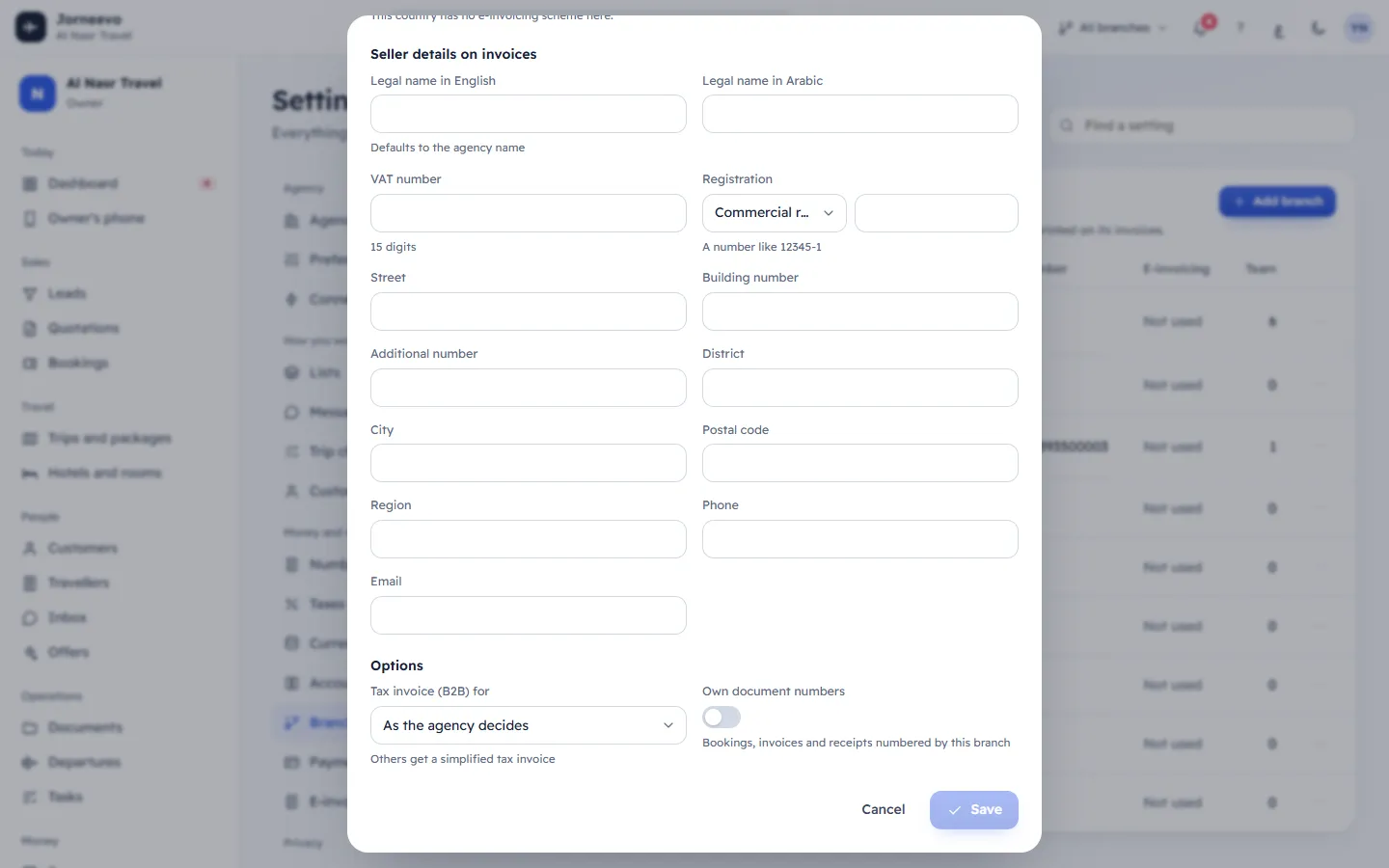
- Open Settings → Branches and press Add branch. The New branch window opens with your agency's country and its currency filled in.
- Choose the Country first. It proposes the Currency and a Short code; you can change each.
- Type the Name in English and the Name in Arabic.
- Check the Currency and the Short code (up to 8 capital letters or digits, for example
RUH). The short code appears in document numbers where the pattern has{BRANCH}. - Keep Tax rule for new lines on the country's default, or pick another of your rules in that country.
- Leave E-invoicing on Off. In Saudi Arabia the hint says: Saudi Arabia requires e-invoices through ZATCA (Fatoora). It stays off until the branch has a ready production device (Settings → E-invoicing), then it turns on by itself. Choosing the country never turns it on.
- Under Seller details on invoices, fill in the legal names, VAT number, Registration (type and number) and the address: Street, Building number, Additional number, District, City, Postal code, and optionally Region, Phone and Email. Every field marked * is required only when e-invoicing is on, but a device cannot be added until they are complete.
- Under Options, choose Tax invoice (B2B) for and, if this branch should number its own documents, turn on Own document numbers (always on with e-invoicing).
- Press Save. The message Branch saved appears and the branch is in the list.
Tip
Not ready to send e-invoices yet? Save the branch with the details you have. Invoices it issues while e-invoicing is off are not e-invoices and are not sent later. When it is registered with ZATCA, complete the details and follow Set up ZATCA e-invoicing for a branch: e-invoicing turns on when its production device is ready.
After you save
- Your first branch becomes the Main branch.
- If it is the agency's first branch in that country, the country's tax rules are added to Settings → Taxes.
- If its currency is new to the agency, the currency is added to Settings → Currencies with an approximate rate (or rate 1 and In use off when no rate is known). Enter the real rate before you sell.
- You can give team members, trips and bookings this branch. A branch in Saudi Arabia numbers its own documents.
If something goes wrong
- Save stays grey: the English name or the country is empty.
- Another branch uses this code: choose another short code.
- VAT number: …: the VAT number does not match the country's format, for example 15 digits that start and end with 3 in Saudi Arabia.
- Commercial registration: 10 digits: a Saudi commercial registration has 10 digits.
- … is needed for e-invoicing: fill in the field, or set E-invoicing to Off for now.
- Building number: 4 digits, Additional number: 4 digits, Postal code: 5 digits: correct the Saudi address numbers.
- E-invoicing needs a currency with 2 decimals (e.g. SAR): e-invoices use 2-decimal amounts; choose such a currency.
- Enter a valid email: correct the branch email or leave it empty.
- Your … plan allows … branches. Upgrade the plan in Settings → Plan and billing to add more.: your plan's Branches limit is reached. Switch off a branch you no longer use, or upgrade: Plan limits and how usage is counted.
Related articles
- BranchesYour offices: each works by its country's currency, VAT and e-invoicing, and prints its own seller details on its invoices.
- Set up ZATCA e-invoicing for a branchFrom the Saudi branch's seller details to onboarding a device with the OTP from the Fatoora portal and the first cleared or reported invoice.
- TaxesYour tax rules per country, the default rule of each country, the reasons printed on invoices and who gets a tax invoice.