My account
Your own details, language and theme, password, two-step sign-in, remembered devices and the places you are signed in.
My account holds your own details and the way you sign in. Only you can change them: nobody else in the agency, not even the owner, sees your password or your codes. Open it from your name at the bottom of the menu.
What you see
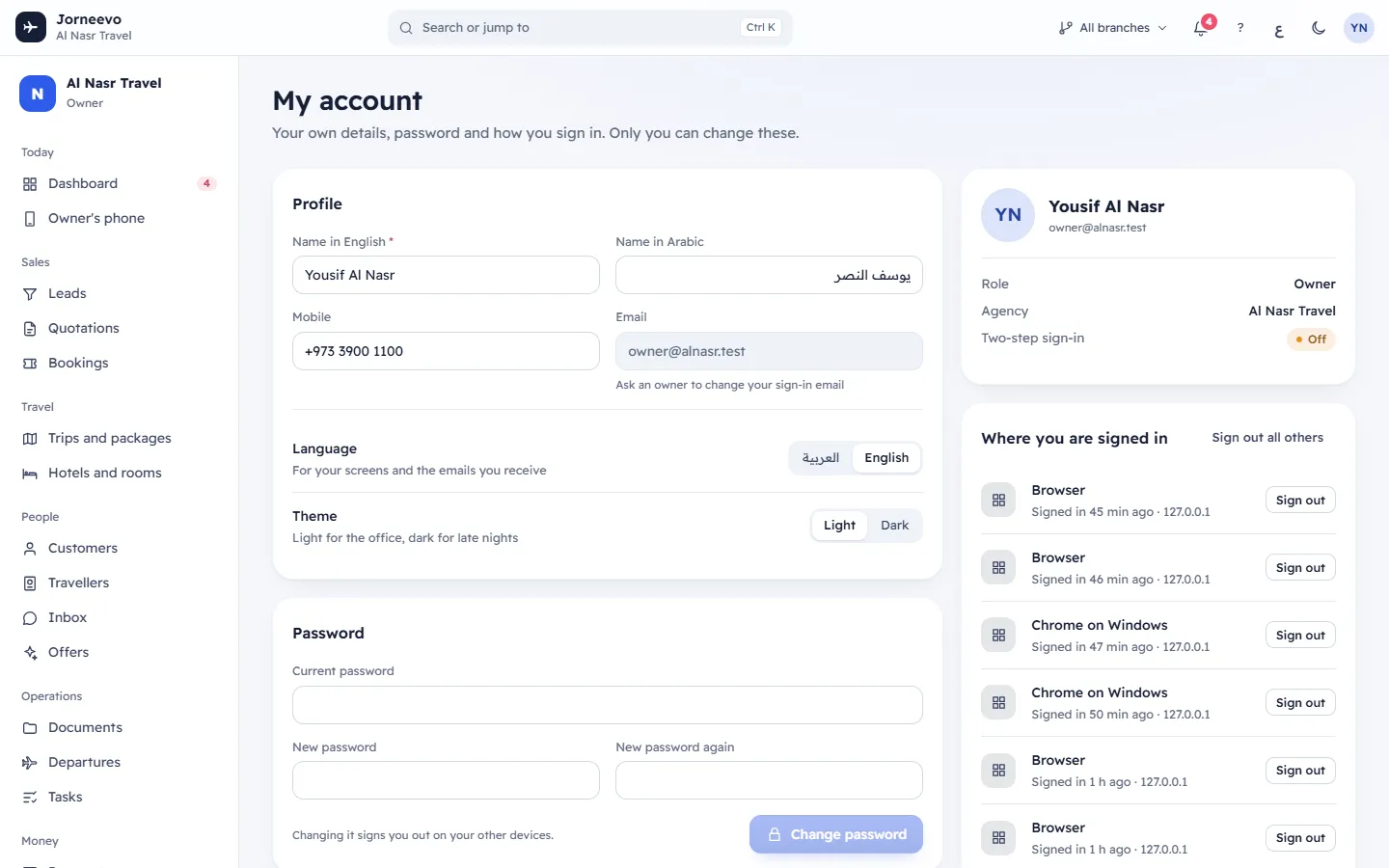
Profile
- Name in English (required) and Name in Arabic: the name your colleagues see on bookings, tasks and the activity.
- Mobile.
- Email: the email you sign in with. You cannot change it here; the hint says Ask an owner to change your sign-in email. An owner changes it in Team and roles → Team: your row menu → Edit → Sign-in email. Your password stays the same.
- Language: العربية or English, for your screens and the emails you receive. It applies at once.
- Theme: Light or Dark. It is saved with your account, so it follows you to other devices.
- Save keeps your changes and shows Your details are saved. Undo puts back what was there.
Password
Current password, New password and New password again, then Change password. The note Changing it signs you out on your other devices. tells you what happens next.
Two-step sign-in
A chip shows the state: On, Required or Off.
- When it is off: Set up two-step sign-in starts a short guided setup.
- When it is on: Recovery codes shows how many of your 10 codes are still unused (in red when 3 or fewer are left), with Make new codes. Turn off two-step sign-in is there only when nobody requires it for you.
- When it is required: a note says who requires it, and It cannot be turned off.
The account card sums it up: your name and email, your Role, the Agency, whether two-step sign-in is on, and how many recovery codes are left.
Remembered devices (only when two-step sign-in is on)
The browsers that skip the code step for 30 days because you ticked Remember this device for 30 days when you signed in. Each one shows This device when it is the one you are using, when it was last used and until when it is remembered. Forget removes one; Forget all removes every one of them. When there are none, you see No remembered devices yet.
Where you are signed in
Every browser and phone where your account is signed in now: the device and browser, This device for the one in front of you, when you signed in and the IP address. Sign out ends one session; Sign out all others ends every session except this one. The first 6 are shown, with Show all when there are more.
What you can do here
- Change your language and theme
- Change your password
- Set up two-step sign-in
- Recovery codes, a new phone and turning two-step off
- Sign out other devices and forget remembered devices
Statuses
| Chip | Meaning |
|---|---|
| On | Two-step sign-in is on. Each sign-in asks for a code, unless the device is remembered. |
| Required | Your agency or the platform requires it. Set it up before you can work; it cannot be turned off. |
| Off | Only your password protects your account. |
Related articles
- Set up two-step sign-inProtect your account with a six-digit code from an authenticator app on your phone, and save your 10 recovery codes.
- Change your passwordChoose a new password in My account; your other devices are signed out at once.
- Sign out other devices and forget remembered devicesSee every device signed in with your account, sign out the ones you do not use, and forget browsers that skip the code.
- Change your language and themeSwitch the screens and your emails between Arabic and English, and choose the light or dark look.
- Two-step sign-in, recovery codes and trusted devicesHow the six-digit code, the 10 recovery codes, remembered devices and sign-in sessions work together to protect your account.