Set up two-step sign-in
Protect your account with a six-digit code from an authenticator app on your phone, and save your 10 recovery codes.
With two-step sign-in, you type a six-digit code from your phone after your password. Someone who learns your password still cannot get in. The setup takes about a minute.
Before you start
Install an authenticator app on your phone: Google Authenticator, Microsoft Authenticator, Authy or 1Password all work. Keep the phone with you while you set it up.
Steps
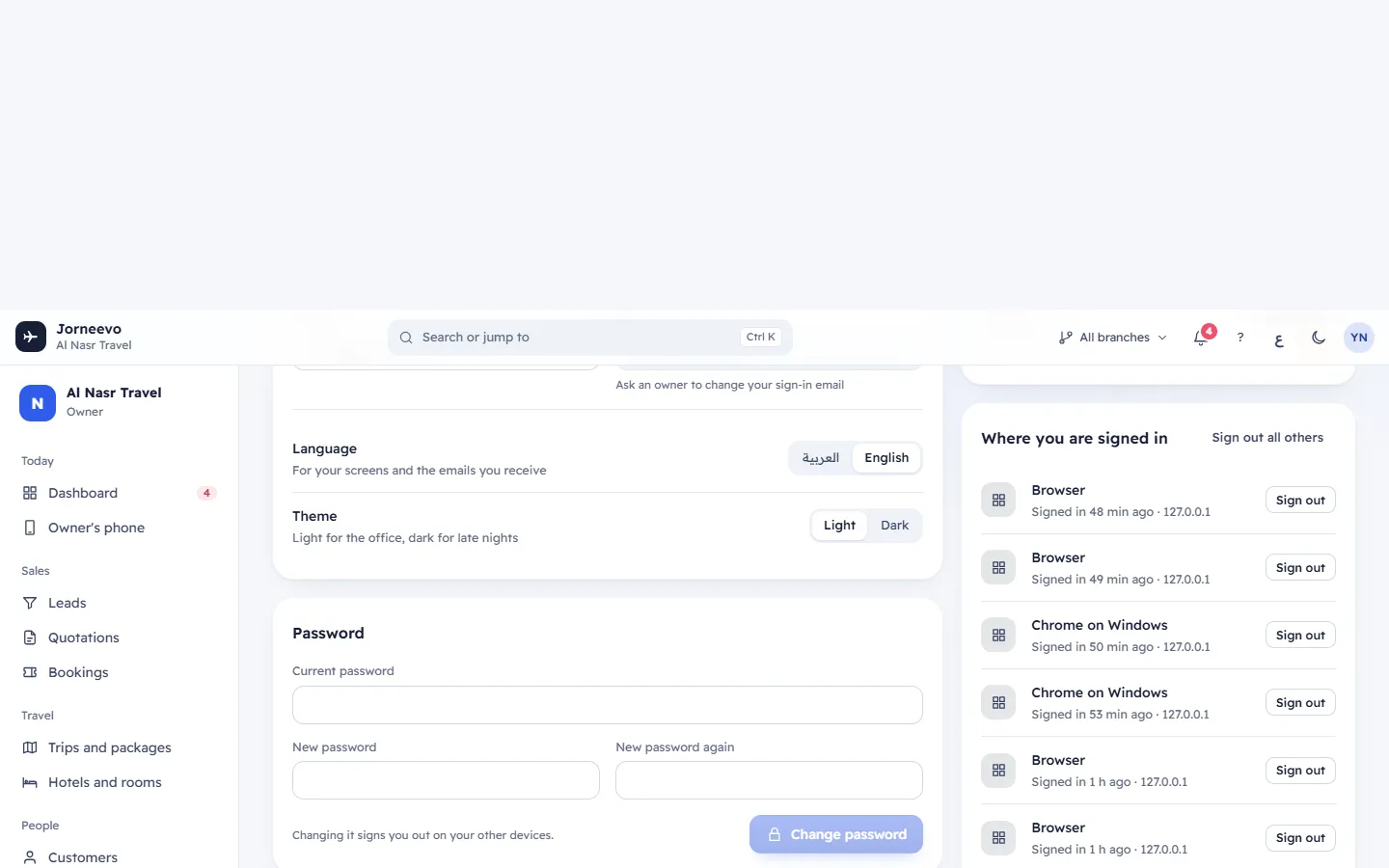
- Open My account and press Set up two-step sign-in. The Scan step opens with a QR code.
- In the authenticator app, tap "Add" (+) and scan the QR code. If you cannot scan, press Cannot scan? Type a key instead and type the key into the app.
- Press I scanned it. The Confirm step opens.
- Type the six-digit code the app shows for this account and press Turn on.
- The Save codes step shows 10 recovery codes. Keep them with Download .txt, Copy or Print.
- Tick I saved my recovery codes somewhere safe and press Done.
Warning
The recovery codes are shown only once. Keep them away from your phone (printed in a drawer, or in a password manager). If you lose the phone and the codes, only your agency owner (or a colleague whose role manages the team) can let you back in.
After you turn it on
- The message Two-step sign-in is on appears and the chip shows On.
- At every sign-in, after the password, the system asks for the current code from the app. On a computer you trust you can tick Remember this device for 30 days, and that browser skips the code for 30 days.
- Recovery codes in My account shows how many of the 10 codes are still unused.
If something goes wrong
- That code is not right. Check the time on your phone and try the newest code.: the codes change every 30 seconds and depend on the phone's clock. Set the phone's time to automatic and type the newest code.
- Too many wrong codes. Try again in 15 minutes.: after 5 wrong codes in a row, code checks stop for 15 minutes.
- Start the setup again: the setup waited too long. Close it, press Set up two-step sign-in again and scan the new QR code.
- Two-step sign-in is already on. Turn it off first to move it to a new phone.: see Recovery codes, a new phone and turning two-step off.
Related articles
- Two-step sign-in, recovery codes and trusted devicesHow the six-digit code, the 10 recovery codes, remembered devices and sign-in sessions work together to protect your account.
- Recovery codes, a new phone and turning two-step offUse a recovery code when your phone is not with you, make a fresh set of 10, move two-step sign-in to a new phone, or turn it off.
- Type your two-step sign-in codeAfter your password, type the six-digit code from your authenticator app or one of your recovery codes, and remember a trusted computer.
- When you must set up two-step sign-in firstWhy the system asks you to protect your account before you can work, and how to finish the setup in about a minute.