The Bookings screen
Find any booking, see who has paid and who owes money, send payment reminders to many customers at once and export the list to Excel.
Bookings lists every booking of your agency with its customer, trip and payment state. Sales staff use it to find a booking fast; finance uses it to see who still owes money and to send reminders. If your account is limited to some branches, you see only the bookings of those branches.
What you see
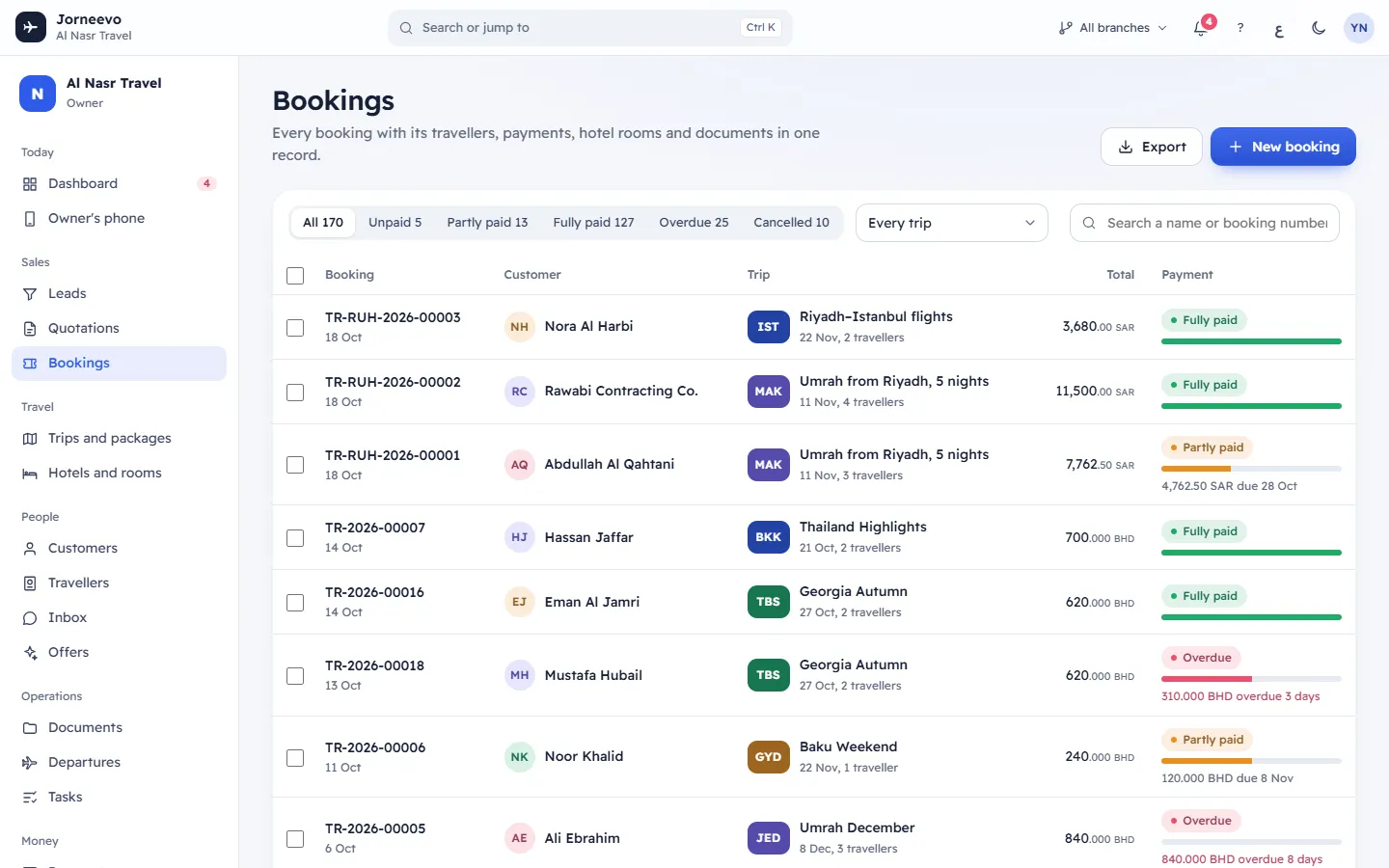
The top of the screen
- Export: downloads the bookings shown into an Excel file. When you have ticked rows, it reads Export 3 and downloads only those rows.
- New booking: opens the booking panel (see Create a booking). You see it only if your role can create bookings.
The filters
- The payment filter, each with its number of bookings: All (every booking that is not cancelled), Unpaid, Partly paid (this one also includes bookings with Deposit paid), Fully paid, Overdue and Cancelled.
- Trip: show the bookings of one trip only, or Every trip. It appears when your role can see trips.
- Search a name or booking number: type part of a booking number, a customer name in English or Arabic, a mobile number, or a trip name or code.
The system remembers your payment filter, trip and sort in this browser, and brings them back on your next visit. When you open a booking and come back, you return to the same view.
The table
| Column | What it shows |
|---|---|
| Booking | The booking number and the date it was made. |
| Customer | The customer who booked and pays. |
| Trip | The trip code and name, the departure date and the number of travellers. needs a room in red means the trip has contracted hotel rooms but this booking has none yet. |
| Total | The booking total in the booking's currency. |
| Payment | The payment state, a bar of how much is paid, and the balance with its due date: "due 12 Nov", "due today" or "overdue 3 days". |
- Bookings made today are highlighted. Cancelled bookings are shown faded.
- Click Booking, Trip, Total or Payment at the top of a column to sort by it; click again to reverse the order. Without a sort, the newest bookings come first.
- A tick box starts each row when your role can edit bookings or record payments. The tick box in the header ticks every row on the page.
The bottom of the table
- The number of bookings and travellers in the current view.
- Previous and Next, with "1–50 of 230": the list shows 50 bookings per page.
- Total and owed for the whole view, converted to your agency's main currency.
When the list is empty
- No bookings yet: your agency has no bookings. Press New booking.
- No bookings match: nothing fits your search or filters. Press Clear filters.
- Could not load bookings: the list did not load, for example because the connection dropped. Press Try again.
What you can do here
- Open a booking: click its row, or move to it with
Taband pressEnter. See The booking page. - Create a booking: press New booking or the
Nkey. See Create a booking. - Find a booking: press
/to jump to the search box and type.Escclears the search. - Export to Excel: press Export for the whole view, or tick rows and press Export to Excel. The message Downloading 25 bookings for Excel appears. The file has the booking, customer, phone, email, trip, dates, travellers, currency, total, paid, balance, due date, payment state and source, in your language.
- Send payment reminders to many customers: tick the bookings, then press Send payment reminder (see below).
- Clear the ticks: press Clear. Changing a filter or the search also clears them.
Send payment reminders to several customers
- Tick the bookings. The bar Selected bookings shows "3 selected".
- Press Send payment reminder (2). The number counts only the ticked bookings that are confirmed and still owe money.
- In Send payment reminders, choose the channel: Their usual channel (WhatsApp for customers with a mobile, email for the rest), WhatsApp, Email or SMS. With a fixed channel, customers who cannot be reached on it are skipped and listed.
- Press Send 2.
Each customer receives the payment reminder in their own language with a payment link: the booking's open link, or, when it has none and your role can record payments, a new link for the whole balance that works for 3 days. The message 2 of 2 reminders done appears, then one line per booking:
| Result | Meaning |
|---|---|
| Sent | The message went out. |
| Logged only | Sending is not set up for this channel; the message is kept in the booking's log only. |
| Ready in WhatsApp | WhatsApp works by click-to-chat. Press Open chat and press send in WhatsApp. |
| Failed | The message failed, with the reason next to the booking number (for example Your … plan allows … or No … template … is set up), or the customer has no mobile or email (No phone number or email). |
| Skipped | The booking is cancelled (Cancelled) or owes nothing (Nothing owed). |
Press Done to close. You can send up to 100 reminders at once. To send one reminder, use the booking page: Send a payment link or a reminder.
Statuses
| Status | When a booking shows it |
|---|---|
| Unpaid | Nothing is paid and the balance is not yet due. |
| Deposit paid | Something is paid, but less than 35% of the total. |
| Partly paid | 35% or more of the total is paid, but not all. |
| Fully paid | The paid amount reached the total. |
| Overdue | Money is still owed and the balance due date has passed (by your agency's clock). |
| Cancelled | The booking is cancelled. |
The state changes by itself when a payment or refund is recorded, when the due date passes, or when the due date is changed. See Deposits, balances and due dates.
Related articles
- Create a bookingBook a customer on a published trip in three steps, take the deposit and send the confirmation, in about a minute.
- The booking pageEverything about one booking in one place: what to do next, travellers, rooms, documents, payments, invoices, messages and its history.
- Deposits, balances and due datesHow the deposit is suggested, how the balance and its due date are set, and how a booking moves between Unpaid, Deposit paid, Partly paid, Fully paid and Overdue.
- How a booking works, from booked to homeWhat happens to a booking from the moment you confirm it until the travellers are home, and what you can still change on the way.