The booking page
Everything about one booking in one place: what to do next, travellers, rooms, documents, payments, invoices, messages and its history.
The booking page is the file of one booking. Open it from Bookings, from search (Ctrl K), or from a customer,
trip or payment. It tells you what still needs doing and lets you do it without leaving the page.
What you see
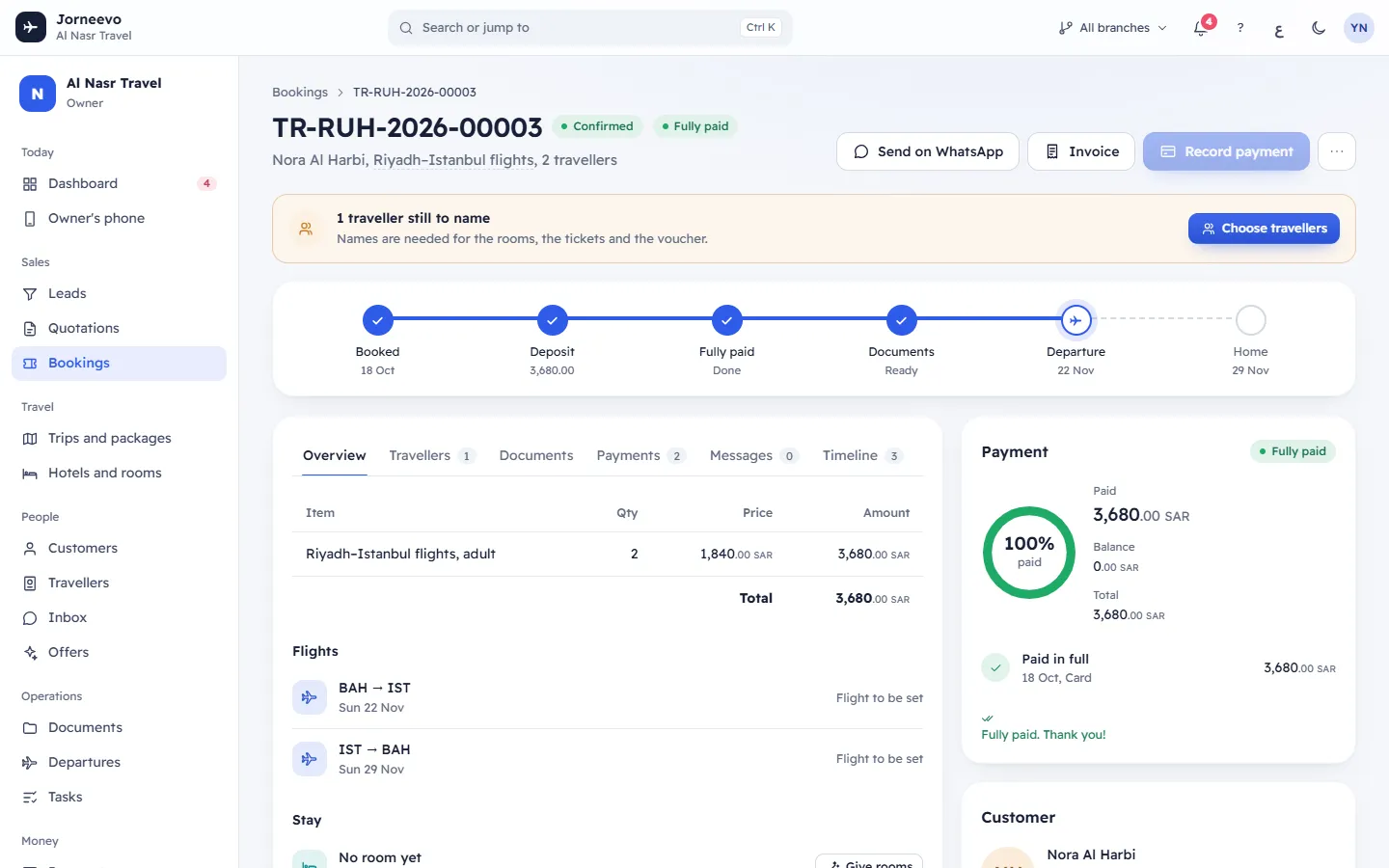
The header
- The path Bookings › booking number, the booking number as the title, and two chips: Confirmed or Cancelled, and the payment state (for example Deposit paid).
- Under the title: the customer, the trip (click it to open the trip) and the number of travellers.
- The buttons: Send on WhatsApp, Invoice, Record payment and More actions (the three dots). On a cancelled booking the only button is Restore booking.
Cancelled note: on a cancelled booking, a red note says when it was cancelled, the reason, and that its seats and hotel rooms went back on sale. If money was paid, it says how much can be refunded or kept as credit, with Give a refund.
Next step: one card with the most urgent thing to do and its buttons. Other open items follow after Then:; click one to act on it. Items you can act on come first. The card can show:
| Item | Buttons |
|---|---|
| Collect the balance: … is overdue, or Collect the balance of … (overdue first, then due within 7 days, then later) | Record the balance, Send reminder by WhatsApp (the customer's usual channel) |
| No hotel room yet: rooms are contracted for the trip but none is given to this booking | Give rooms |
| 2 travellers still to name: names are needed for the rooms, the tickets and the voucher | Choose travellers |
| 3 documents are missing, with how soon the trip leaves | Open documents |
| Fully paid. Issue the invoice? | Issue invoice |
Rooms, names and documents stop showing once the trip is back home. Nothing shows on a cancelled booking.
The track: the booking's journey, with the current stop marked: Quotation (when the booking came from a quotation), Booked, Deposit (the amount, or Waiting), Fully paid (Done, or the due date), Documents (Ready or the number missing), Departure and Home.
The tabs: Overview, Travellers, Documents, Payments, Messages and Timeline, with a count on the ones that have items.
The side panels: Payment, Customer, Documents and Customer trip page.
The tabs
Overview
- The lines of the booking: Item, Qty, Price, Amount and the Total. A discount shows as a minus line called Discount.
- Flights: the outbound and return legs with the date, the departure time and the airline. The flight number shows when the trip has one; otherwise Flight to be set.
- Stay: each hotel with its dates, nights and meal plan, the rooms given to this booking and who sleeps in each. After Stay, "prefers …" shows the room and hotel preference. No room yet means no room is given; on a cancelled booking you read Rooms released when the booking was cancelled. Buttons Give rooms, Give rooms again and Preferences: see Give hotel rooms to a booking.
- Notes: internal notes for the team. Type and press Save notes (the message Notes saved appears), or Undo to drop your change. Without permission to edit bookings you only read them (No notes when empty).
Travellers: each traveller with their type, the last four digits of the passport and its expiry, and the chip Missing documents or Documents complete. "1 traveller still to name" shows when names are missing. Buttons Choose travellers (see Choose the travellers on a booking) and Open customer.
Documents: a grid of each traveller against each document the trip asks for: a tick or Missing. Buttons Open in Documents and Tell the customer documents are ready. This trip asks for no documents means the trip lists none; you choose them when you edit the trip.
Payments: three lists, explained in the payments and invoices articles.
- Payments: each payment and refund with its receipt number, date, reference, note, method and amount. Refund at the top gives a refund (Give a refund); Refund to card shows on online payments; the printer icon prints the receipt. No payments yet when empty.
- Payment links: each link with its amount, expiry and status, and New link, Copy link, Send reminder with this link and Cancel link. See Send a payment link or a reminder.
- Invoices, credit and debit notes: Issue invoice, each invoice or note with its e-invoicing status, the print button, Credit note and Debit note. See Issue an invoice and Issue a credit note or a debit note.
Messages: the confirmations, reminders, receipts and messages sent to the customer, with their status. See Send messages and print the confirmation or voucher.
Timeline: the latest 100 events of the booking, such as created, payment, refund, payment link, message, invoice, credit note, update, cancel and restore, each with the date, time and who did it. Nothing recorded yet when empty. At a Saudi branch with e-invoicing, ZATCA's outcome for each document also shows here, with ZATCA as the actor: "E-invoice … cleared by ZATCA", "reported to ZATCA", "accepted by ZATCA with warnings", "rejected by ZATCA" or "not sent to ZATCA". When someone presses Send now or Correct and send as a new document, a line with their name says the e-invoice was sent to ZATCA or regenerated.
The side panels
Payment
- A ring with the share paid, and Paid, Balance and Total in the booking's currency.
- The schedule: each payment as Deposit, Payment, Balance paid or Paid in full, each refund as Refund, then the Balance still owed with Due 12 Nov, Due today or Overdue since 2 Nov. The pencil next to it is Change due date (see Change the balance due date).
- Buttons Record payment (Record a payment), Payment link (Send a payment link or a reminder) and Report a transfer (Confirm a transfer the customer reported). When the booking is fully paid they give way to Fully paid. Thank you!, and a PAID stamp lands after the last payment.
Customer: name, mobile, email, the language they prefer (Prefers Arabic or Prefers English), Open customer, and Booked by with the colleague who made the booking.
Documents: for each document type the trip asks for, how many are in and how many are needed (for example 2/4), or "one per booking" for a document the whole booking shares. Open goes to Documents for this booking.
Customer trip page: the private link of the customer's trip page, with Copy, Open and New link. See Share the customer's trip page.
The More actions menu
| Item | What it does | Shown when |
|---|---|---|
| Print confirmation | Prints the booking confirmation, in Arabic or English. | Always |
| Print voucher | Prints the travel voucher. | Always |
| Copy booking number | Copies the number (Booking number copied). | Always |
| Copy trip page link | Copies the customer's trip page link. | The booking has a link |
| Make a new trip page link | Replaces the customer's link. | You can edit bookings |
| Change balance due date | Opens Balance due date. | You can edit bookings |
| Room and hotel preference | Changes the preference and gives the rooms again. | You can edit bookings |
| Give hotel rooms again | Gives this booking its rooms again. | You can assign rooms; not cancelled |
| Give a refund | Records a refund. | You can refund; something was paid |
| Cancel booking | Cancels the booking. | You can cancel; not cancelled |
What you can do here
- Take a payment: Record a payment. Ask for one online: Send a payment link or a reminder.
- Name the travellers: Choose the travellers on a booking.
- Give or change hotel rooms: Give hotel rooms to a booking.
- Send a message, or print the confirmation or voucher: Send messages and print the confirmation or voucher.
- Share the customer's trip page: Share the customer's trip page.
- Move the balance due date: Change the balance due date.
- Cancel or restore the booking: Cancel a booking or restore it.
- Issue an invoice: Issue an invoice.
Note
A cancelled booking cannot take payments, payment links or messages. Restore it first if the customer is travelling after all.
Statuses
| Status | Meaning |
|---|---|
| Confirmed | The booking holds its seats and hotel rooms. |
| Cancelled | The seats and rooms went back on sale. The booking can be restored while seats are left and the trip still runs. |
| Unpaid, Deposit paid, Partly paid, Fully paid, Overdue | The payment state: see The Bookings screen. |
| Missing documents, Documents complete | Whether a traveller has every document the trip asks for. |
If the page shows This booking could not be opened, the booking does not exist or belongs to a branch you do not work in. Press All bookings to go back.
Related articles
- The Bookings screenFind any booking, see who has paid and who owes money, send payment reminders to many customers at once and export the list to Excel.
- Record a paymentAdd a payment the customer made in cash, by card machine or by bank transfer, and send them the receipt.
- Send messages and print the confirmation or voucherSend the booking confirmation, a payment reminder, a documents-ready note or your own message, and print the confirmation or the travel voucher.
- Give hotel rooms to a bookingSee which hotel rooms a booking has, give rooms when it has none, give them again, and set the room type and hotel the customer prefers.
- Cancel a booking or restore itCancel a booking so its seats and rooms go back on sale, refund the customer at the same time if needed, and restore it if they travel after all.