Create a booking
Book a customer on a published trip in three steps, take the deposit and send the confirmation, in about a minute.
Create a booking when a customer confirms they want a seat on one of your trips or packages. The booking holds the seats, gives out hotel rooms and records the first payment in one go.
Before you start
- The trip must be published and leave in the future. A trip that is still a draft does not appear in the list.
- You need permission to create bookings. Giving a discount needs its own permission, up to the limit of your role.
Steps
- Open Bookings and press New booking (or press
Non the bookings list). The New booking panel opens on the Trip step. - Pick the trip. Each card shows the dates, the seats left (or Full) and the price from. If you have more than six trips, type part of the name, the code or the month in Find a trip by name, code or month.
- Set the party with the counters: Adults, Children and Infants. The price for each traveller type shows under its counter. You cannot book more seats than the trip has left.
- If the trip has more than one adult price, choose it in Price. Choose a Room type and a Hotel, or keep Best fit, keep the party together and Any of the trip’s hotels.
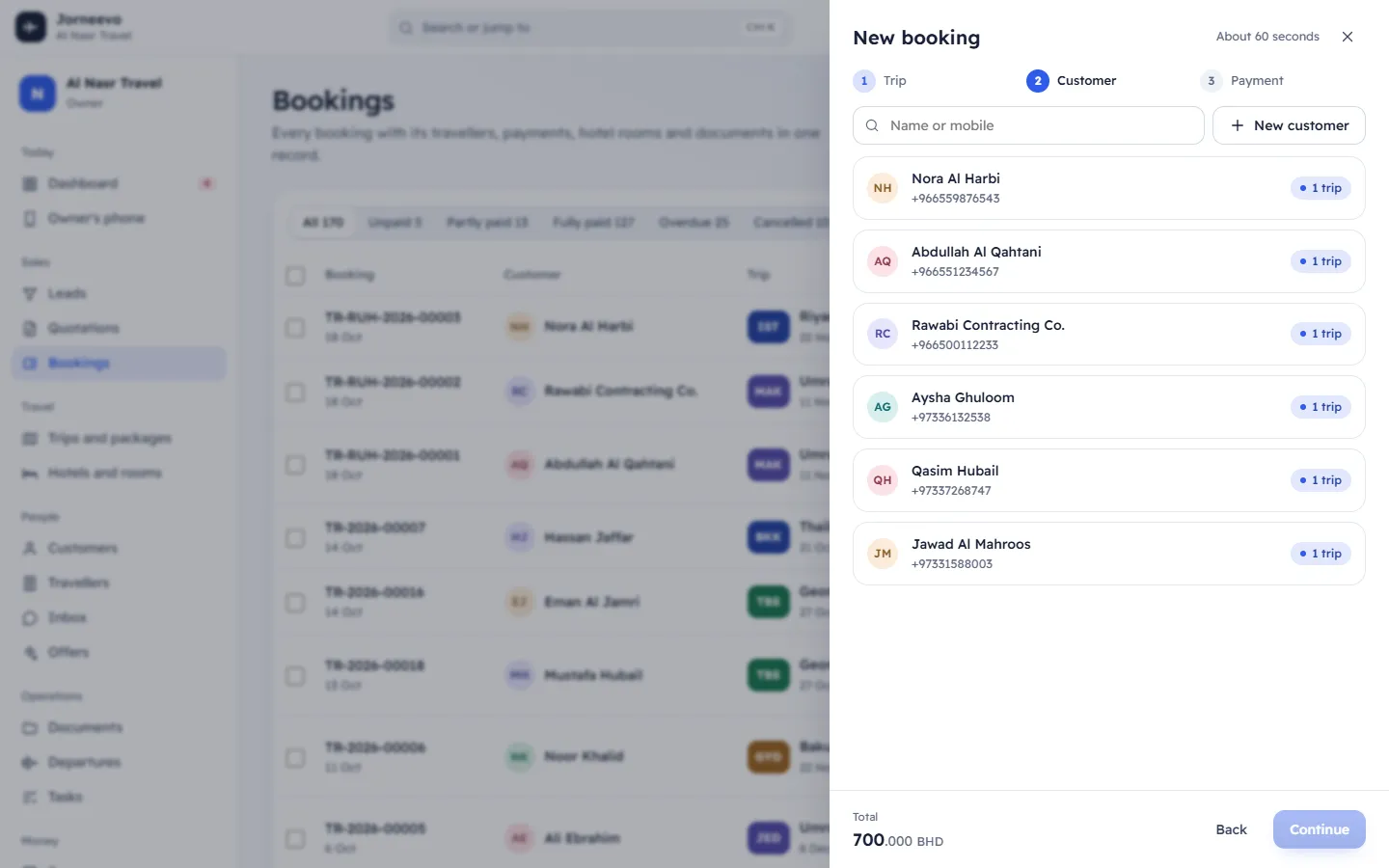
- Press Continue. On the Customer step, type a name or a mobile number in Name or mobile and pick the customer.
- If the customer is new, press New customer, enter the Full name as in the passport and a Mobile or an Email, then press Add and select. If the mobile number already belongs to a customer, that customer is selected instead of creating a copy.
- Under Who is travelling, tick the customer's saved travellers who are going. The system picks them for you by age; change the ticks if needed. Travellers you have not saved yet can be added on the booking later.
- Press Continue. On the Payment step, check the summary and the Total. If your role can give discounts, type the amount off in Discount (see Give a discount on a booking).
- If the customer has a promo code from one of your offers, type it in Promo code and press Apply. The summary shows the line Offer: … with the code and the discount. Press Remove to take it off. The code counts one use when the booking is saved.
- Under Deposit now, choose Later, 30%, 50% or Full amount. The box below shows what is paid now and the Balance with its due date.
- Choose how the deposit is paid in Paid by and, for a manual payment, type the Reference (for example the card slip number). Change the Balance due date if needed, and add anything the team should know in Notes.
- Under Send the confirmation, choose WhatsApp, Email or SMS, or Don’t send. Only the channels the customer can be reached on are shown, and the message goes out in the customer's language.
- Press Confirm booking.
Tip
You can also press New booking on the Dashboard, or in a customer's file: from the customer's file, the customer is already chosen when you reach the Customer step.
After you confirm
- A boarding pass with the booking number appears. Press View booking to open the booking, or Send to customer on WhatsApp.
- The seats are taken and the hotel rooms are given out at once, so nobody else can sell them.
- The deposit is recorded and the balance is due on the date you chose. It appears in Payments and in the booking's Payment panel.
- If Paid by is an online method, a secure payment link for the deposit is created and copied: paste it to the customer. See Record a payment for payments made later.
- When the booking brings the trip to its minimum group size, or fills the last seat, a message tells you.
Note
The price is locked when you confirm. Later changes to the trip's prices do not change this booking.
If something goes wrong
- No trips are open for sale: no trip is published with a future departure. Publish a trip first.
- This trip is full or Only 3 seats are left on this trip: someone else booked the last seats while you were filling in the panel. Lower the numbers or choose another trip.
- Only … left on this trip: the party is larger than the seats left. Lower the numbers or choose another trip.
- Above your limit of …%: the discount is more than your role allows. Lower it or ask the owner.
- This promo code is not valid, This offer is for another branch and the other promo code messages: the code does not work for this booking. See Create a promo code for what each one means.
- No hotel rooms are contracted for this trip yet. The booking will wait for rooms.: the booking is saved without rooms; contract rooms for the trip and give them out from the booking.
Related articles
- Record a paymentAdd a payment the customer made in cash, by card machine or by bank transfer, and send them the receipt.
- Give a discount on a bookingTake an amount off a new booking's price, within the discount limit of your role, before you confirm it.
- The booking pageEverything about one booking in one place: what to do next, travellers, rooms, documents, payments, invoices, messages and its history.
- Welcome: how the system is organisedA quick tour of the menu, the top bar, search and help, and the five setup steps that get your agency ready.