Sign in to your account with a code
Sign in with your mobile number or email and a short code we send you. No password is needed.
Your account with your travel agency shows your trips, payments, points, offers and a chat with the agency, in one place. You sign in with a code; there is no password to remember.
Before you start
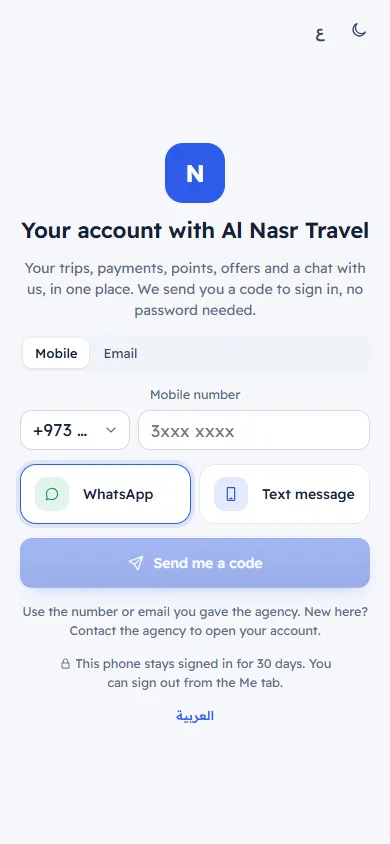
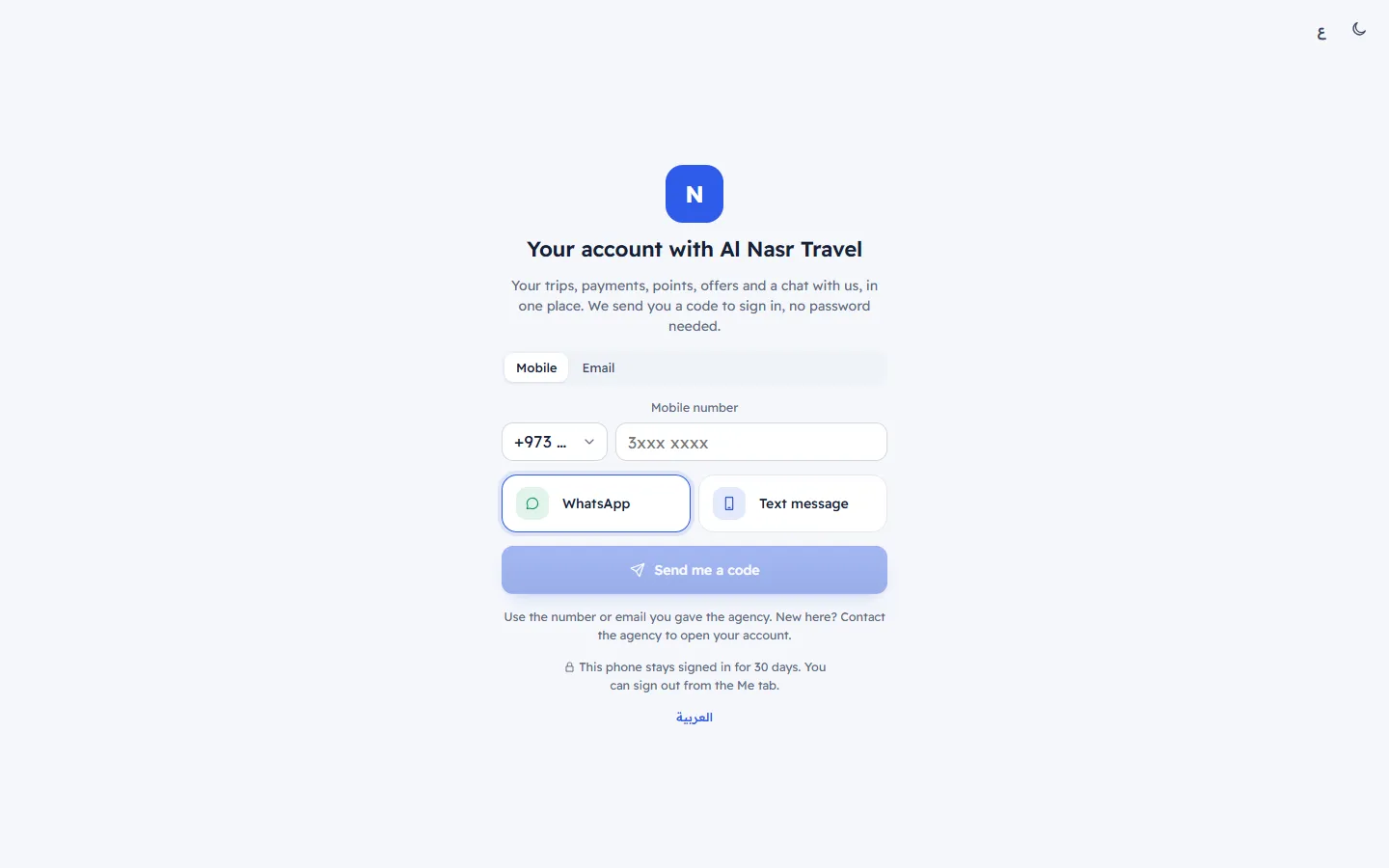
- Open the link the agency sent you. It ends with the agency's name, for example
/c/your-agency. - Use the mobile number or email you gave the agency. If you are new, the agency may let you open an account yourself; otherwise ask them to open one.
Steps
- Choose Mobile or Email.
- For a mobile, check the Country code, type your Mobile number, and choose where the code goes: WhatsApp or Text message. For an email, type your Email.
- If you are new and you see Your name (if you are new), type your name.
- Tap Send me a code.
- The screen says "Enter the 6-digit code we sent to …". Type the code. It signs you in by itself when the last digit is typed, or tap Sign in.
After you sign in
- Your account opens on Home.
- This phone stays signed in for 30 days, and longer while you keep using it. You can sign out from the Me tab.
- If you open your trip link and enter its code, you are signed in to your account too.
If the code does not come
- Wait 30 seconds and tap Send again.
- Tap Change number to fix a typing mistake, or try the other channel (WhatsApp, text message or email).
- See I did not get my code or cannot sign in for every message and what to do.
Related articles
- Your account homeWhat you see when you open your account: your next trip with a countdown, what is left to pay, messages, points and offers.
- I did not get my code or cannot sign inThe sign-in or trip code does not arrive, is refused, or the account is closed. Check these causes in order.
- Your profile and settingsYour name and contact details, company details for invoices, offer messages, language, dark mode, signed-in devices and signing out.