The setup wizard
The five setup steps of a new agency, Agency, Brand, Import, Team and Ready, and every field and button on each step.
The setup wizard gets a new agency ready in about ten minutes. Each step saves real data straight away, and everything can be changed later in Settings. Only people who can change settings (the owner and managers by default) can use it.
What you see
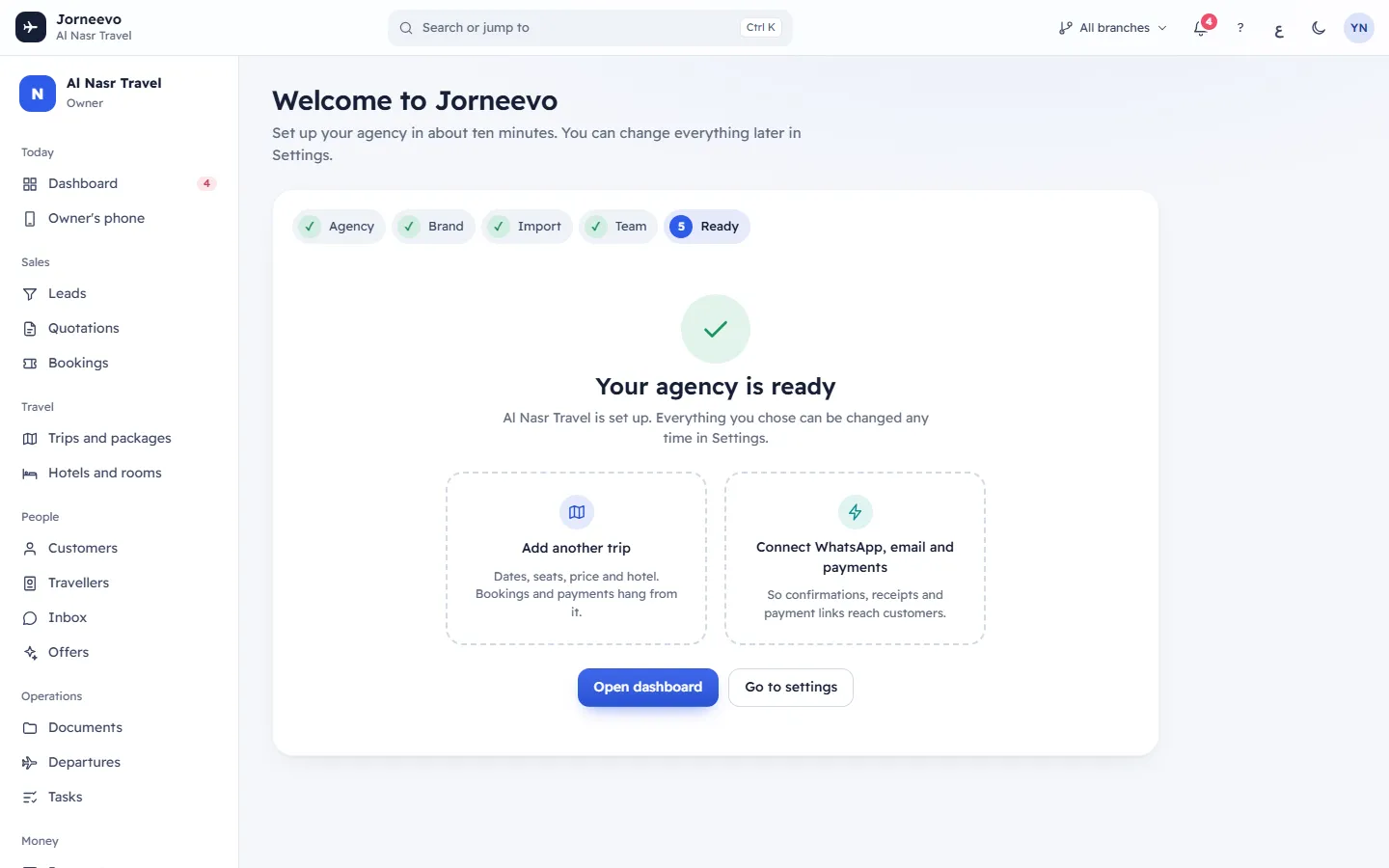
At the top: Welcome to … with the system's name, and Set up your agency in about ten minutes. You can change everything later in Settings.
Under it, the step bar: Agency, Brand, Import, Team, Ready. The step you are on is highlighted and finished steps are ticked. You can press any step you have already reached to go back to it.
At the bottom of each step: Step N of 5, Back (from step 2) and the button that moves on, usually Continue. Going back never undoes what you saved.
The wizard opens on the step after the last one you finished, so you can stop and come back later. While the setup is not finished, the menu shows Finish setting up with Step N of 5. Reaching Ready finishes the setup, and the reminder leaves the menu.
Step 1: Agency
Tell us about the agency. These details appear on invoices, quotations and the customer trip page.
| Field | What to enter |
|---|---|
| Agency name in English | Required. Continue stays greyed out until you type it. |
| Agency name in Arabic | Optional. Shown on Arabic screens, documents and messages. |
| Country | Choosing it also fills the Main currency and suggests a Time zone. |
| Main currency | The currency your agency counts in, with its number of decimals (for example 3 for BHD). |
| VAT number | Optional. Your agency's VAT registration number. |
| Time zone | The clock used for due dates, reminders and "today". Type it or choose it from the list, for example Asia/Bahrain. |
| Phone, Email | Optional. The agency's contact details. |
| Logo | Optional. Upload your logo here or in the next step. |
Step 2: Brand
Make it yours. Your logo and colour appear on screens, PDFs, emails and the customer's trip page.
- Brand colour: pick one of the colours.
- Logo: upload or change it.
- Main language of the agency: العربية or English. It is used for new colleagues and customers, and it also becomes your own language. Everyone can switch at any time.
A preview on the side shows how your brand looks.
Step 3: Import
Bring your customers with you. Drop the Excel sheet you use today. Columns are matched automatically and you check anything unclear.
- Choose your Excel or CSV file: one customer per row, with a header row on top. Duplicates by mobile or email are merged. It opens the same import window as on Customers (see Import customers from Excel). You need the permission to add and edit customers.
- After an import, the step shows Added now, Merged with existing and Need a look, and the button becomes Import another file.
- The button at the bottom reads Skip for now until you import, then Continue.
Step 4: Team
Invite your team. Each person gets a role. Roles decide what they can see and do, for example who sees supplier costs.
- One row per person: Name, email and Role (every role except the owner). Remove deletes a row.
- Add another person adds a row.
- Invitations made lists each invitation: Email sent (from the agency's email or, when it is not connected, from the system's own email), or Email not connected: share this link with Copy link when no email went out.
- The bottom button reads Send invitations when at least one row has a name and a valid email, Skip and finish when nothing is filled in, and Finish after you sent invitations.
Invitations go to people in the agency's main branch. You can change their branch later in Team and roles.
Step 5: Ready
Your agency is ready, with a short celebration. Two cards help you start:
- Add your first trip (or Add another trip when you already have trips): opens a new trip on Trips and packages.
- Connect WhatsApp, email and payments: opens Settings → Connections, so confirmations, receipts and payment links reach customers.
Then Open dashboard or Go to settings.
What you can do here
- Go through the setup step by step: Finish setting up your agency.
- Plan the rest of your first day: Your first day: what to set up and in which order.
Messages you may see
- Choose a time zone from the list: the time zone you typed is not a real one. Pick one from the list, for
example
Asia/Riyadh. - Your … plan allows N users. Upgrade the plan in Settings → Plan and billing to add more.: the invitation would go over your plan's number of users. The row stays so you can send it later.
- Someone already uses this email: that email already has an account. Use another email for this person.
Related articles
- Finish setting up your agencyGo through the five setup steps, agency details, brand, customer import, team invitations and first trip, in about ten minutes.
- Your first day: what to set up and in which orderThe order that gets a new agency selling fastest, from agency details and connections to your first trip, booking and payment.
- Import customers from ExcelBring your existing customer list from an Excel or CSV file in three steps; customers you already have are merged, not doubled.
- Welcome: how the system is organisedA quick tour of the menu, the top bar, search and help, and the five setup steps that get your agency ready.