The Hotels and rooms screen
The hotels you work with as cards, with floors, rooms, trips and how full the contracted rooms are, and the first hotel in 3D below.
Hotels & rooms shows the hotels you work with, floor by floor. You contract rooms for each trip or package, and see who sleeps in which room on any night. Open it from the menu: Hotels and rooms.
What you see
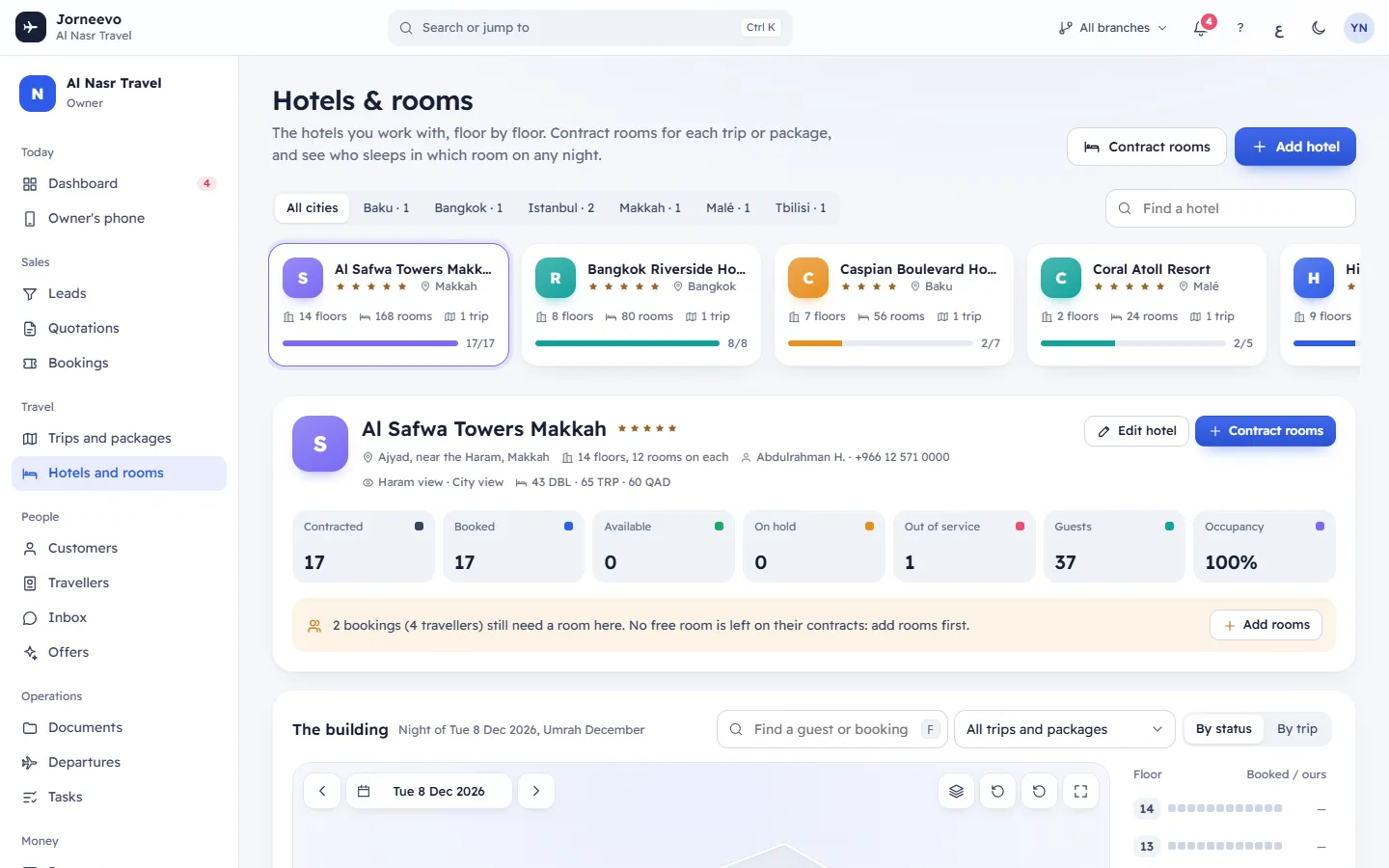
The header has Contract rooms (for the hotel shown below) and Add hotel.
The filter row
- All cities, then each city with its number of hotels. Picking a city opens its first hotel.
- Find a hotel: searches the name in English and Arabic, the brand, the city and the area.
- Archived · 2: shows the archived hotels too. It appears only when you have some.
The hotel strip. One card per hotel with its monogram, name, stars, city, floors and rooms, the number of trips, and an occupancy bar: the booked rooms out of the rooms you contracted, for upcoming stays. Hover the bar to see each trip's code, dates and rooms. An archived hotel shows Archived. The strip ends with Show more hotels when there are more, and an Add a hotel card.
The selected hotel. Below the strip, the hotel you picked (the first one when you arrive) opens with its 3D building, floor plan and contracts. Everything there is explained in The hotel page, 3D building and floor plan.
What you can do here
- Add hotel: see Add a hotel and its rooms.
- Contract rooms: see Contract hotel rooms for a trip.
- Click a hotel card to open it.
Note
Room types, room features, meal plans and cities come from Settings → Lists. You cannot add a hotel until at least one room type exists.
When the list is empty
- Add the first hotel you work with: build it floor by floor, then contract rooms for your trips.
- No hotels match: try another name or city.
Related articles
- The hotel page, 3D building and floor planOne hotel: its numbers for a night, a 3D building you turn and step night by night, the floor plan, the contracts and each room's details.
- Add a hotel and its roomsDescribe the building once, floors, rooms per side, views and room mix, and the system creates every room with its number.
- Contract hotel rooms for a tripReserve a block of hotel rooms for a trip or package (an allotment), with the room types, nights, meals, rates and release date.
- Room contracts (allotments) and release datesWhat a room contract is, what the release date means, and how the rooms nobody booked leave the contract on that date by themselves.