The hotel page, 3D building and floor plan
One hotel: its numbers for a night, a 3D building you turn and step night by night, the floor plan, the contracts and each room's details.
The hotel page shows one hotel the way it really is: floors, rooms, views, and who sleeps where on each night.
The hotel header
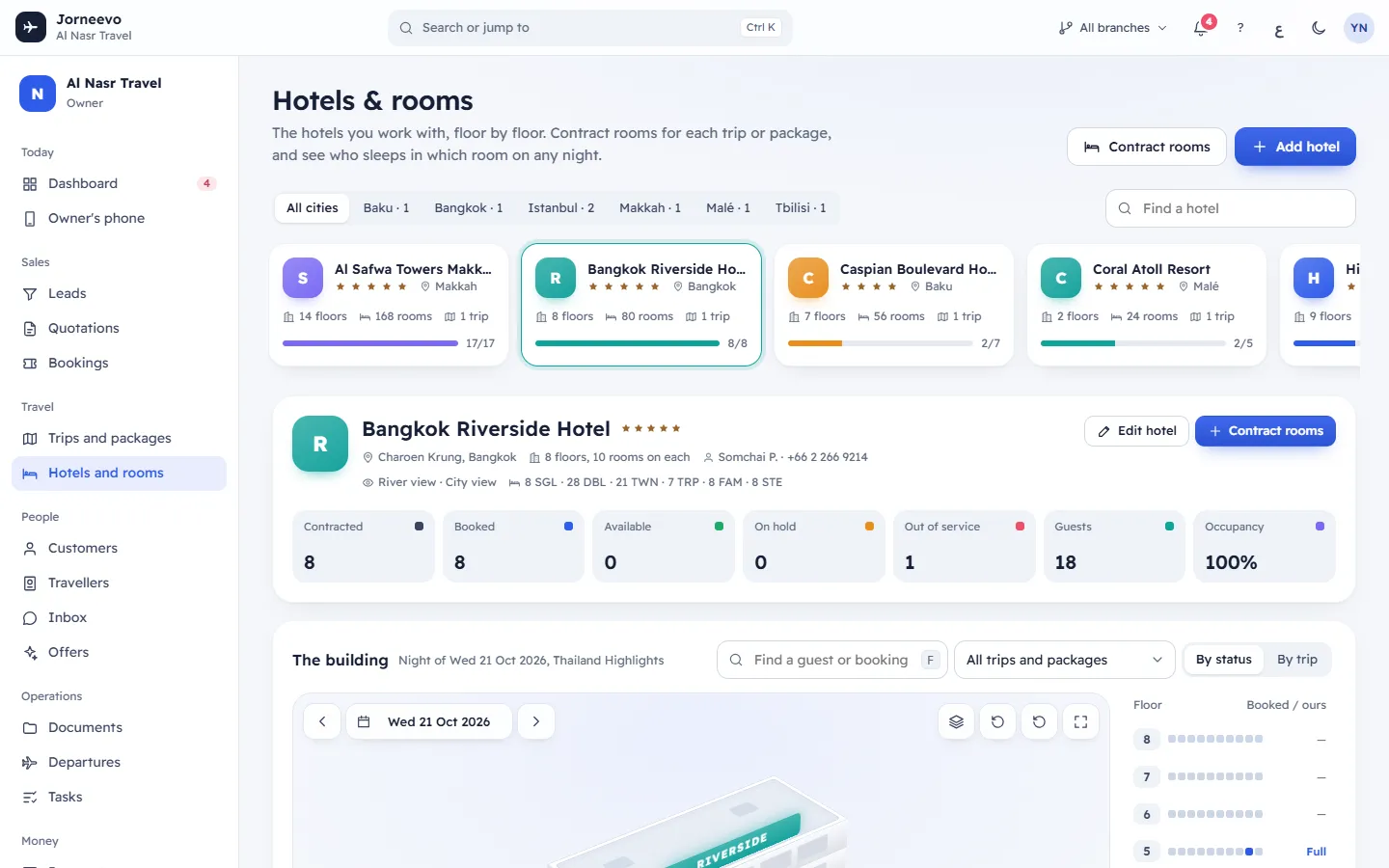
- The hotel's monogram, name, stars (and Archived when archived), area and city, floors and rooms per floor, the reservations contact, phone and email, the view of each side and the mix of room types.
- Buttons: Edit hotel, Contract rooms (active hotels) or Restore (archived hotels).
- The numbers for the night shown: Contracted, Booked, Available, On hold, Out of service, Guests and Occupancy.
- A waiting note when bookings still need rooms: "3 bookings (9 travellers) still need a room here." with Assign everyone waiting, or, when no free room is left, No free room is left on their contracts: add rooms first. with Add rooms. See Assign rooms and move guests.
The building
A 3D model of the hotel for one night: "Night of Wednesday 21 October 2026, BKK" (or nothing contracted).
- The night stepper: Previous night, the date and Next night. The arrow keys
←→also step the night. - Find a guest or booking (press
F): see Find where a guest is staying. - Show trip or package: All trips and packages, or one trip. With one trip, rooms of other trips show as Another trip.
- Colours By status or By trip.
- Tools: Spread the floors, Rotate left, Rotate right and Reset view. You can also drag the building to turn and tilt it.
- The legend: Booked, Available, On hold, Out of service and Not contracted.
- The floor list "Floor | Booked / ours" with dots per room and Full for a full floor.
Drag the building to turn it, click a floor to slide it out, or pick a floor from the list. The page remembers your colours, spread and trip.
The floor plan
When you open a floor, Floor 4 shows the back-side rooms, the corridor (Lifts, Stairs) and the front-side rooms with the view of each side. Each room card shows its number, type, guests and booking, or its state, features and trip code. Fully booked marks a full floor.
- Floor above and Floor below move between floors.
- Select rooms turns on selection for changes to many rooms: see Change rooms, features and out-of-service rooms.
- Contract rooms on this floor opens the contract window with this floor preferred.
- Drag a booked room onto another room of the same stay to move the guests, or onto a booked room to swap them. On a phone, press and hold the room first.
Before you choose a floor, the plan says Click a floor to open it.
Contracts and nights
A timeline of nights with one bar per contract (booked rooms out of contracted rooms). Click a day to see that night in the building; click a bar to show that contract. Below it, the contracts table: Trip or package, Nights, Rooms, Booked, Meals, Room cost, Release date and a menu (Actions) with:
- Show in the building, Rooming list, Download rooming list
- Change rooms, meals or release date, Give rooms to bookings
- Mark rooming list sent (or Mark rooming list sent again), Release this contract
A contract can also show "2 waiting", List sent … or List not sent yet. The release date shows a date, "In 3 days, 4 unsold", Passed or Completed. See Room contracts (allotments) and release dates.
The room window
Click any room to open it: the number, the state, the type and "sleeps 3", the floor and view, and the features. Under Night of …: the Trip, the Contract dates, Meals and Rate per night, or Not contracted for this night. It is part of the hotel’s own inventory. The Guests list shows the Lead guest and who they are Travelling with, with Open booking. Under What you can do are the room's actions, then Edit room details and Contracts that include this room.
If the page does not open
This hotel could not be found means the hotel was deleted. Go back to Hotels & rooms.
Related articles
- Contract hotel rooms for a tripReserve a block of hotel rooms for a trip or package (an allotment), with the room types, nights, meals, rates and release date.
- Assign rooms and move guestsGive rooms to bookings automatically or by hand, move or swap guests by dragging, free a room, or hold a room for later.
- Find where a guest is stayingType a guest's name, the customer's name or a booking number, and the building jumps to their room on a night of their stay.
- Room types, features, room states and rooming termsThe default room types and how many they sleep, room features, meal plans, the colours of rooms on a night, and contract labels.