The Reports screen
Sales, money owed and collected, profit, supplier payables, leads and VAT for any period, branch and currency, each ready to download.
Reports shows your sales, money in and out, profit and leads for any period, across all your branches and in the currency you choose. The owner, managers and finance use it every week and month. Open it from Insights → Reports in the menu.
What you see
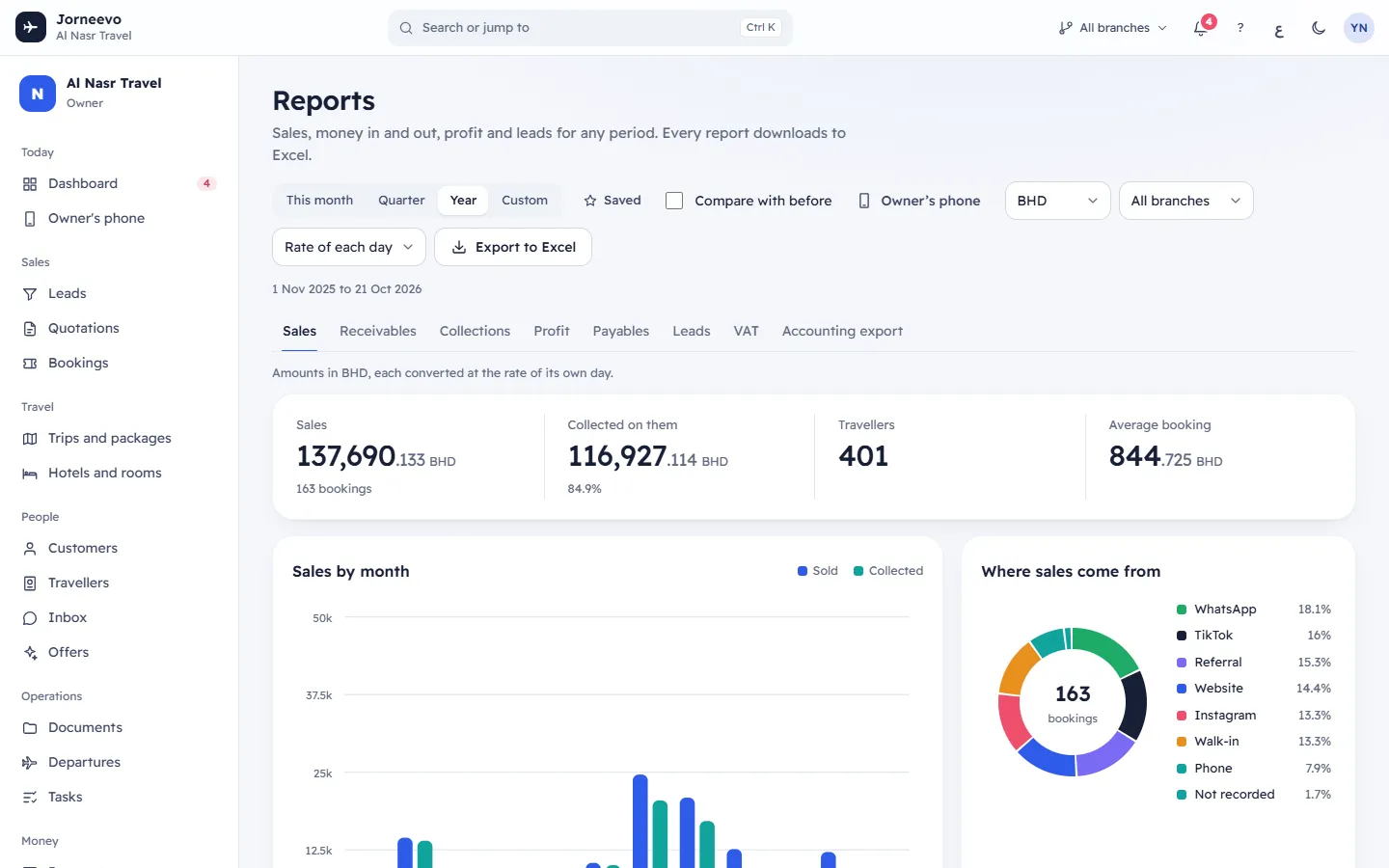
The bar at the top
- The period: This month, Quarter (this month and the two before), Year (this month and the 11 before, the first time you open the screen) or Custom with From and To. The dates in use show under the title.
- Saved: your saved date ranges (see Run and export a report).
- Compare with before: shows ▲ or ▼ and the change in % against the same number of days just before. New means there was nothing before. For costs and lost leads, a fall shows as good news.
- Owner’s phone: opens the owner's phone view.
- Show amounts in: the currency of the report. Your main currency is marked Base currency; a currency marked No rate yet cannot be chosen.
- Branch: All branches or one branch. It shows when the agency has more than one branch.
- Exchange rates: Rate of each day (as recorded) or Today’s rates (what it is worth now). See Branches, currencies and exchange rates in reports.
- Export to Excel: downloads the report you are on.
The period is hidden on Receivables and Payables, which always show everything still owed. Show amounts in and Exchange rates are hidden on VAT and Accounting export. The screen remembers your tab, period, comparison and saved ranges on this device.
Under the tabs, a line says which currency the amounts are in and how they were converted. A red note appears when a currency has no exchange rate: those amounts use the rate saved on each record.
The tabs
| Tab | What it shows |
|---|---|
| Sales | Confirmed bookings made in the period. Sales, Collected on them (with the % collected), Travellers, Average booking. Charts: Sales by month (sold and collected), Where sales come from (lead source; From a quotation, Not recorded), Sales by trip (top 10; click a trip to open its bookings), Sales by person (Not assigned when no one owns the booking). |
| Receivables | Every confirmed booking with a balance, whatever the period. Four boxes by age of the balance: Not due yet, 1–30 days late, 31–60 days late, Over 60 days late; click one to see only those. Table Everything customers still owe: Booking, Customer, Trip, Due, Total, Paid, Balance, the most overdue first. |
| Collections | Payments received in the period. Collected (payments less refunds), Refunded, Average payment. By payment method and the Payments list: Date, Receipt, Customer, Method, Amount (refunds in red with a minus). |
| Profit | Trips that depart in the period. Revenue, Costs, Profit, Margin. Revenue and profit by trip (the last 12 trips) and Every trip: Trip, Departs, Travellers, Revenue, Costs, Profit, Margin, sorted By date, By profit or By margin, with a Total row. |
| Payables | Supplier costs still unpaid, whatever the period. Owed to suppliers, Overdue, Due in 7 days. Table: Supplier, Trip, Due, In their currency, Balance. |
| Leads | Leads created in the period. New leads, Booked, Lost, Value of enquiries. Conversion by source, Where open leads are, Why leads were lost. |
| VAT | Output and input VAT per branch, for your VAT return. See Use the VAT report for your return. |
| Accounting export | The journal for your accounting software. See Export the journal to your accounting software. |
Under each report, By branch and By currency tables appear when the figures come from more than one branch or currency. By currency shows the original amounts and what they make in the report's currency.
Many numbers are links: Sales opens Bookings, Collected opens Payments, Costs and Owed to suppliers open Suppliers and profit, New leads opens Leads, and a trip opens its page.
What you can do here
- Choose a period, branch and currency, and download a report: Run and export a report.
- Prepare your VAT return: Use the VAT report for your return.
- Send the month to your accountant: Export the journal to your accounting software.
- Understand converted totals: Branches, currencies and exchange rates in reports.
Who sees what
| Permission | Gives you |
|---|---|
| See reports | The screen and the Sales, Receivables, Collections, Leads and VAT tabs |
| See profit | The Profit tab |
| See supplier costs and margins | The Payables tab |
| Export reports | Export to Excel, the VAT download and the Accounting export tab |
Statuses
Receivables are grouped by how late the balance is, counted from the booking's balance due date: Not due yet (green; the date has not passed or there is none), 1–30 days late (sand), 31–60 days late and Over 60 days late (red). On Payables, the due date is red when it has passed and sand when it is within 7 days.
Related articles
- Run and export a reportChoose the report, the period, the branch and the currency, compare with the period before, and download it to Excel.
- Use the VAT report for your returnGet the output VAT on your invoices, the input VAT on supplier costs and the net to pay or reclaim, per branch and period, ready for the VAT return.
- Branches, currencies and exchange rates in reportsHow reports add up branches that sell in different currencies, which exchange rate each amount uses, and how to choose the report currency.
- Export the journal to your accounting softwareMap your chart of accounts once, then download a balanced journal of invoices, payments and supplier costs for Xero, QuickBooks, Zoho Books, Odoo or Excel.