Connect your email (SMTP)
Send invitations, password resets, quotations and confirmations from your own email address through your mail server's SMTP details.
Connect email so that team invitations, password resets, quotations and booking emails actually reach people. Until you do, emails are only written to the message log.
Before you start
- Your role must allow changing settings.
- Get the SMTP details from your email host (Google Workspace, Microsoft 365, Zoho or your web host): the server name, the port, the user name and the password. Many hosts ask for an app password rather than your normal one.
- Decide the sender, for example
Al Nasr Travel <bookings@alnasr.com>. Most hosts only let you send from the account you sign in with, or from addresses that belong to it.
Steps
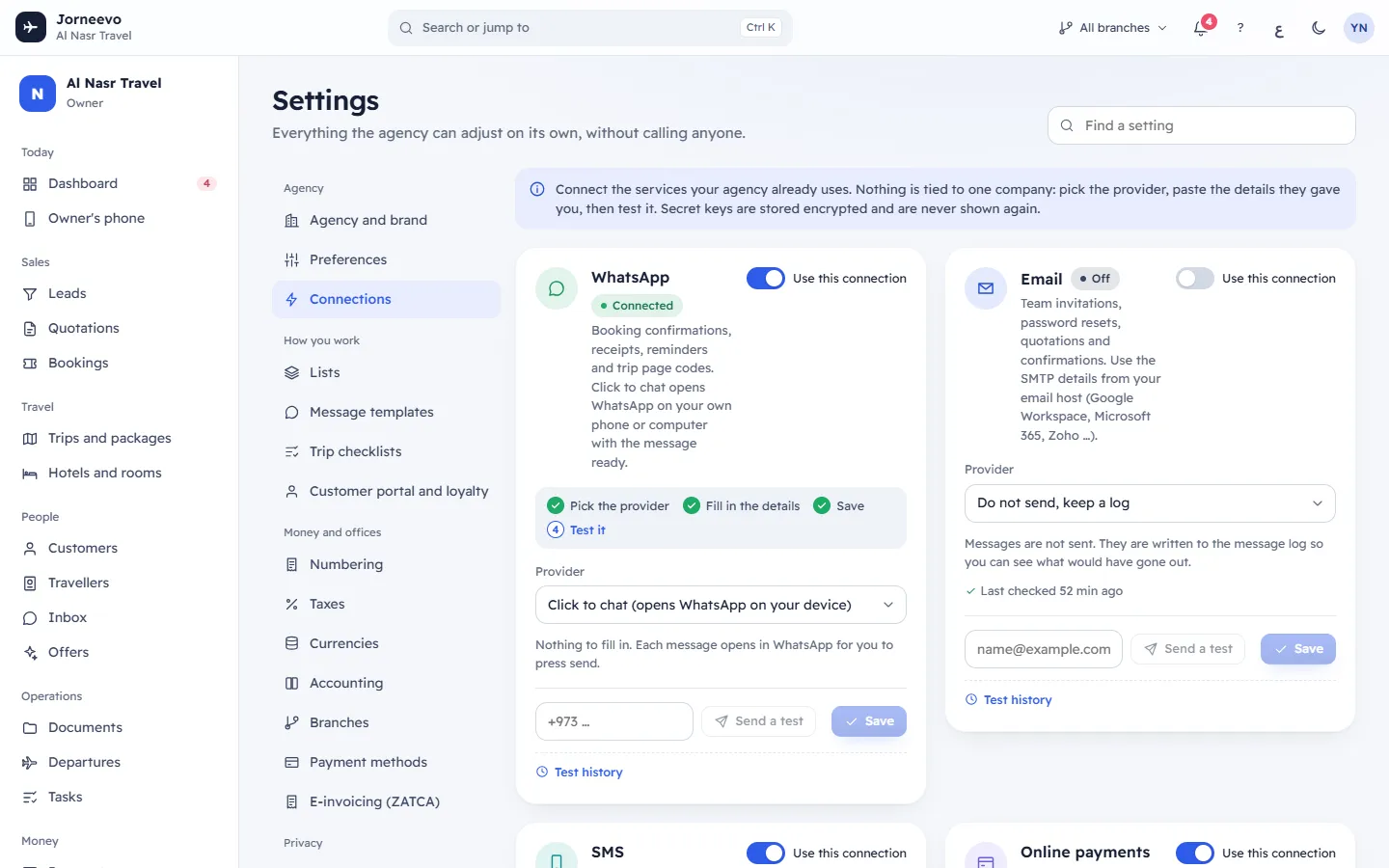
- Open Settings → Connections and find the Email card.
- Turn on the switch Use this connection on the card.
- In Provider, choose SMTP server.
- Type the Host, for example
smtp.gmail.com. - Type the Port. Empty means 587.
- Set Use TLS (true/false): usually on for port 465 and off for port 587.
- Type the User name and the Password of the mailbox.
- Type the From address: the name and address customers see as the sender.
- Press Save. The message Email connection saved appears and the card shows Connected.
- Type your own email address in the box at the bottom of the card and press Send a test.
- Wait for Sent. Check that it arrived., then check your inbox (and the spam folder) for the test email.
After you connect email
- Team invitations, password resets, quotations and every email template are sent from your server, in the person's language.
- Each email appears in Settings → Data and logs → Message log with the status Sent, or Failed with the reason.
- Test history on the card lists your last 5 tests.
- Emails sent through your server count towards your plan's monthly email limit. Invitations and password resets always go out.
Tip
Ask your email host to set SPF and DKIM for your domain. Without them many inboxes put your emails in spam.
To stop sending, switch the card off or choose Do not send, keep a log, then press Save. Emails then go to the message log only. Team invitations and password reset links are the exception: the system's own email sends them, with a closing line saying they come on behalf of your agency.
If something goes wrong
- It did not work: The server address was not found. Check the host name. The Host is misspelt.
- It did not work: The server did not answer. Check the host, the port and the TLS switch. The port is wrong or blocked, or TLS does not match the port (465 with TLS on, 587 with TLS off).
- It did not work: The provider refused the sign-in details. Check the user name, password or keys. Check the user name and password, or create an app password at your email host.
- It did not work: A secure connection could not be made. Try switching TLS, or use port 587.
- It did not work: The provider returned an error. Read the server's message under it; it often says the From address is not allowed.
- The mail server must be a public internet address or The mail server could not be found (…) when you save: use the public server name your host gives you.
More checks: Emails are not being delivered.
Related articles
- ConnectionsConnect WhatsApp, email, SMS, online payments and file storage, test each one, and give branches their own payment account.
- Emails are not being deliveredWhy invitations, quotations or booking emails do not arrive, and the checks to run in order, from the email connection to the spam folder.
- Message templatesThe words of every message customers and colleagues receive, per channel and language, with booking details filled in and a live preview.
- Invite a teammateAdd a new person to your agency with a role and a branch; they get an email link to choose their own password.