Invite a teammate
Add a new person to your agency with a role and a branch; they get an email link to choose their own password.
Invite a person when they join your agency. You choose their role and branch; they choose their own password from the link they receive.
Before you start
- Your role needs Manage the team.
- Your plan needs a free seat. Active and invited people each take one.
- Connect email in Settings → Connections so the invitation comes from your agency's own email: Connect your email (SMTP). Without it, the system's own email sends it, with a closing line saying it comes on behalf of your agency. When neither is connected, nothing is sent and you share the link yourself.
Steps
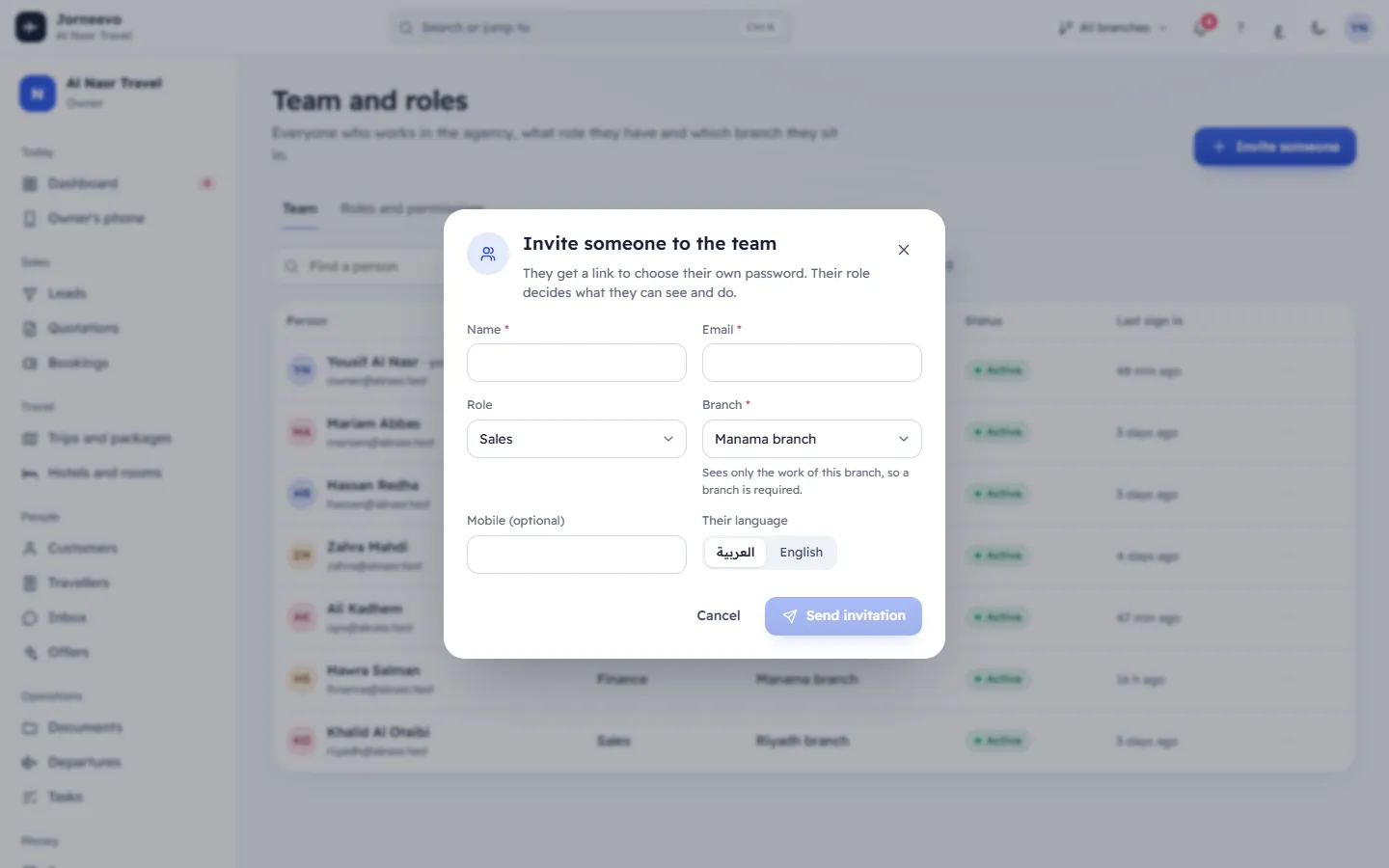
- Open Team and roles, stay on the Team tab, and press Invite someone.
- Type the person's Name.
- Type their Email. This is the email they sign in with.
- Choose the Role. It starts on Sales; each role shows how many permissions it has. Only an owner can choose Owner.
- Choose the Branch they work in. It starts on your main branch. For a role that does not see every branch (for example Sales), a branch is required, and the field says Sees only the work of this branch, so a branch is required. Only for an owner or a role with See and work in every branch can you choose No own branch (sees every branch).
- Type their Mobile (optional).
- Under Their language, choose العربية or English. It starts on your own language and sets the language of the email and of their screens.
- Press Send invitation. It works once the name, a valid email, a role and, when required, a branch are filled in.
After you invite them
- A window … is invited opens with the link and Copy. It says what really happened, and that the link works
for 7 days:
- Emailed to …: sent from your agency's email. You can also share the link yourself.
- Emailed to … from …'s email, because your agency's email is not connected.: the system's own email sent it.
- The email to … could not be sent.: copy the link and send it by WhatsApp or any way you like.
- Email is not connected, so nothing was sent.: copy the link and send it yourself. Connect email in Settings → Connections to send these emails automatically.
- The person appears with the status Invited and Not joined yet under Last sign in, and takes a seat.
- The email, You are invited to your agency's name, says who invited them and holds the link. You can change its wording in Settings → Message templates → Team invitation.
- The link works for 7 days. When they open it they see You are invited, check their name, choose a Password of at least 8 characters and press Join the team. They are signed in and their status becomes Active.
- If your agency requires two-step sign-in for them, they set it up right after joining: Require two-step sign-in for your team.
- The audit log records … was invited as ….
Send it again or cancel it
- Open the row menu and choose Send the invitation again. A new 7-day link is made and emailed, and the window New invitation for … shows it. The old link stops working.
- To withdraw it, choose Cancel invitation and confirm. The link stops working and the seat is free again.
Tip
If the person says the link has expired, use Send the invitation again. You do not need to cancel and invite again.
If something goes wrong
- Someone already uses this email: an account with this email already exists, in your agency or in another one. Use another email, or find the person in the Everyone list.
- Your … plan allows … users. Upgrade the plan in Settings → Plan and billing to add more.: all seats are used. Disable someone who has left, cancel an old invitation, or upgrade in Settings → Plan and billing.
- Only an owner can add another owner: ask an owner to send the invitation.
- The person sees This invitation has expired: the 7 days passed, or the invitation was cancelled. Send it again.
- This person has already joined: they accepted already. They can sign in, or you can send a Password reset link.
Related articles
- Team and rolesSee everyone who works in your agency with their role, branch and status, and decide what each role can see and do.
- Roles and permissions explainedWhat the six default roles can do, how a role decides what each person sees, and how discount limits work.
- Branches and who sees whatHow a person's branch and the permission to see every branch decide which bookings, trips and payments they see.
- Questions about your teamShort answers on user limits, disabling people, invitations, changing the owner, access problems and emails already in use.
- Connect your email (SMTP)Send invitations, password resets, quotations and confirmations from your own email address through your mail server's SMTP details.