Message templates
The words of every message customers and colleagues receive, per channel and language, with booking details filled in and a live preview.
Message templates holds the words customers and colleagues receive: the booking confirmation, the payment receipt and reminder, the quotation, the trip page code, the team invitation and more. Each message can have one template for every channel (WhatsApp, Email, SMS) and every language. Open it from Settings → Message templates.
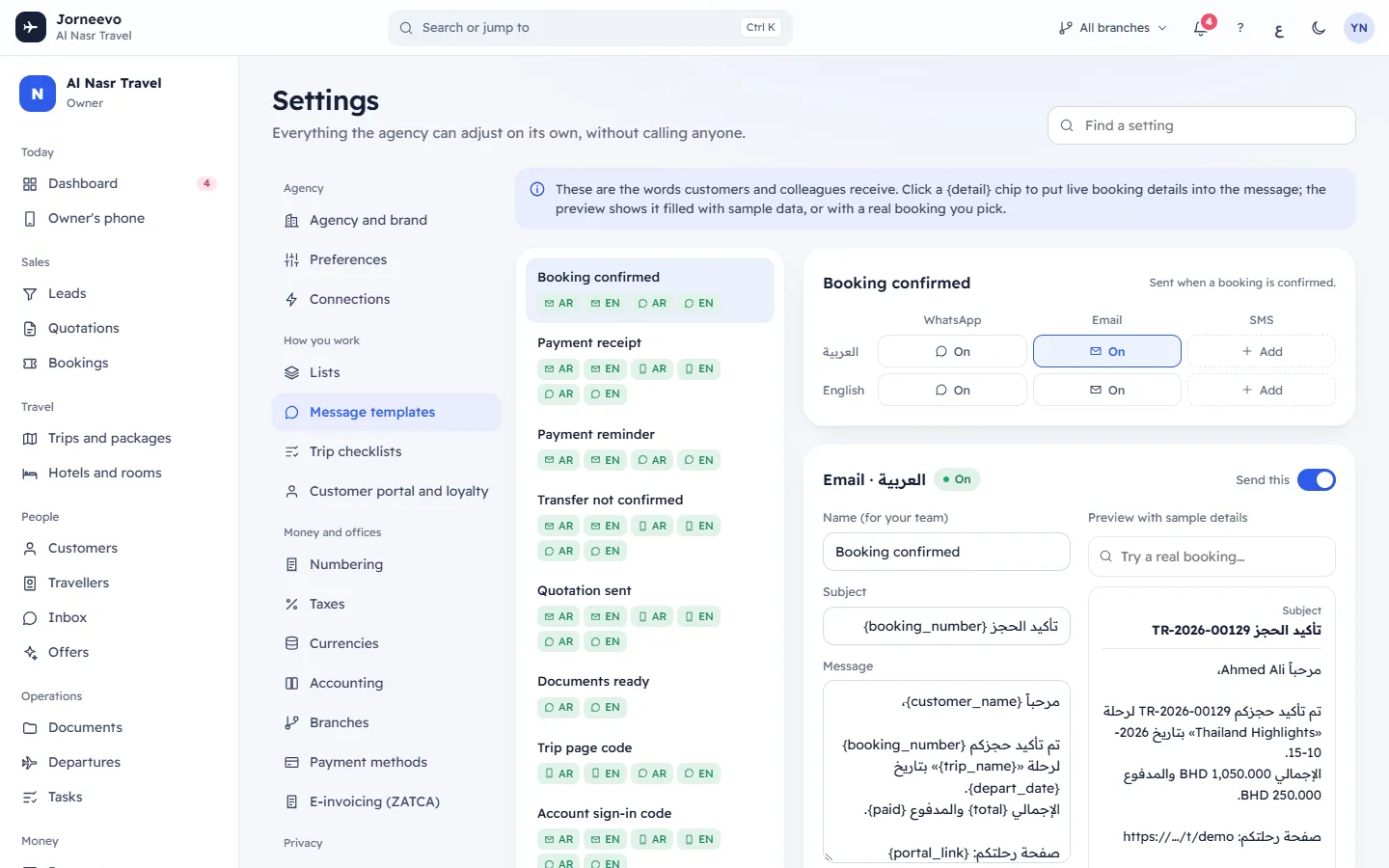
The note at the top explains the idea: click a {detail} chip to put live booking details into the message; the preview shows it filled with sample data, or with a real booking you pick.
What you see
The messages
On the left, every message the system sends, by its name: Booking confirmed, Payment receipt, Payment reminder, Transfer not confirmed, Quotation sent, Documents ready, Trip page code, Account sign-in code, Account invitation, Chat reply, Passport renewal, Team invitation and Password reset. Under each name, small tags show its templates by channel icon and language (for example AR, EN); a faded tag is turned off. Not written yet means the message has no template.
Click a message to open it. Its first template opens.
Channels and languages
At the top of the message: its name and when it is sent (for example Sent when a booking is confirmed.), and a grid with your languages in rows and WhatsApp, Email and SMS in columns. Each cell shows On, Off or Add (no template yet). Click a cell to edit that template.
The editor
- The title shows the channel and language, for example WhatsApp · العربية, with On, Off or New.
- Send this: a switch. Off means nothing is sent on this channel in this language. On an existing template it is saved at once, with Template turned on or Template turned off: nothing is sent.
- Name (for your team): a name only your team sees. It starts as the message's name.
- Subject: for email only.
- Message: the text. Under it, the number of characters; for SMS also the number of text messages it takes (153 characters each, or 67 when the text has Arabic letters).
- Details you can use: the chips this message can fill, such as {customer_name} or {booking_number}. Clicking one puts it where your cursor is, in the subject or the message.
- If the text has a detail this message cannot fill, a red box lists it: Not filled for this message: …
- When the cell has no template yet: There is no template for this channel and language yet, so nothing is sent. Write one below. If the message has templates on other channels or languages, Start from: offers them as buttons that copy their text in.
The preview
Next to the editor, the message as the customer will see it, in a bubble for its channel, with the subject on top for email.
- Preview with sample details fills the details with an example (customer Ahmed Ali, booking TR-2026-00129, trip Thailand Highlights, and so on).
- For booking messages, type a booking number or customer name in Try a real booking… and pick a booking: the preview shows Preview with this booking. The booking is remembered on this device. Press × to go back to the sample details. A search with no result shows No booking matches.
- An empty message shows Write a message to see it here.
The buttons
Delete (existing templates), Undo (when you changed something) and Save template, or Add template for a new one. While a template has unsaved changes, leaving the page asks Leave without saving?
How the system picks a template
- It uses the template for the channel and the customer's language, if it is turned on.
- If there is none in that language, it uses another turned-on template for the same channel.
- If there is no turned-on template for that channel at all, the message is not sent and the person sending sees No … template "…" is set up. Add it in Settings → Message templates.
- A line whose link is empty, for example a payment link line when the booking has no open payment link, is left out of the message instead of ending with an empty label.
- Messages leave the system only when the channel is connected in Settings → Connections; until then they are kept in the message log.
Note
There is no button to go back to the original words. Before a big change, copy the current text somewhere, or keep another language's template as a starting point.
What you can do here
- Change the words of a message or add one for another channel or language: Change the words of a message
- See every message, when it is sent and the details it can use: Messages and the details they can use
- Connect WhatsApp, email or SMS: Connections
- Find out why a customer did not receive a message: The customer did not receive the WhatsApp or SMS message
If something goes wrong
- Delete this template?: Nothing will be sent on this channel in this language until you write it again. Press Delete only if you mean it. Template deleted confirms it.
- Save template stays off: the message is empty, or nothing changed.
- Template not found: someone deleted the template meanwhile. Open the message again.
Related articles
- Change the words of a messageEdit a message template, add booking details to it, check it in the preview with a real booking, and add it for another channel or language.
- Messages and the details they can useEvery message the system sends, when it goes out, on which channels, and every {detail} each message can fill in, with what it becomes.
- ConnectionsConnect WhatsApp, email, SMS, online payments and file storage, test each one, and give branches their own payment account.
- The customer did not receive the WhatsApp or SMS messageWhy a confirmation, receipt, reminder or trip page code did not reach the customer, how to read the message log, and what to fix first.
- PreferencesYour agency's working rules for seats, deposits, rooms, seat holds, quotation validity, the customer trip page, receipts and vouchers.