Connections
Connect WhatsApp, email, SMS, online payments and file storage, test each one, and give branches their own payment account.
Settings → Connections is where you link the services your agency already uses: the WhatsApp, email and SMS accounts that send your messages, the payment gateway that takes card payments, and the place your files are kept. Only people whose role can change settings open this screen.
You pick a provider, paste the details the provider gave you, save, then test. Secret keys and passwords are stored encrypted and are never shown again.
What you see
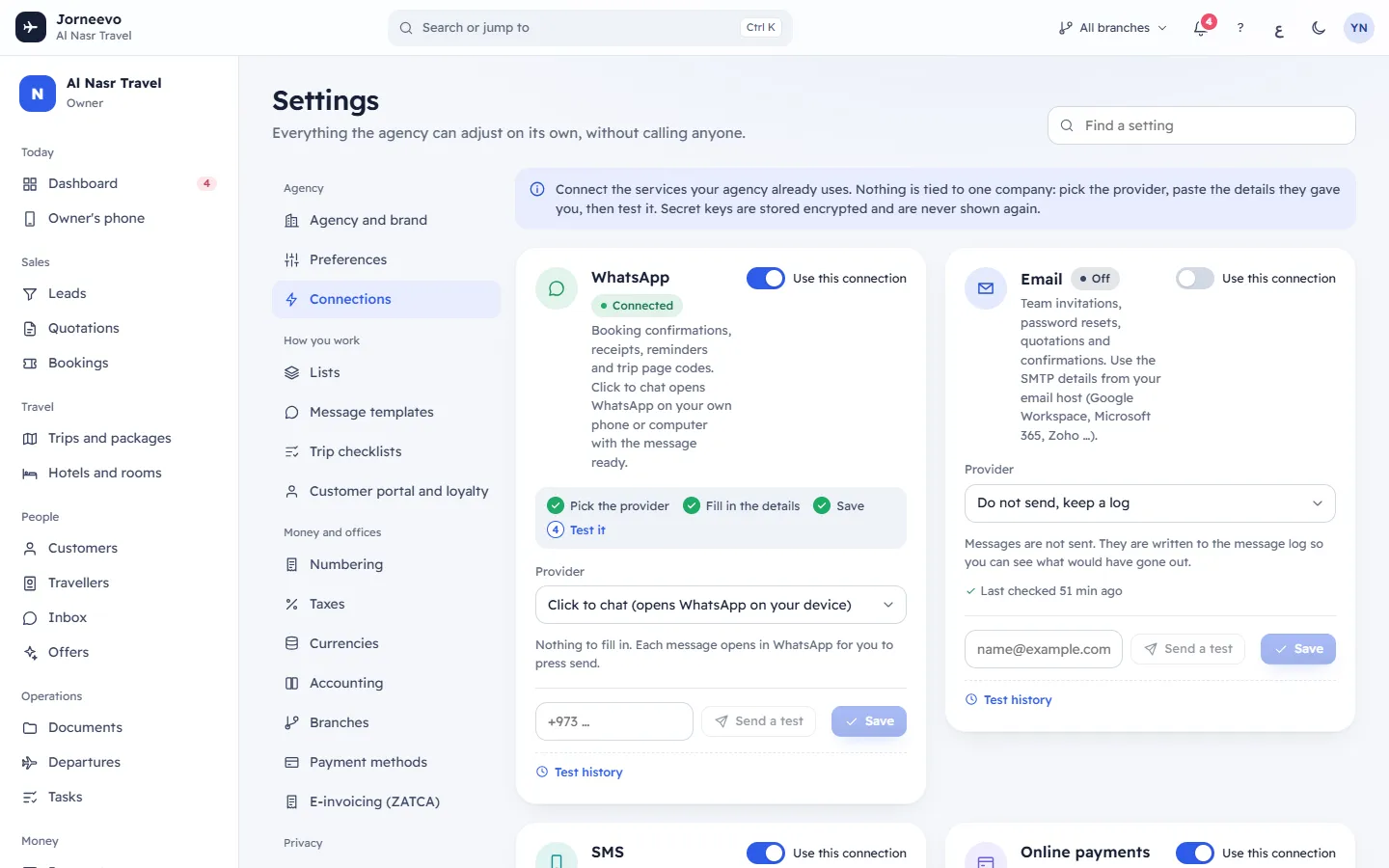
The screen has five cards, one for each kind of connection, and below them Payment accounts per branch when your agency has more than one branch.
The top of each card
- The card name and what it is used for.
- A status chip (see Statuses below). The Online payments card also shows Test mode while the gateway is set to sandbox.
- A switch with the words Use this connection beside it. Off means the system ignores the connection and falls back to its default: messages are only kept in the log, payments are taken by hand, files stay on the platform's storage.
- Setup steps while the switch is on: Pick the provider, Fill in the details, Save and, for connections that can be checked, Test it. A tick marks each step that is done, and the next step is highlighted.
Inside each card
- Provider: the service that handles this connection. Changing it clears the fields, so you type the details of the new provider. Going back to the saved provider brings its saved details back.
- Where to find these details: for providers that have a guide, a short list of steps that tell you where to find each detail in the provider's own dashboard, and Open the dashboard when the provider has one. It is open the first time and can be folded away.
- The provider's fields. Secret fields (passwords, tokens, keys) show Saved and encrypted. Leave it to keep it, or type a new one. once saved: leave them as they are to keep the saved value.
- Advanced settings (optional): fields with a sensible default, such as the API address or version. Press Hide advanced settings to fold them. Leave empty to use the default shown.
- A short note when there is nothing to fill in, for example Nothing to fill in.
- Last error with the provider's own words and when it happened, or Last checked … after a test that worked.
The five cards
| Card | Used for | Providers |
|---|---|---|
| Booking confirmations, receipts, reminders and trip page codes | Click to chat (opens WhatsApp on your device), WhatsApp Business Platform (Meta), Twilio WhatsApp | |
| Team invitations, password resets, quotations and confirmations | Do not send, keep a log, SMTP server | |
| SMS | Trip page codes and short reminders | Do not send, keep a log, Twilio, Any SMS gateway (HTTP) |
| Online payments | Payment links customers open to pay by card, Apple Pay, BenefitPay, KNET or mada | Manual (bank transfer or pay at office), Test gateway (no real money), Tap Payments (cards, BenefitPay, KNET, mada, Apple Pay), Stripe Checkout (cards, Apple Pay, Google Pay), Credimax (Mastercard Gateway), AFS (Arab Financial Services, Mastercard Gateway), Another bank on Mastercard Gateway (MPGS), BENEFIT payment gateway (BenefitPay, Bahrain debit cards) |
| File storage | Where passports, tickets and logos are kept | Platform default (server disk unless the platform sets cloud storage), S3-compatible bucket (AWS S3, Cloudflare R2, DigitalOcean Spaces, MinIO) |
The fields of each provider are explained in Connect your email (SMTP), Connect SMS, Connect WhatsApp and Connect a payment gateway.
The Online payments card also shows:
- Customers can pay with: the card and wallet marks the customer sees on the payment page.
- Mode: Sandbox (test) or Live, with the chip Test mode: no real money or Real payments.
- Webhook address to paste in your gateway dashboard with Copy. Payments are confirmed through this address even if the customer closes the page.
The File storage card with S3-compatible bucket asks for the Bucket, Region, Access key ID and Secret access key, and under Advanced settings (optional) the Endpoint (empty for AWS), Public URL (optional) and Path-style URLs (true for MinIO).
The bottom of each card
- WhatsApp, Email and SMS: a box for the test recipient (a mobile number with the country code, or an
email address) and Send a test. The button works once you type at least 3 characters;
Enteralso sends. - Online payments (all providers except Manual) and File storage: Test connection.
- Undo (when you have unsaved changes) and Save. Save is greyed out until you change something.
- Test history (WhatsApp, Email and SMS): the last 5 test messages with their status, the number or address and how long ago. No tests yet. Send one above to check the connection. when there are none.
Payment accounts per branch
Shown when the agency has two or more branches, or a branch already has its own account. Each branch shows its country and currency (and main branch), a chip Own account: … or Agency account: … with the gateway it uses, and the buttons Give it its own account (or Edit) and Use the agency account. See Give a branch its own payment account.
What you can do here
- Connect email: Connect your email (SMTP).
- Connect SMS: Connect SMS.
- Connect WhatsApp: Connect WhatsApp.
- Connect a payment gateway, test it in sandbox and go live: Connect a payment gateway.
- Give a branch its own payment account: Give a branch its own payment account.
- Keep files in your own storage: choose S3-compatible bucket on File storage, fill in the bucket and keys, press Save, then Test connection. New files go to the bucket. Files saved before stay where they were and keep opening.
- Turn a connection off: switch it off and press Save. Nothing is deleted; the saved details stay for later.
After Save the message … connection saved appears, for example Email connection saved.
Test results
| Result | What it means |
|---|---|
| Sent. Check that it arrived. | The provider accepted the test. Check the phone or inbox. |
| Not sent: this channel only keeps a log. Pick a real provider to send messages. | The provider is Do not send, keep a log. |
| Click to chat does not send by itself. Open the link to send it from WhatsApp: Open WhatsApp | Click to chat opens WhatsApp with the message ready; you press send. |
| It did not work: followed by the reason | The provider refused the message or could not be reached. |
| It works. followed by the gateway or storage answer | Test connection succeeded, for example Tap accepted the credentials. |
| A warning under It works.: These look like live credentials, but the connection is set to sandbox. | The keys and the Mode do not match. Fix one of them. |
The reasons are said in plain words where the system recognises them, with the provider's own message below:
- The server address was not found. Check the host name.
- The server did not answer. Check the host, the port and the TLS switch.
- The provider refused the sign-in details. Check the user name, password or keys.
- A secure connection could not be made. Try switching TLS, or use port 587.
- The provider returned an error. (anything else: read the provider's message under it)
Note
Test buttons check what is saved. If you changed something, you see Save your changes first, then send the test or Save your changes first, then test the connection. Press Save first.
Statuses
| Status | Meaning |
|---|---|
| Off | Never saved, or the switch is off. The system uses its default for this connection. |
| Needs attention | The last test, or the last real message or payment check sent through this connection, failed. Last error shows why; the message log shows each failed message. |
| Logging only | Email or SMS is set to Do not send, keep a log: messages go to the message log, not to the customer. |
| Connected | The connection is on and its last check did not fail. |
| Test mode | Shown next to the status on Online payments while Mode is Sandbox (test). |
A connection moves to Needs attention when a test or a real message fails, and back when you save it again, a later test works or the next message goes through. See How connections work for what each status means for your customers.
If something goes wrong
- The mail server must be a public internet address, The SMS gateway address must start with https://, The gateway address must be a public internet address: the address you typed points to a private network or is not a secure web address. Use the public address the provider gave you.
- Unknown provider: refresh the page and pick the provider again.
- Problems with messages: The customer did not receive the WhatsApp or SMS message and Emails are not being delivered.
Related articles
- How connections workWhat WhatsApp, email, SMS, payment and storage connections do, which messages use which channel, and what happens when one is not connected.
- Connect your email (SMTP)Send invitations, password resets, quotations and confirmations from your own email address through your mail server's SMTP details.
- Connect WhatsAppChoose how WhatsApp messages go out: opened on your own phone with Click to chat, or sent automatically through the WhatsApp Business Platform or Twilio.
- Connect a payment gatewayTake card, Apple Pay, BenefitPay, KNET and mada payments into your own merchant account: connect in test mode, make a test payment, then go live.
- Give a branch its own payment accountLet a branch take online payments into its own gateway account and currency, for example a Bahrain branch on BENEFIT and a Saudi branch on Tap.