Support access
Let the platform's support team look at your account for a set time, see whether access is open, and answer their requests.
Support access decides whether the platform's support team can open your agency's account. It is closed unless you open it, and it closes by itself when the time you chose is up. Open it from Settings → Support access, in the Privacy group.
What you see
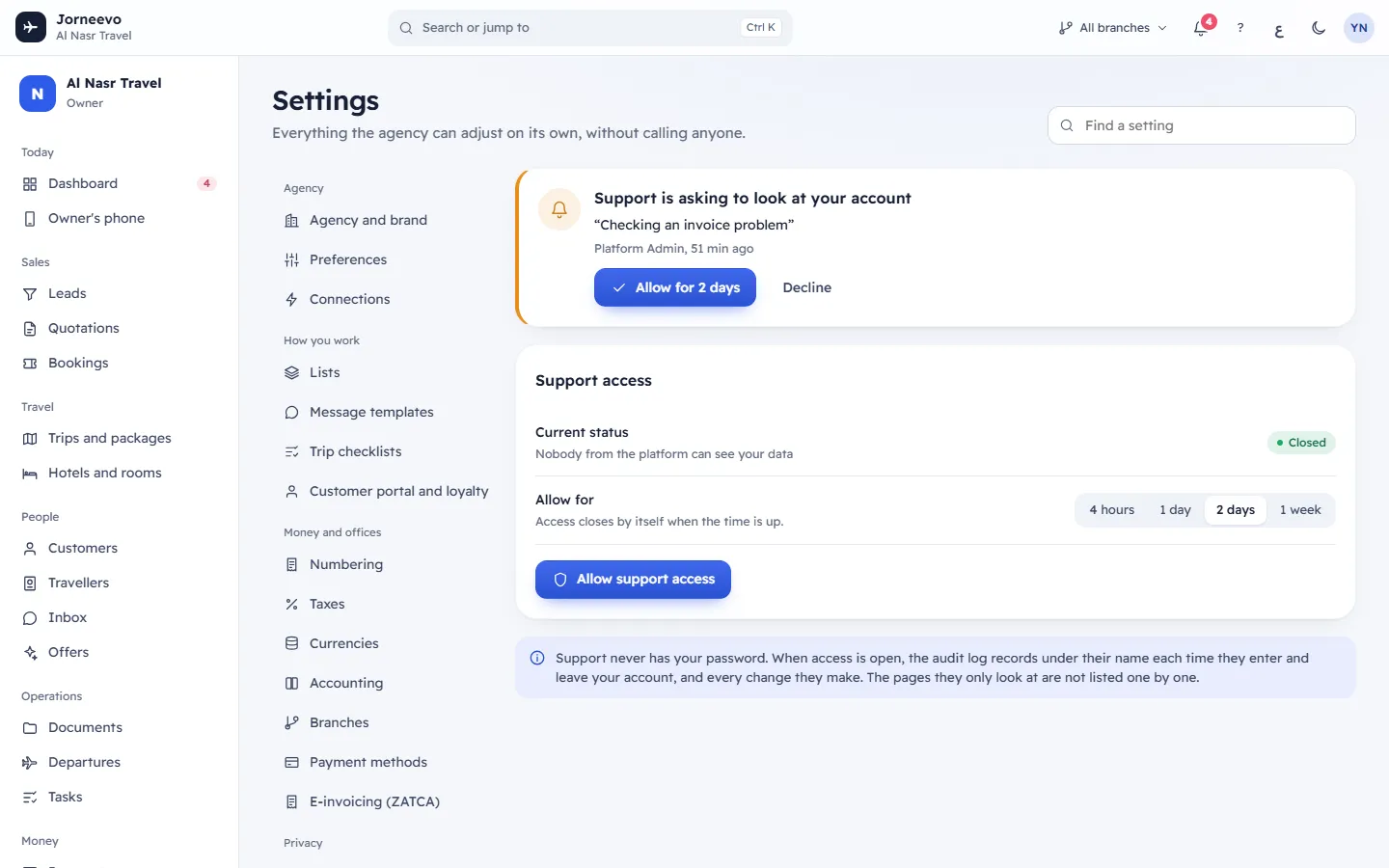
Support is asking to look at your account
This card appears at the top only when support has sent you a request and access is closed. It shows:
- the reason they gave, in quotation marks,
- who asked and how long ago,
- Allow for … (with the time chosen below, for example Allow for 2 days) and Decline.
Support access
| Row | What it shows |
|---|---|
| Current status | Closed with Nobody from the platform can see your data, or Support can view with Open until the day, date and time. |
| Allow for | How long access stays open: 4 hours, 1 day, 2 days (chosen at first) or 1 week. Access closes by itself when the time is up. While access is open the row is called Extend for. |
The buttons below:
- Allow support access when access is closed, or Extend access when it is open.
- Stop access now, only while access is open.
At the bottom: Support never has your password. When access is open, the audit log records under their name each time they enter and leave your account, and every change they make. The pages they only look at are not listed one by one.
What support can do while access is open
- They see everything an owner sees, for the time you allowed.
- Your audit log records their request and each time they enter and leave your account (their name followed by (support)), and every change they make under their name. Read it in Settings → Data and logs → Audit log.
- They never get your password or anyone's two-step codes.
- Without access, support cannot open your agency at all.
What you can do here
- Open, extend or stop access, or answer a request: Give or remove support access.
- Check what support did: Data and logs.
Statuses
| Status | Meaning |
|---|---|
| Closed | Support cannot see your account. This is the normal state. |
| Support can view | You allowed access. It stays open until the date and time shown, or until you press Stop access now. |
Related articles
- Give or remove support accessOpen your account to the platform's support team for a few hours or days, extend it, stop it early, or answer their request.
- Data and logsDownload all your agency's data, see every message the system sent, and read who changed what and when.
- Sign-in securityDecide who in your agency must use two-step sign-in, see who is protected, and require or reset it for one person.
- Settings questionsShort answers about settings: who can change them, missing sections, saving, finding a setting, effect on existing records, language and data export.