Change the words of a message
Edit a message template, add booking details to it, check it in the preview with a real booking, and add it for another channel or language.
Change a template when you want your own words in a message, for example a warmer booking confirmation, or when a message is missing for a channel or a language your customers use.
Before you start
- You need the permission Change settings.
- To check the message with real details, have a booking number or a customer name ready.
Steps
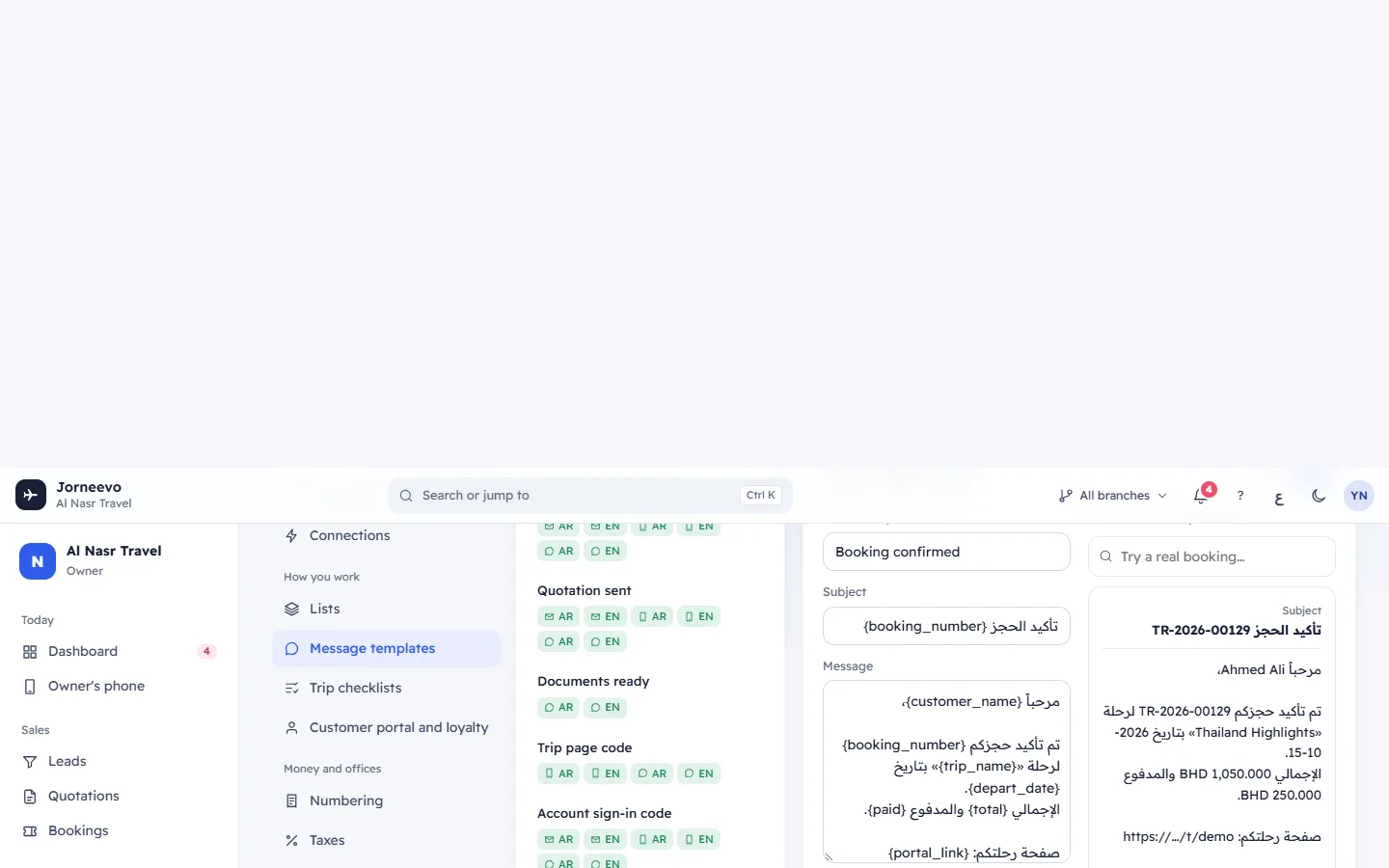
- Open Settings → Message templates.
- Click the message on the left, for example Booking confirmed.
- In the grid, click the cell for the channel and language, for example WhatsApp on the العربية row. A cell showing Add has no template yet.
- For a new template, you can press one of the buttons after Start from: to copy the text of another channel or language, then change it.
- Change the text in Message. For email, also fill in the Subject.
- To add a detail, put the cursor where it should go and click a chip under Details you can use, for example {customer_name}. It is filled in for each customer when the message is sent.
- Check the preview. To see it with a real booking, type a booking number or a customer name in Try a real booking… and pick the booking.
- If a red box shows Not filled for this message: …, remove or correct those details: they would be sent as written.
- Make sure Send this is on, then press Save template (or Add template for a new one). Template saved or Template added appears.
Tip
Write each template in the customer's language: the system sends the template in the language set for the customer, and uses another language only when that one is missing or turned off.
After you save
- The next message of this kind uses your words, on this channel and in this language.
- Messages already sent do not change. You can see them in Settings → Data and logs.
- To stop a message without deleting its words, turn Send this off: Template turned off: nothing is sent.
If something goes wrong
- Save template stays off: the message is empty, or nothing changed. Press Undo to go back to the saved text.
- Not filled for this message: …: the detail is spelled wrongly or does not belong to this message. Use only the chips shown. See Messages and the details they can use.
- No … template "…" is set up. Add it in Settings → Message templates. when someone sends a message: there is no turned-on template for that channel. Add one, or turn the existing one on.
- Leave without saving? when you click away: your changes are not saved yet. Press Cancel and save them.
Related articles
- Message templatesThe words of every message customers and colleagues receive, per channel and language, with booking details filled in and a live preview.
- Messages and the details they can useEvery message the system sends, when it goes out, on which channels, and every {detail} each message can fill in, with what it becomes.
- ConnectionsConnect WhatsApp, email, SMS, online payments and file storage, test each one, and give branches their own payment account.
- The Settings screenWhere the agency adjusts everything on its own: the four groups of sections, the search box that finds any setting, and how changes are saved.