The Settings screen
Where the agency adjusts everything on its own: the four groups of sections, the search box that finds any setting, and how changes are saved.
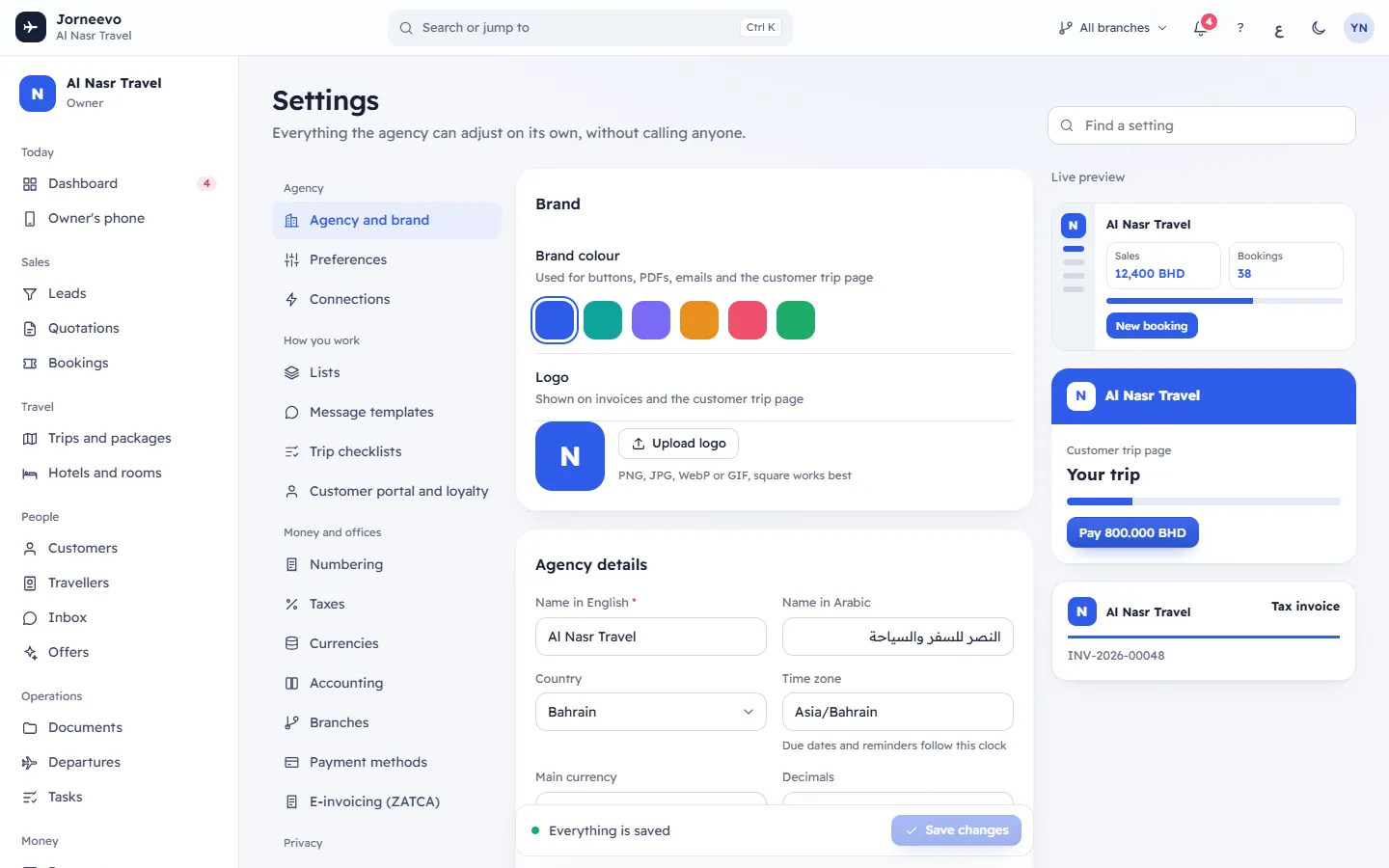
Settings holds everything the agency can adjust on its own, without calling anyone: your brand, your working rules, your lists and messages, money and offices, and privacy. The owner and the managers usually work here.
Who can open it
- You need the permission Change settings. By default the Owner and Manager roles have it. Without it, Settings is not in the menu, and opening its address shows This screen is not part of your role with Ask the agency owner to give you access.
- A few sections ask for one more permission for some actions. You can open them, but the buttons that change things
stay off or are hidden:
- Plan and billing: changing the plan, cancelling and paying invoices need Manage the plan and pay invoices (only the Owner by default). Others see a note that only the account owner can do this.
- Sign-in security: requiring or resetting two-step sign-in for a person needs Manage the team.
- Data and logs: Export needs Export all data, and the Audit log tab needs See the audit log.
- Customer portal and loyalty: changing which trips customers can book needs Build and publish trips.
What you see
The header
The title Settings, the line Everything the agency can adjust on its own, without calling anyone. and the Find a setting box.
The section menu
The sections are listed in four groups. Opening Settings takes you to Agency and brand; an address that does not exist also goes there.
Agency
- Agency and brand: name, country, time zone, main currency, language, contact details, colour and logo. See Agency and brand.
- Preferences: the working rules for bookings, rooms, quotations, the customer trip page and vouchers. See Preferences.
- Connections: WhatsApp, email, SMS, online payments and file storage. See Connections.
How you work
- Lists: the choices in menus and boards, such as lead sources and room types. See Lists.
- Message templates: the words customers and colleagues receive. See Message templates.
- Trip checklists: tasks copied onto every new trip. See Trip checklists.
- Customer portal and loyalty: the customer app, points, credit and quick replies. See Customer portal and loyalty.
Money and offices
- Numbering: how booking, quotation, invoice and receipt numbers look. See Numbering.
- Taxes: your tax profiles and rates. See Taxes.
- Currencies: the currencies you use and their exchange rates. See Currencies and exchange rates.
- Accounting: the chart of accounts for your accounting exports. See Accounting.
- Branches: your offices. See Branches.
- Payment methods: how customers pay you. See Payment methods.
- E-invoicing (ZATCA): e-invoicing in Saudi Arabia. See E-invoicing (ZATCA).
Privacy
- Sign-in security: two-step sign-in for the team. See Sign-in security.
- Plan and billing: your plan, usage and invoices. See The Plan and billing screen.
- Support access: letting the support team into your account for a while. See Support access.
- Data and logs: the full export, the audit log and the message log. See Data and logs.
Find a setting
Type in Find a setting to jump to any setting without knowing its section.
- Type words in English or Arabic. A setting is found when every word you type appears in its name (in either language), in the other words it is known by (for example otp, smtp, iban, loyalty), or in its section's name. The names of all the lists are found too, for example Room types.
- Up to 12 results show, each with the name of its section under it.
- Press
↓and↑to move through the results,Enterto open the highlighted one andEscto close the list. - When you pick a result, its section opens, the page scrolls to the setting and the setting glows once so you can see it.
- If nothing matches, the list shows No setting matches. Try another word.
How changes are saved
Settings are saved in one of two ways. The screen tells you which.
- Saved at once. Switches, choices, colours, numbers and list changes are saved the moment you change them. A short message confirms it, for example Setting saved. Numbers you change with the − and + buttons are saved when you stop clicking. If the save fails, the old value comes back and the error shows.
- With the save bar. On Agency and brand, on the voucher texts in Preferences and on Accounting,
your changes wait in a bar at the bottom of the screen:
- It shows You have unsaved changes (or its own words, such as Voucher details are not saved yet) and the
Ctrl Skey. - Press Save changes, or
Ctrl S(Cmd Son a Mac), to save. Press Undo changes to put the saved values back. - On Agency and brand the bar stays and shows Everything is saved when there is nothing to save.
- It shows You have unsaved changes (or its own words, such as Voucher details are not saved yet) and the
Some screens have their own save button instead: Save template, Save checklist and Save replies.
Leaving with unsaved changes
While a save bar or a message template has changes that are not saved, clicking a link in the app asks Leave without saving?: Your changes on this page are not saved yet. Stay to save them, or leave and lose them. Press Cancel to stay, or Leave without saving to go and lose the changes. Closing or reloading the browser tab shows the browser's own warning.
Note
Most settings apply to what you create from now on. Bookings, quotations and invoices you already have keep the values they were made with. See Settings questions.
What you can do here
- Set up your agency's name, colour and logo: Set your brand colour and logo
- Change your working rules: Preferences
- Edit the choices in your menus: Add or change items in a list
- Change the words of your messages: Change the words of a message
- Give team members the permission to change settings: Roles and permissions explained
Related articles
- Agency and brandYour agency's name, country, time zone, main currency, language, VAT number, contact details, brand colour and logo, with a live preview.
- PreferencesYour agency's working rules for seats, deposits, rooms, seat holds, quotation validity, the customer trip page, receipts and vouchers.
- Settings questionsShort answers about settings: who can change them, missing sections, saving, finding a setting, effect on existing records, language and data export.
- Roles and permissions explainedWhat the six default roles can do, how a role decides what each person sees, and how discount limits work.
- Every setting and where to change itEach agency setting by screen, with its starting value and what it changes, so you know where to look before you change anything.