Lists
The choices your team picks from in menus and boards, such as lead sources, lead stages, room types and document types, and what each list feeds.
Lists holds the choices that appear in menus, filters and boards across the system: where leads come from, the columns of the leads board, room types, document types and more. Change them here and every screen uses the new names, colours and order. Open it from Settings → Lists.
What you see
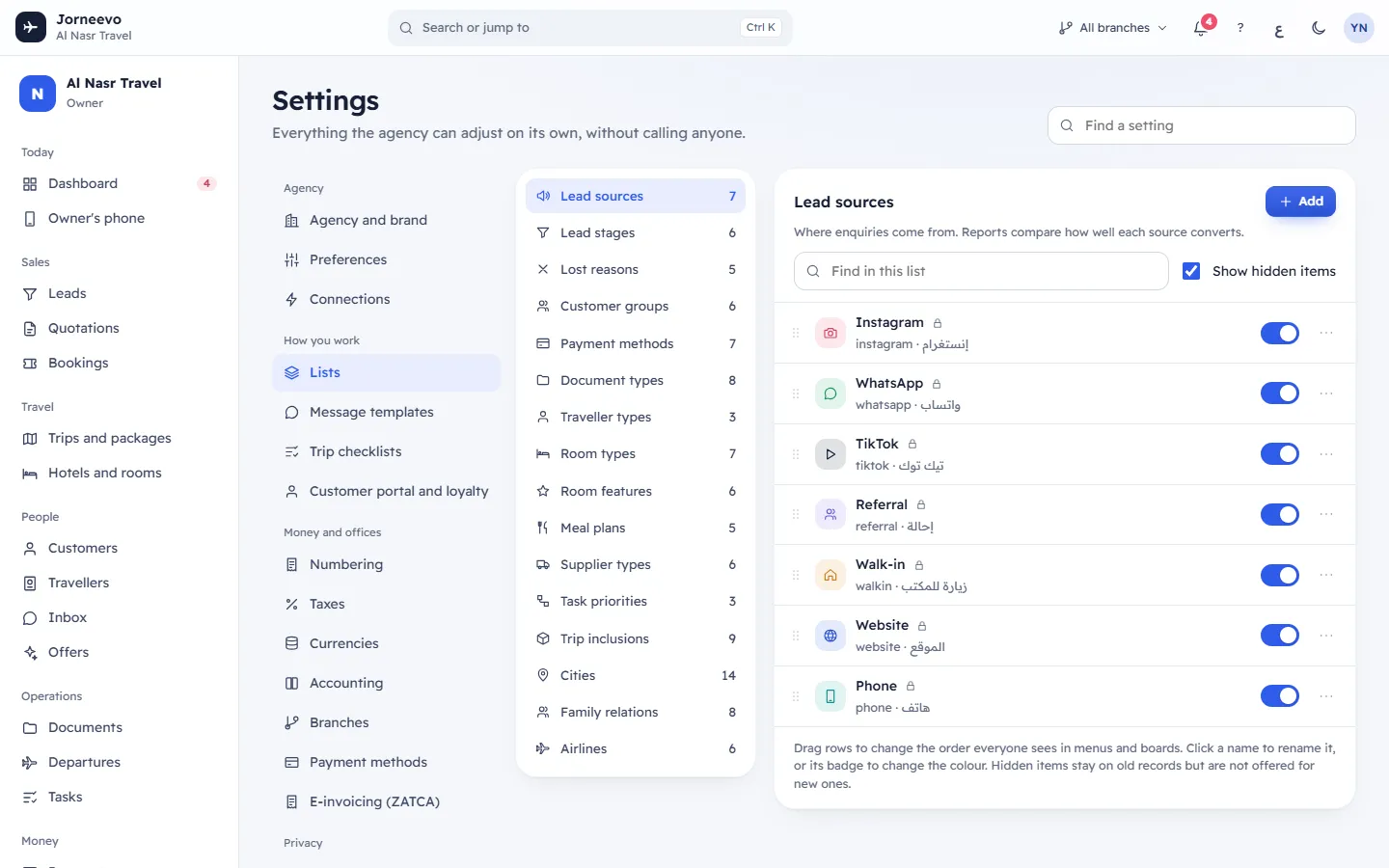
The list of lists
On the left, every list with its icon and the number of items shown in it. Settings → Lists opens Lead sources; click another list to open it. Each list has its own address, so Find a setting can take you straight to it.
| List | What it is for, and where it shows | Extra details on each item |
|---|---|---|
| Lead sources | Where enquiries come from. Reports compare how well each source converts. | — |
| Lead stages | The columns of the leads board, in order. | This stage means the customer booked |
| Lost reasons | Why a lead did not book. Helps you see what to fix. | — |
| Customer groups | Labels for customers, such as family or corporate. | — |
| Payment methods | How customers pay you. Online methods are used by payment links. | Paid online (card or payment link) |
| Document types | Documents you collect or send, such as passports, tickets and visas. | One for every traveller (off means one per booking) |
| Traveller types | Adults, children and infants: the age each type starts from and the share of the adult price it pays. | From age (0 to 120) and Share of adult price (0 to 2; 1 = full price, 0.7 = 70%) |
| Room types | Room types for hotels and packages, with how many people each one sleeps. | Short code (shown on rooming lists, e.g. DBL) and Sleeps (1 to 12) |
| Room features | Things guests ask for, such as a balcony or connecting rooms. | — |
| Meal plans | Board basis for hotel stays, such as bed and breakfast. | — |
| Supplier types | Kinds of suppliers. Profit reports group costs by these. | — |
| Task priorities | How urgent a task is. The colour shows on task lists. | — |
| Trip inclusions | What a trip or package includes, shown on quotes and the trip page. | — |
| Cities | Destinations and departure cities. The code is usually the airport code. | Country (two-letter code, e.g. BH) |
| Family relations | How a traveller is related to the customer who pays, such as spouse or child. | — |
| Airlines | Airlines you fly with. The code is the two-letter airline code. | — |
The open list
At the top: the list's name, what it is for, Add, the search box Find in this list (it looks in both names and the code) and Show hidden items (ticked by default).
Each row shows, from the start of the line:
- A grip to drag the row to another place.
- A round badge in the item's colour, with its icon if it has one. Click it to change the colour.
- The name in your screen's language. Click it to rename the item in place. A lock means the item Came with the system.
- Under the name: the code and the name in the other language.
- The extra details as small tags, for example the age a traveller type starts from, how many a room sleeps, or a tick for the stage that means the customer booked.
- A switch: Shown or Hidden. A hidden row looks faded.
- A menu with Edit, Rename here, Move up, Move down and Delete (or Archive for items that came with the system).
The note at the bottom sums it up: Drag rows to change the order everyone sees in menus and boards. Click a name to rename it, or its badge to change the colour. Hidden items stay on old records but are not offered for new ones.
An empty list shows This list is empty and Add the first item. A search with no result shows Nothing matches.
Items that came with the system and your own items
- The items that came with the system have a lock. You can rename them, recolour them, reorder them and hide them, but not delete them: Archive hides the item instead. Old records keep showing it, and you can show it again any time.
- Your own items can be deleted. Records that already use a deleted item keep its code but lose its name and colour. If you might need it for old records, hide it instead.
- The Code of an item is saved on every record that uses it. It is set when you add the item and never changes, so renaming an item is always safe.
Order, colour and hiding
- Order: drag a row, or use Move up and Move down, or focus the grip and press
↑or↓. The new order is used in every menu and board, for everyone, and New order saved appears. You cannot drag while you search in the list. - Colour: click the badge and pick a colour, or the empty circle for No colour. Colour changed appears. Colours show on boards, tags and task lists.
- Hidden items stay on the records that already use them but are not offered for new records. Hiding shows Hidden from new records; showing again shows Shown again.
Tip
Payment methods here is the same list as Settings → Payment methods, which also sets bank accounts, branches and what customers see. See Payment methods.
What you can do here
- Add, rename, recolour, reorder, hide or delete items: Add or change items in a list
- Use Task priorities in your trip checklists: Trip checklists
If something goes wrong
- This code is already in the list: another item in this list has the same code (capital letters do not count as different). Change the code.
- Use letters, numbers, - or _: the code may only have letters, numbers, dashes and underscores.
- Item not found: someone deleted the item meanwhile. The list reloads.
Related articles
- Add or change items in a listAdd a lead source, room type, city or any other list item, rename it, change its colour or order, hide it, or delete it.
- Payment methodsSet how customers can pay you: cash, bank transfer with your IBAN, cheque, card machine or online, where each method is offered and what customers see.
- Trip checklistsChecklists copied onto every new trip of a kind, so each trip gets its tasks with due dates counted back from departure.
- The Settings screenWhere the agency adjusts everything on its own: the four groups of sections, the search box that finds any setting, and how changes are saved.