Payment methods
Set how customers can pay you: cash, bank transfer with your IBAN, cheque, card machine or online, where each method is offered and what customers see.
Settings → Payment methods lists every way customers can pay you. For each method you choose its kind, the branches that offer it, the bank accounts customers transfer to, the instructions they read, and whether they can use it themselves from their trip page or account. Only people whose role can change settings open this screen.
What you see
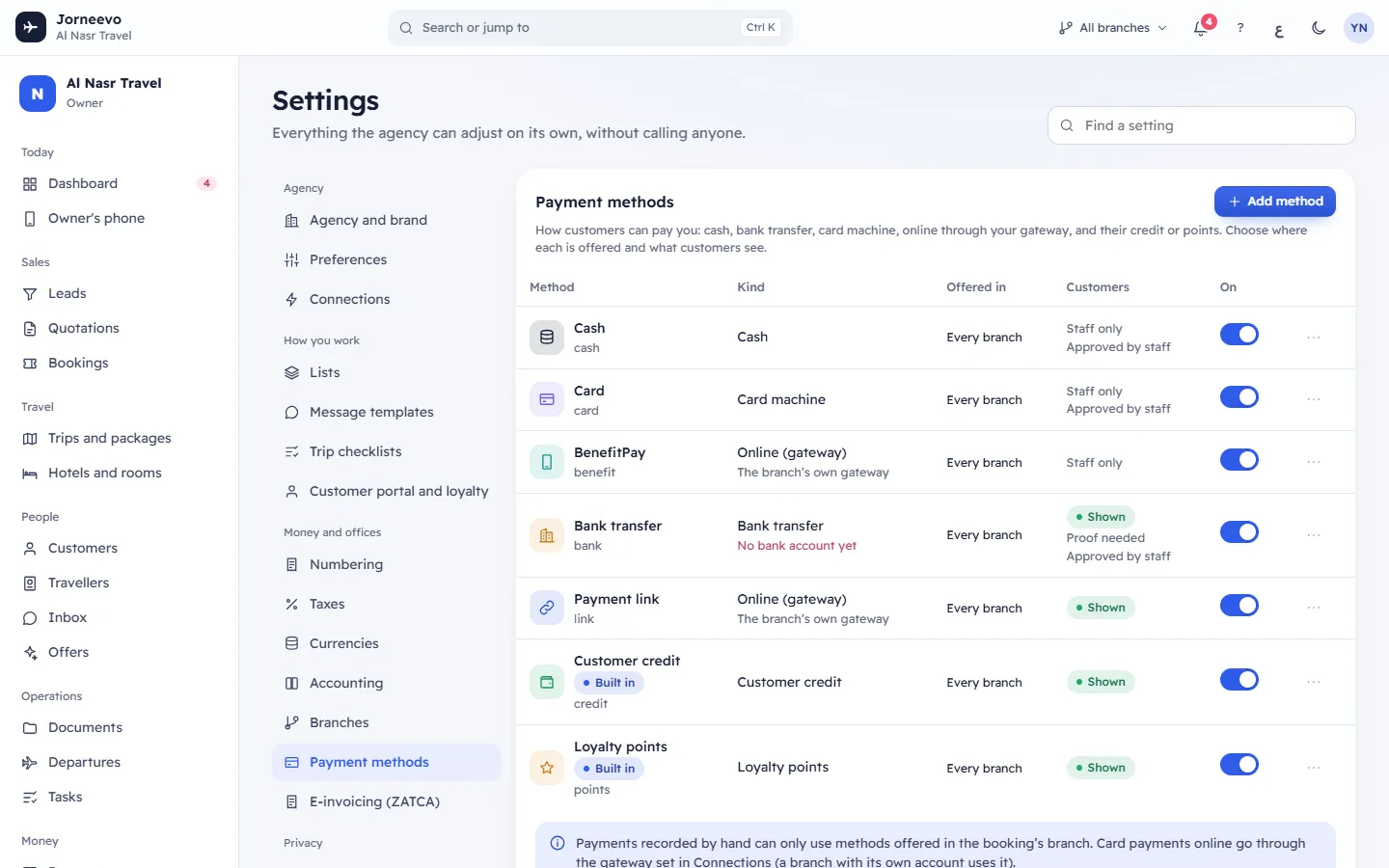
At the top, Add method. Below it, a table with one row per method. Methods that are switched off are greyed.
| Column | What it shows |
|---|---|
| Method | The name, the chip Built in for Customer credit and Loyalty points, and the method's code. |
| Kind | The kind (see below). An online method also shows its gateway, or The branch’s own gateway. A bank transfer shows how many accounts it has, or No bank account yet in red. |
| Offered in | The branches that offer it, or Every branch. |
| Customers | Shown when customers see it, or Staff only; and Proof needed and Approved by staff when set. |
| On | Switches the method on or off. |
| The row menu | Edit, and Remove for methods that are not built in. |
Under the table: payments recorded by hand can only use methods offered in the booking's branch, and card payments online go through the gateway set in Connections (a branch with its own account uses it).
When there are no methods, the screen shows No payment methods yet.
Kinds of method
| Kind | Use it for | Starts with |
|---|---|---|
| Cash | Cash at the office | Staff only, approved by staff |
| Bank transfer | Transfers to your bank account (add the account and IBAN) | Shown to customers, proof needed, approved by staff |
| Cheque | Cheques | Proof needed, approved by staff |
| Card machine | The card terminal at the office | Approved by staff |
| Online (gateway) | Card and wallet payments through your payment gateway | Shown to customers |
| Other | Anything else, such as a company account | Approved by staff |
| Customer credit | Paying from the customer's credit balance (built in) | Fixed kind |
| Loyalty points | Paying with the customer's points (built in) | Fixed kind |
Choosing a kind sets the three switches to the values above; you can change them before you save.
The method window
Add method opens New payment method; Edit opens Edit payment method.
- Name in English (required, up to 60 characters) and Name in Arabic. Receipts and screens show the name in each person's language.
- Kind. Built-in methods show their kind as a fixed chip.
- Gateway (online methods only): The booking branch’s gateway uses the branch's own account if it has one, else the agency's; or pick one of your connected gateways.
- Code (optional) (new methods only): used in exports. Letters, digits,
_and-, up to 30 characters. Left empty, it is made from the name. It cannot be changed later. - Offered in: press the branches that offer the method. None selected means Every branch.
- Bank accounts (bank transfer only): press Add account for each account customers can transfer to, up to
- Each account has Bank and Account name (both required), IBAN, SWIFT / BIC, Account number, Currency (Any or one of your branches' currencies) and Branch (Every branch or one branch). Remove deletes an account. Each account needs an IBAN or an account number. Until you add one, the window says Add the account customers transfer to.
- Instructions for customers (English) and Instructions for customers (Arabic): up to 2000 characters each, shown to customers with the method. Not for credit and points.
- Shown to customers: shown to customers in their account and on their trip page.
- Proof needed: customers attach a slip or receipt when they report a payment.
- Approved by staff: a payment reported this way waits in Payments → To confirm until a colleague approves it. Proof needed and Approved by staff are not offered for online, credit and points.
- Cancel and Save. Save stays greyed out until the English name is filled, every account has a bank and an account name, and every IBAN is valid.
After Save the message Payment method saved appears.
What you can do here
- Add a method: press Add method, fill in the window and press Save.
- Edit a method: open the row menu, press Edit, change it and press Save.
- Switch a method off or on with its On switch. The message … switched off or … switched on appears. A method that is off no longer appears anywhere for new payments; old payments keep its name.
- Remove a method: row menu → Remove, then confirm Remove …?. A method already used on payments, or one your agency started with, is switched off instead (Switched off (it is used on payments)), so old receipts keep its name. Otherwise it is deleted (Removed). Customer credit and Loyalty points cannot be removed; switch them off instead.
- Change the order: methods appear in the order of Settings → Lists → Payment methods. Drag them into the order you want there (Add or change items in a list).
Where methods appear
- Record payment (Paid by): the methods that are on, offered in the booking's branch, and paid by hand. Online methods, credit and points are not listed: online payments are recorded by themselves, and credit and points are used from the customer's balance. See Record a payment.
- New booking (Paid by, under Deposit now): the methods that are on. Choosing an online method creates a deposit payment link and copies it when you confirm.
- The customer's trip page and account: the methods with Shown to customers, offered in the booking's branch. For bank transfers and cheques customers see your instructions and the bank accounts that match the booking's branch and currency (accounts for that branch first), and can report a payment with a slip.
- Online payments through a payment link are recorded under the online method that uses that gateway (or the branch's gateway).
Tip
Give a bank account a Branch and a Currency when branches use different banks. Customers of a Saudi branch paying in SAR then see only the SAR account of that branch.
If something goes wrong
- This IBAN is not valid. Check the digits. under the IBAN: a digit is wrong or missing. The system also checks the length for the country.
- Some fields need attention with a message under the bank accounts:
- Give each bank account an IBAN or an account number.
- This IBAN is not valid. Check the country code, the length and the digits.
- A SWIFT/BIC code has 8 or 11 letters and digits.
- Enter the bank name or Enter the account name: a box is empty in one of the accounts.
- Pick a connected gateway or "the branch’s own account": the gateway chosen for the online method is unknown.
- This code is already in the list: another method uses this code. Choose another one.
- This method is built in. Switch it off instead. Credit and points cannot be removed.
- The kind of a built-in method cannot change, or Customer credit and loyalty points are built in; edit the existing ones.
- On a booking: … is switched off. Turn it on in Settings → Payment methods. or … is not offered in this booking's branch: switch the method on, or add the booking's branch to Offered in.
Related articles
- Connect a payment gatewayTake card, Apple Pay, BenefitPay, KNET and mada payments into your own merchant account: connect in test mode, make a test payment, then go live.
- Give a branch its own payment accountLet a branch take online payments into its own gateway account and currency, for example a Bahrain branch on BENEFIT and a Saudi branch on Tap.
- Record a paymentAdd a payment the customer made in cash, by card machine or by bank transfer, and send them the receipt.
- Add or change items in a listAdd a lead source, room type, city or any other list item, rename it, change its colour or order, hide it, or delete it.
- BranchesYour offices: each works by its country's currency, VAT and e-invoicing, and prints its own seller details on its invoices.