Trip checklists
Checklists copied onto every new trip of a kind, so each trip gets its tasks with due dates counted back from departure.
Trip checklists are the tasks every trip needs before it leaves: confirm the flights, collect the passports, send the rooming list. Write them once here. When a trip is created, every active checklist that matches its kind is copied onto it as tasks, each due the number of days you set before departure. Open it from Settings → Trip checklists.
What you see
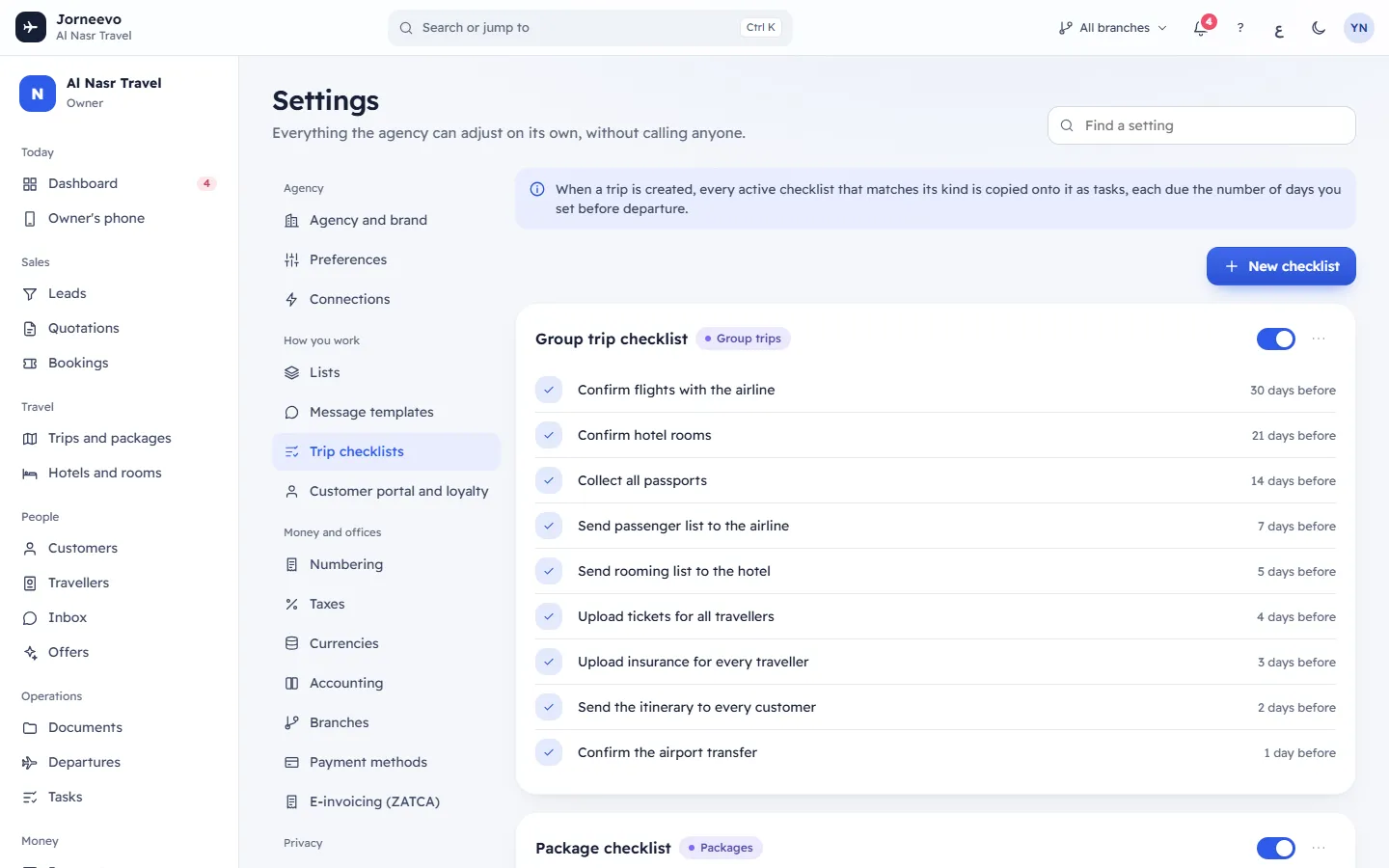
At the top, the note that explains how checklists are used, and New checklist.
Each checklist is a card:
- Its name and a tag for the trips it is used for: Every new trip, Group trips, Packages or Single services. Off shows when the checklist is turned off.
- The Active switch. It is saved at once, with Saved.
- A menu with Edit, Duplicate and Delete.
- Its items, from the earliest to the latest: the task, when it is due (for example 14 days before, or On departure day) and its priority when it is not the normal one.
With no checklist, the screen shows No checklists yet: Create one so no trip forgets the passports or the rooming list. A checklist with no items shows No items.
New agencies start with two checklists:
- Group trip checklist for group trips, with 9 tasks from 30 days to 1 day before departure: confirm flights, confirm hotel rooms, collect all passports, send the passenger list to the airline, send the rooming list to the hotel, upload tickets, upload insurance, send the itinerary to every customer and confirm the airport transfer.
- Package checklist for packages, with 4 tasks: confirm hotel rooms, collect passports, issue tickets and send documents to the customer.
The checklist editor
New checklist, Edit and Duplicate open the editor (Tasks created for each new trip):
| Field | What it means |
|---|---|
| Name in English | Required. |
| Name in Arabic | Optional. Shown on Arabic screens. |
| Used for | Every new trip, Group trips, Packages or Single services. |
| Active | Only active checklists are copied onto new trips. On by default. |
Under Items, each row is one task:
- Task in English (required for every row) and Task in Arabic.
- Days before: how many days before departure the task is due, from 0 to 365. 0 means on departure day.
- Priority: from your Task priorities list. New rows start as the normal priority.
- The arrows move a row up or down; the bin removes it.
- Add an item adds a row (due 3 days before). A new checklist starts with one row due 7 days before.
Press Save checklist. It stays off until the name and every task in English are filled in. Checklist saved confirms it. Duplicate opens a copy named with (copy) that is saved only when you press Save checklist.
How checklists reach your trips
- When a trip is created, or copied to a new date, the active checklists for Every new trip and for the trip's kind are copied onto it.
- Each item becomes a task on the trip, due that many days before its departure, with the item's priority. The tasks are not given to anyone yet: assign them on the trip or in Tasks.
- On a trip's checklist, Apply templates adds the template tasks the trip does not have yet. Tasks with the same name are never added twice.
- The tasks show on the trip's checklist and in Tasks, with the other tasks of the team.
Note
Changing or deleting a checklist does not touch trips already created: they keep their tasks. Use Apply templates on a trip to add the new tasks to it.
What you can do here
- Create a checklist for a kind of trip with New checklist.
- Turn a checklist off for a season with the Active switch, without deleting it.
- Delete a checklist: confirm Delete “…”? (Trips already created keep their tasks.). Checklist deleted appears.
- Change the priorities and their colours in Settings → Lists → Task priorities: Lists
Related articles
- ListsThe choices your team picks from in menus and boards, such as lead sources, lead stages, room types and document types, and what each list feeds.
- The Settings screenWhere the agency adjusts everything on its own: the four groups of sections, the search box that finds any setting, and how changes are saved.
- Settings questionsShort answers about settings: who can change them, missing sections, saving, finding a setting, effect on existing records, language and data export.