Create or change a role
Make a role that fits a job in your agency, switch its permissions on or off, set its discount limit, rename or delete it.
Create a role when none of the existing roles fits a job, for example a hotel coordinator who handles rooms but should not see payments. You can also change the default roles, except Owner.
Before you start
- Your role needs Manage roles.
Steps
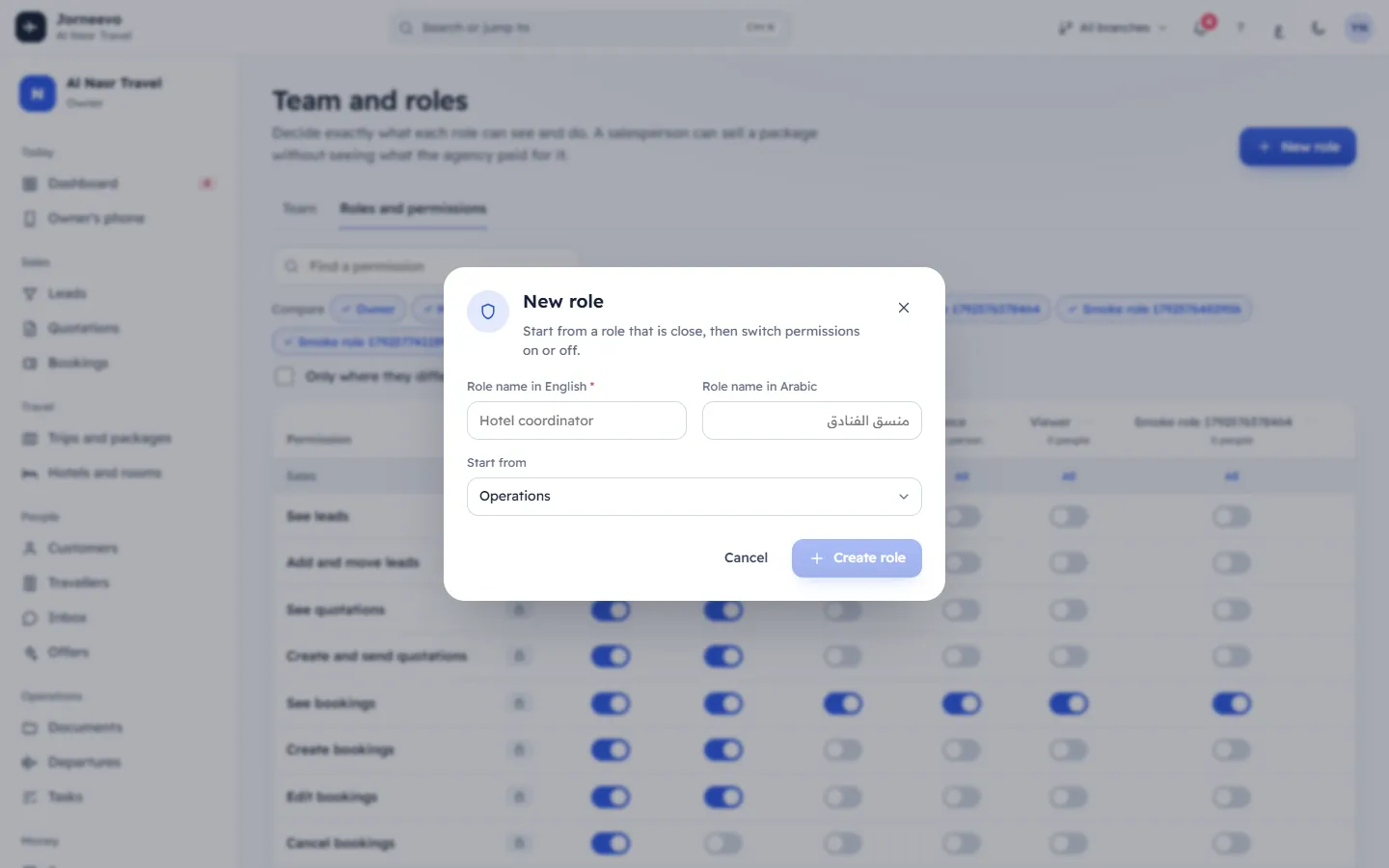
Create the role
- Open Team and roles → Roles and permissions and press New role.
- Type the Role name in English, for example Hotel coordinator. It is required.
- Type the Role name in Arabic if you want the Arabic screens to show its own name.
- Under Start from, choose the role closest to the job. It starts on Operations; each choice shows its number of permissions. Nothing (no permissions) starts empty.
- Press Create role. The message … created. Adjust its switches below. appears and a new column is added.
Choose its permissions
- Find the new role's column. To compare it with another role only, use the Compare buttons and tick Only where they differ.
- Switch each permission on or off. Each change is saved at once with Permission updated and recorded in the audit log.
- To change a whole group (for example Money), press All or None in the group's row.
- If Give discounts is on, type the highest discount in up to … % (0 to 100, as a share of the booking).
It is saved when you leave the box or press
Enter: Discount limit saved.
Give the role to people
- On the Team tab, open a person's row menu and choose Edit, or invite someone new.
- Choose the role under Role. If the role does not have See and work in every branch, choose a Branch too: it is required.
- Press Save (or Send invitation).
Rename or delete a role
- Open the menu in the role's column header.
- Choose Rename, change Name in English or Name in Arabic, and press Save: Role renamed.
- Or choose Delete role and confirm Delete the … role? with Delete: Role deleted.
After you change a role
- People with the role see the change the next time their page loads. They do not need to sign out.
- Every change is written to the audit log with who made it and when, for example Role … changed.
- The new role appears in the Role list of the invitation and edit windows.
- If you switch off See and work in every branch for a role, its people without a branch get the agency's main branch, so they keep seeing work: Branches and who sees what.
Tip
Before you give a new role to someone, compare it with the role they have now (Compare and Only where they differ) to check what they gain and lose.
If something goes wrong
- Move the … people in … to another role first: a role with people in it cannot be deleted. Give them another role on the Team tab first.
- The Owner column has no switches and no menu: the owner always has every permission, and the role cannot be renamed or deleted.
- up to … % is missing: switch Give discounts on for that role first.
- Create role is greyed out: type the English name.
Related articles
- Roles and permissions explainedWhat the six default roles can do, how a role decides what each person sees, and how discount limits work.
- Team and rolesSee everyone who works in your agency with their role, branch and status, and decide what each role can see and do.
- Change, disable or remove a team memberChange someone's role, branch or sign-in email, send them a password reset link, or stop them signing in when they leave.
- Permissions and default rolesEvery permission you can switch on or off for a role, what it unlocks, which default roles have it, and each role's discount limit.